BackOffice is where the business manages inventory, tracks sales, and runs reports. Learn what BackOffice settings are available, how employee privileges work, and how to change the BackOffice login and password.
BackOffice Settings
Settings is located on the sidebar and is split into 3 sections: Account, Store, and Register Settings.
Account Settings
Update Business Owner information, manage your plan, add or update a payment method, and view billing activity.
Store Settings
- Locations: Create new or link existing locations to be able to switch between each store’s BackOffice, view multi-location reporting, create and delete items in all linked locations, and copy one item shortcut layout to all locations.
-
Receipts and Tips: Customize paper and email receipts, and control how customers sign and tip for sales paid for with credit or gift cards.
Receipt and tip settings can also be accessed from the Retail POS (S-Series) app by the Business Owner. This feature is available for Lightspeed Retail accounts created on or after July 23, 2019.
-
Taxes: Enter the business’s default tax rate and, if needed, create additional tax rates.
Employees with the relevant BackOffice permissions can also create and apply tax rates when creating new items from the Retail POS (S-Series) app.
- Discounts: Create named discounts and manage their settings.
- Tenders: Manage which tenders are available to use at the register, including enabling optional tenders such as check, coupon, gift card, Pay by Link, and more.
- Inventory: Turn on Raw Goods for tracking item components and change the method used to calculate inventory cost.
- Email Settings: Enable or disable Sales Summary emails.
- Label Printing: Configure what prints on Lightspeed barcode labels. Add and customize descriptions, prices and currency symbols, the store name, and barcodes for labels.
-
Overtime Settings: Set up the overtime settings used for the Labor Tracking Report.
This feature is only available to select merchants.
Register Settings
- General: Enable the Table Layout, set a default home screen, enable Auto Signout, turn the customer-facing display on or off for an iPP or Link/2500 credit card reader, select a register type, and enable Guest Count.
- Register Licenses: Add, remove, or deactivate register licenses, and view each register’s name, number, and status.
- Printers: Manage the printers and printer groups used for ticket printing.
Employee Privileges
The Business Owner can access every option in the Settings menu, but other BackOffice users have limited permissions. Learn below about which options are available to each type of BackOffice user.
Available BackOffice user types will vary depending on your current pricing package. To learn more about BackOffice and register privileges, visit our Manage Staff article.
Business Owner Access
The Business Owner login is the email address originally used to create the Lightspeed Retail account. The Business Owner can view every area of BackOffice, including all options on the Settings menu:
- Manage Account
- Locations
- Receipts and Tips
- Taxes
- Discounts
- Tenders
- Inventory
- Email Settings
- Label Printing
- Overtime Settings (select merchants only)
- General
- Register Licenses
- Printers
At the register, the Business Owner can access the following BackOffice features:
- Item List
- Item Shortcuts
- Receipt and Tip Settings
Receipt and tip settings are only available at the register for accounts created on or after July 23, 2019.
The Business Owner can also sign into the Lightspeed Pocket and Lightspeed Pay mobile apps.
BackOffice Manager
BackOffice Managers are a type of BackOffice user that the Business Owner can create. BackOffice Managers can access the following settings:
- Locations*
- Taxes
- Discounts
- Tenders
- Inventory
- Label Printing
- Overtime Settings (select merchants only)
- General
- Printers
*BackOffice Managers can only view the current location. They cannot make changes, create, or link locations.
BackOffice Managers can also access:
- Reports
- Items
- Staff*
- Customers
- Marketing Dashboard
*BackOffice Managers see a limited version of the Staff List and cannot access the Sales by Location report or other multi-location features.
At the register, BackOffice Managers can access the following BackOffice features:
- Item List
- Item Shortcuts.
BackOffice Managers can also sign in to the Lightspeed Pocket and Lightspeed Pay mobile apps.
Receive Inventory users
Receive Inventory users are another type of BackOffice user that the Business Owner can create. They are able to use only specific BackOffice inventory features. Receive Inventory Users can access:
- Update Inventory – Add/Receive
Receive Inventory Users can also sign in to the Lightspeed Pay mobile app.
Custom Permissions
For BackOffice users with custom permissions, the areas of BackOffice that the employee will be able to access are chosen when adding them to the Staff List. At the register, these employees can access the Item List and Item Shortcuts setup page if they have the relevant permissions.
Employees with custom permissions can also sign into the Lightspeed Pocket and Lightspeed Pay mobile apps.
Learn about the specific permissions available for employees with custom permissions here.
Changing a BackOffice user login
A BackOffice user’s login is the email address they use to sign into BackOffice (not into the Retail POS (S-Series) app). The process to change a BackOffice login will vary based on the role of the individual user.
Business Owner Login
The Business Owner’s BackOffice login can only be changed by contacting Customer Care.
Employee Logins
Employee BackOffice logins can be changed directly from BackOffice by the Business Owner or an employee with Manage Staff and Manage BackOffice Access permissions.
-
Sign in to BackOffice as the Business Owner or as an employee with Manage Staff and Manage BackOffice Access permissions.
Learn more about customizable BackOffice permissions here.
- Follow the steps here to edit the BackOffice login information for the employee via the Staff List.
Changing a BackOffice password
Forgot your password or just want to change it? This section covers how to reset BackOffice passwords for the Business Owner and for employees.
Changing the Business Owner password
Follow the steps below to reset or change the Business Owner’s BackOffice password, which is linked to the email address used to sign up for Lightspeed Retail.
- Visit www.shopkeepapp.com.
-
Click Need help logging in?.

-
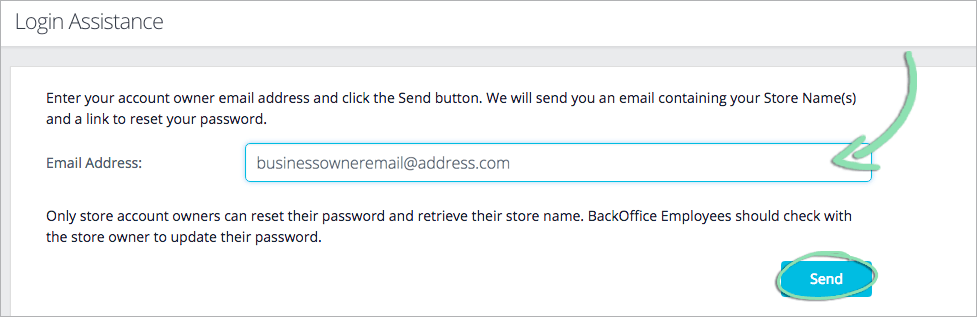
Enter the Business Owner's email address, then click Send.
-
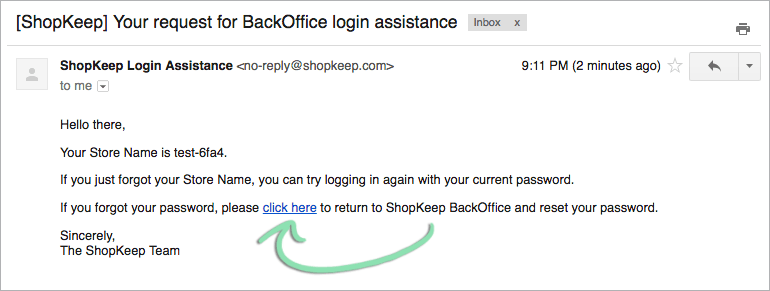
Check your inbox for a Lightspeed Retail login assistance email.
Can’t find the email? Look in your spam folder.

-
Click the link in the email to go to the password reset page.
The email also includes the store name(s) linked to that email address.
-
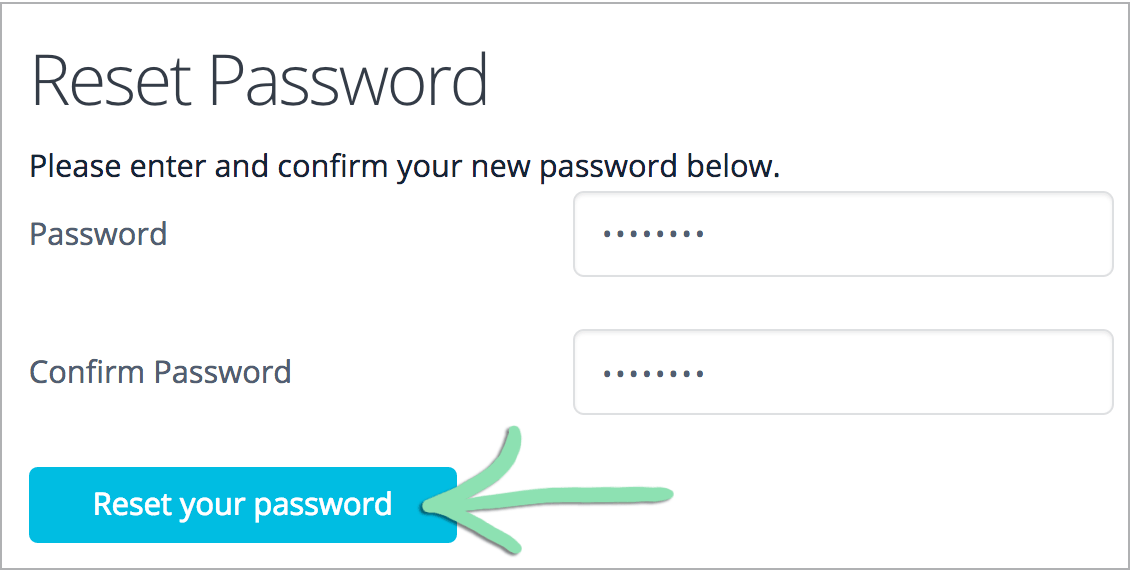
Enter a new password, then click Reset your password.
Changing an employee password
Employees cannot use the password reset page and must instead have the Business Owner or an employee with Manage Staff and Manage BackOffice Access permissions sign into BackOffice to reset their password.
-
Sign into BackOffice as the Business Owner or as an employee with Manage Staff and Manage BackOffice Access permissions.
Learn more about customizable BackOffice permissions here.
- Follow the steps here to enter a new BackOffice password for the employee via the Staff List.
Visit our BackOffice FAQ for answers to common questions about BackOffice.
For help with BackOffice Settings issues, visit our BackOffice Settings Troubleshooting guide.