Learn about the iPad, like the location of the Home button and how to download and update the Retail POS (S-Series) app.
Refer to the best practices guide to learn which iPad models are compatible with Lightspeed Retail.
iPad hardware and settings
Understand the buttons, ports, and plugs on the iPad.
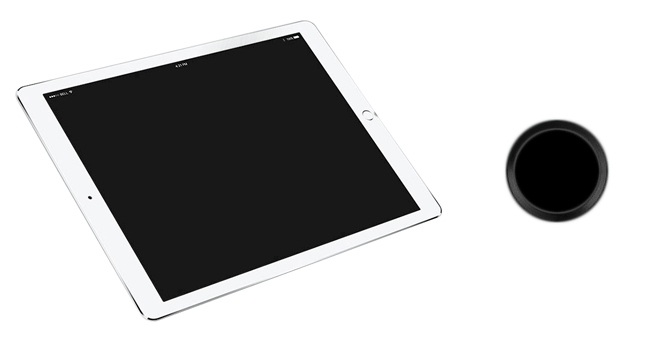
Home button
The Home button is the only physical button on the front of the iPad beside the screen. It's used to return the iPad to the main home screen with the apps. Some iPads don't have a Home button and instead use a swipe-up gesture to return to the home screen. For more information on each iPad model, visit Apple’s iPad page.
Volume controls
Volume up and down buttons are located on the side near the rear-facing camera. Some models also have a switch that mutes the iPad or locks its screen orientation.

Lightning connector
Apple’s standard cable and port for mobile devices. This connector is used with iPads, iPad Minis, some iPad Pros, and iPhones. Some iPads do not have a Lightning connector and instead use a USB-C connector. For more information on each iPad model, visit Apple’s iPad page.
Can’t find the Lightning port? Visit our iPad Troubleshooting guide for help.

Headphone jack
Located on the side opposite the Lightning port is a standard 3.5mm headphone jack that works with headphones and speakers. Some iPads do not have a headphone jack. For more information on each iPad model, visit Apple’s iPad page.

Sleep / Wake (Power) button
A flat button on the frame of the iPad. Press it to turn the screen off or on, or hold it down to power off the iPad.
Once acquainted with the iPad, visit our iPad Best Practices guide to learn how to best take care of it. Having problems? Visit our iPad Troubleshooting guide or contact Apple Support for help.
iPad settings
Control the iPad’s features and functions from the built-in Settings app.
- Connect to a Wi-Fi network.
- Pair a Bluetooth barcode scanner, card reader, or printer.
- Manage Retail POS (S-Series) app settings.
- Customize text size.
- Configure privacy controls, notifications, and other iPad settings
Connecting to a Network
Connect the iPad to your network wirelessly via Wi-Fi or physically with an Ethernet adapter and cable to download Lightspeed, sync transactions to BackOffice, and run credit cards.
If you're using the iDynamo credit card reader, you must connect the iPad to your network via Wi-Fi.
Connecting via Wi-Fi
-
In the Settings app, tap Wi-Fi to display a list of nearby networks.

-
Select your network.

-
Enter the network’s password and tap Join.

A check mark will display to indicate the iPad is connected.

Connecting via Ethernet
-
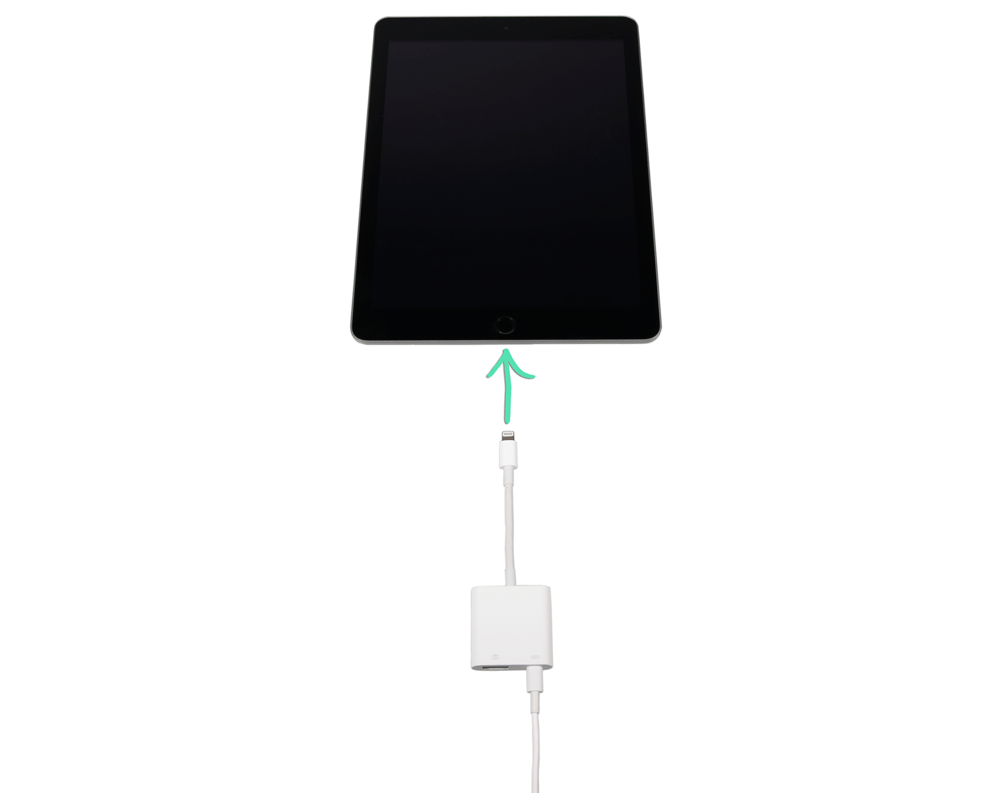
Plug a Lightning cable into the Lightning to USB Adapter.

-
Plug the USB end of the Lightning cable into the iPad’s power adapter.
Be sure to use the power adapter that came with the iPad. Other adapters may not provide enough energy to charge the device.
- Plug the power adapter into a power outlet.
-
Connect the Lightning to USB Adapter to the iPad’s charging port.
-
Connect the USB Ethernet Adapter to the Lightning to USB Adapter.

-
Plug an Ethernet cable into the USB Ethernet Adapter and the other end into your router.

In the Settings app, Ethernet will display to indicate the adapter is properly connected.

Adjusting text size settings
From the Settings app, increase or decrease the size of text on your iPad to make it easier to read in apps that support Dynamic Type. In the Retail POS (S-Series) app, this affects the font size used on item shortcuts.
-
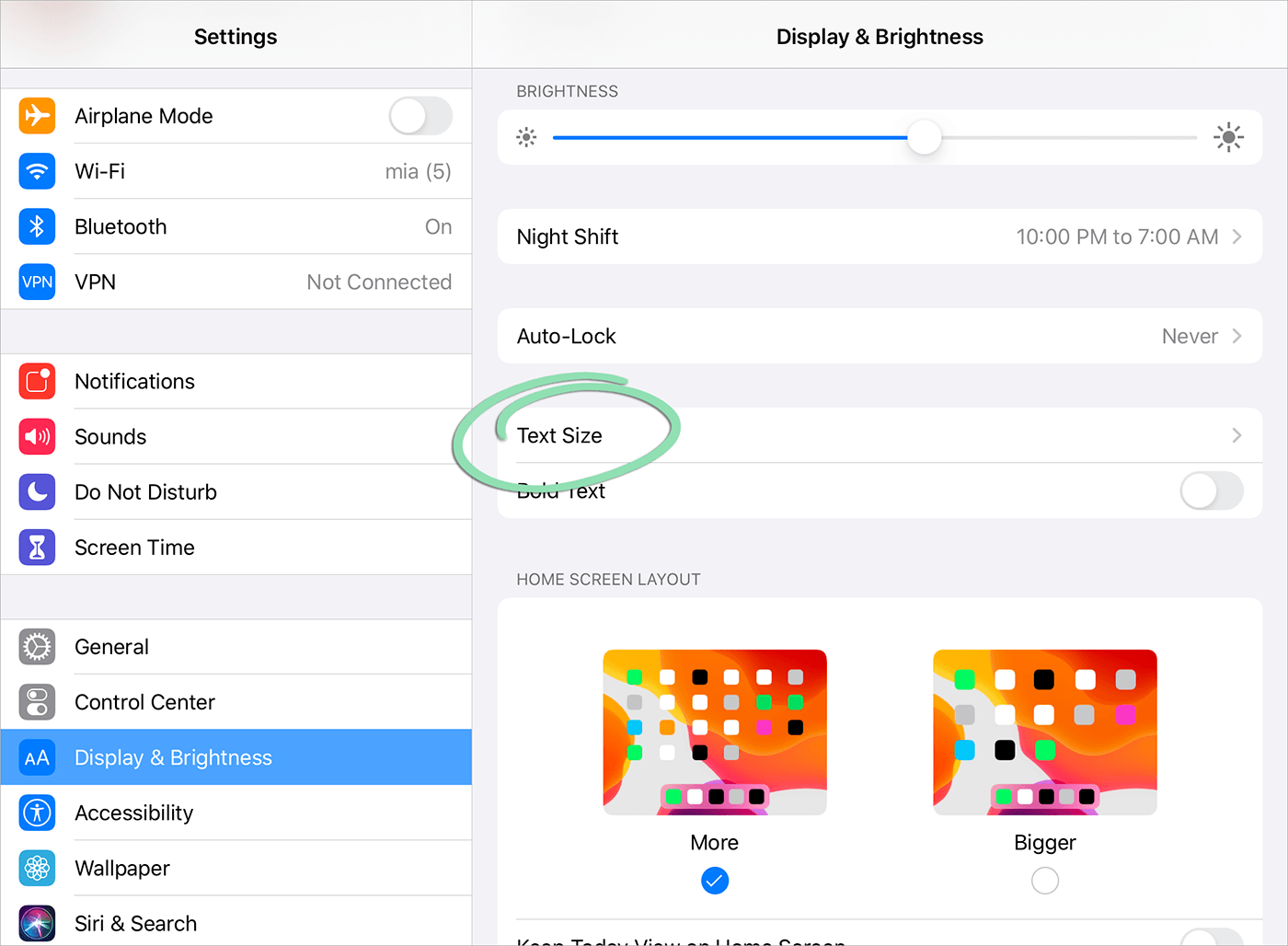
In the Settings app, tap Display & Brightness.

-
Select Text Size.
-
Use the slider to adjust text to the desired size.

iPad Apps
Apps are software that run on the iPad and allow it to perform various functions.
Apple’s App Store
The App Store is where apps can be downloaded and updated. Using the App Store requires an Apple ID.
Retail POS (S-Series) App
The Retail POS (S-Series) app is your register. Ring up customers, process returns, clock in and out, and lots more. Learn what’s new in the latest version by reading our Retail POS (S-Series) App for iOS Release Notes.

Lightspeed Pocket (S) App
Use Lightspeed Pocket (S) to check up on how the business is doing in real time from an iOS or Android device. Access sales totals, review individual transactions, and more.

Downloading the Retail POS (S-Series) App
Browse the App Store to download apps, such as the Retail POS (S-Series) app or Lightspeed Pocket (S), to the iPad.
Downloading apps requires an Apple ID. Don’t have an Apple ID? Visit Apple Support to learn how to set one up.
-
Open the App Store.
-
Tap Search.

-
Type Lightspeed Retail in the search bar, then select Lightspeed Retail POS.

-
Tap Get next to Lightspeed Retail POS (S).
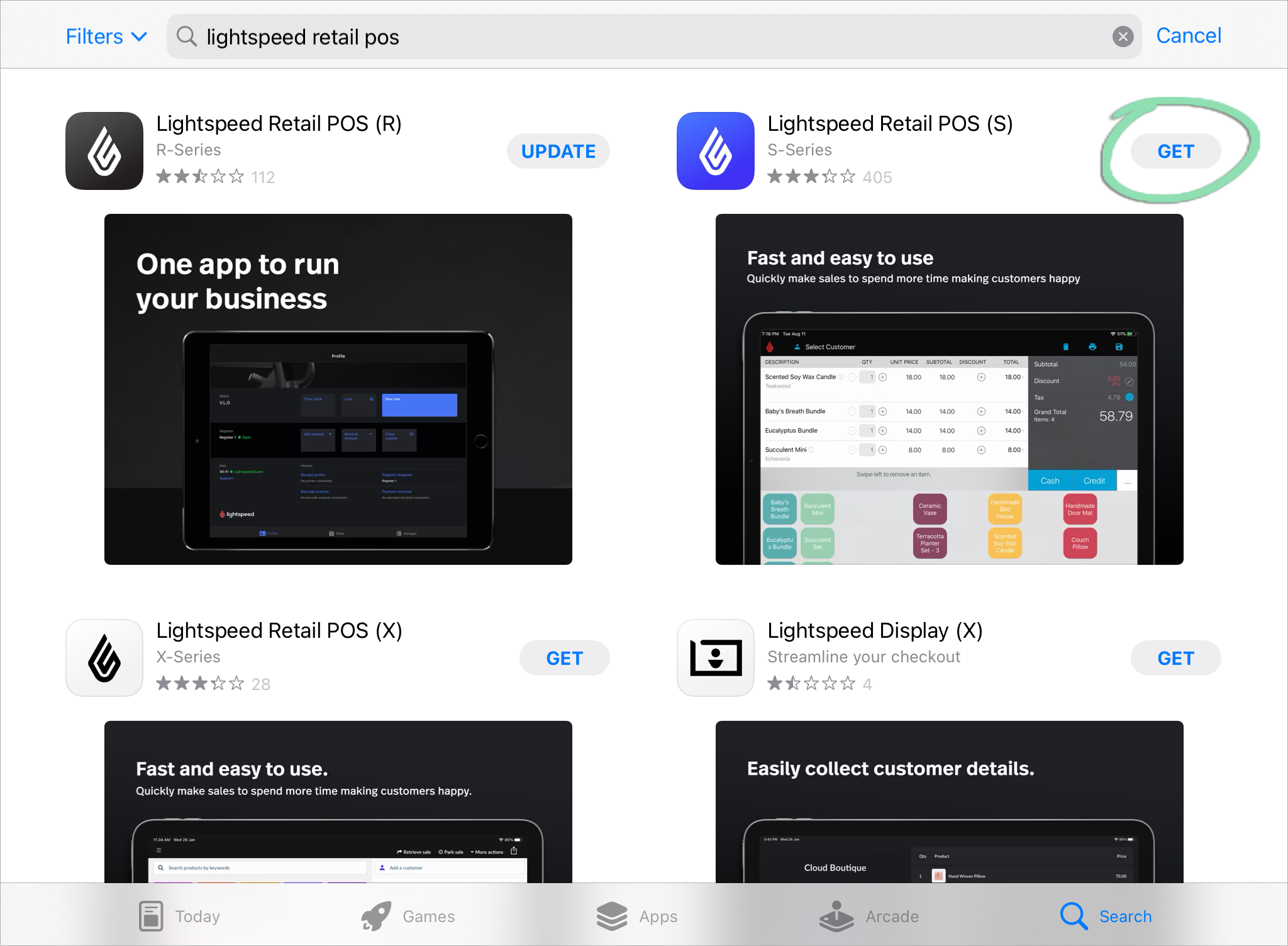
- Then select Install (if necessary) to download the app.

- If prompted, use Face ID, Touch ID, or your Apple ID password to authorize the download. Depending on your Internet speed, the app will download in a few moments. For help using Touch ID or Face ID, visit Apple Support.
-
If you see an age-related restriction or verification screen, and you're prompted to confirm your age, follow the instructions in the App Store settings. Access is restricted for users under the legal age in their region. If you still can't access the app, refer to the Troubleshooting your iPad and the Retail POS app guide.
Age verification is legally required in some regions to access Lightspeed mobile applications. You must verify your age through the App Store or Google Play Store.
- When the download finishes, open the app.
-
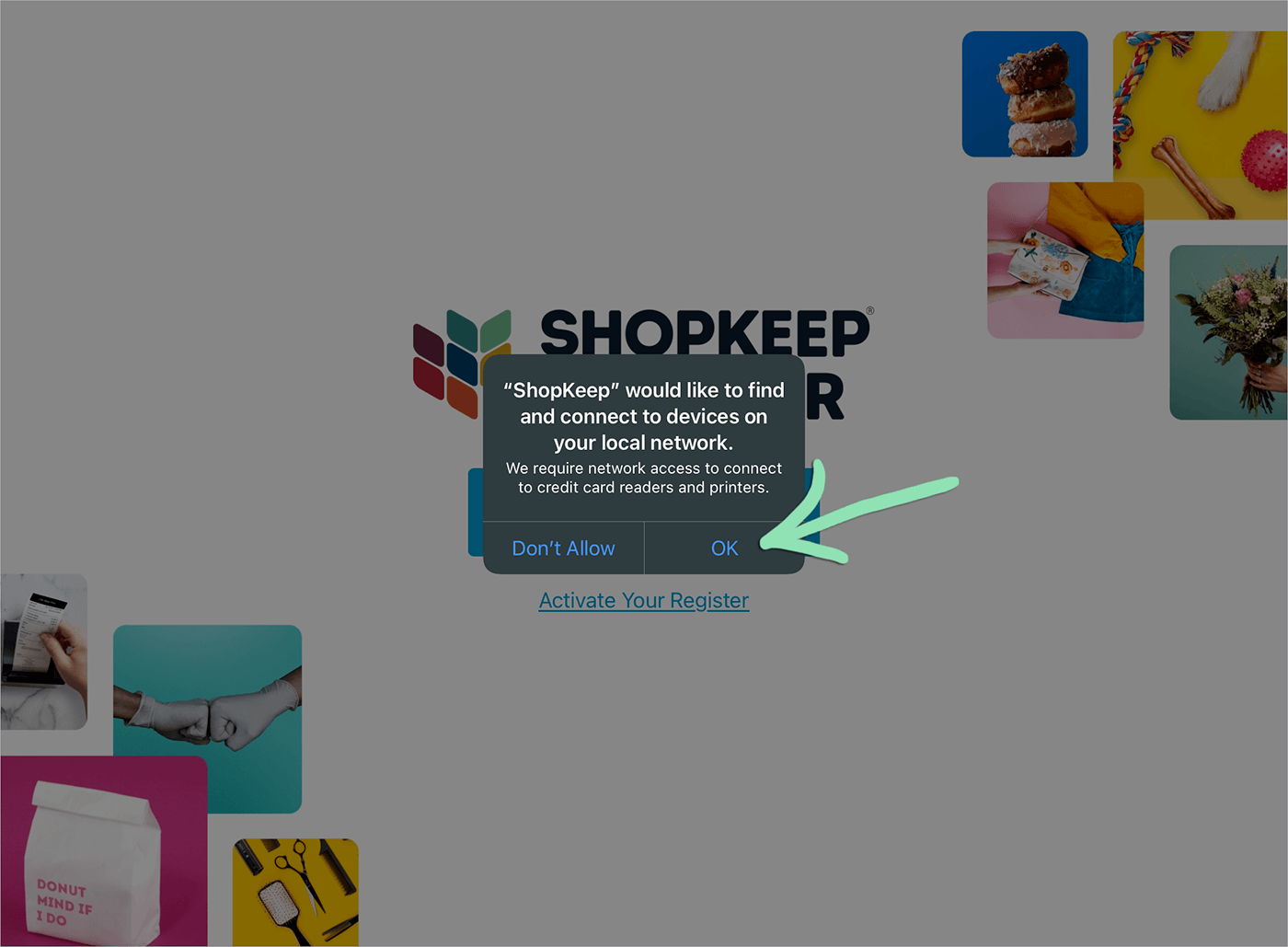
In the Retail POS (S-Series) app, tap OK on each prompt to allow access to local network devices and Bluetooth for Lightspeed Retail.
Local network and/or Bluetooth access is required for most printers, credit card readers, and barcode scanners to connect to the Retail POS (S-Series) app. Access can be disabled or re-enabled at any time from the Settings app.

-
Follow the steps to activate the register on an existing Lightspeed Retail account.
If you're downloading Lightspeed Pocket (S) or Lightspeed Pay (S), visit the relevant article listed below to learn how to sign into the app:
For answers to questions about setting up a register, visit our Setup FAQ.
Verifying your age
You may receive an age verification message or an access restriction when you open the Retail POS mobile app. If so, you will be required to confirm your age in the App Store or Google App Store before gaining access to the Retail POS mobile app.
Your access to Lightspeed’s mobile apps will be restricted if you do not meet the legal minimum age and access requirements as per your region.
If you receive an age-related restriction or verification screen:
- Make sure you're signed in to the correct Apple App Store or Google Play account on your device.
- If you're prompted to confirm your age, follow the instructions in the App Store or Google Play settings.
- If you still can't access the app, contact Lightspeed Support.
- If you need help after seeing an age verification or restricted access screen, contact Lightspeed
- Support through your usual support channel.
If you reach out to support, include the following details:
- The name of the app you were using
- Whether you were on an Apple or Android device
- A screenshot of the message you received.
- Whether you were connected to the internet.
- Whether updating the app changed the result.
Updating the Retail POS (S-Series) App
Retail POS (S-Series) software updates deliver new features, bug fixes, and more reliable performance to the Register app. For the best experience, update the Retail POS (S-Series) app whenever a new version is released.
For help updating iOS, the iPad’s operating system, visit the Updating iOS article instead.
Before updating the Retail POS (S-Series) app:
- Do not delete the app.
- Make sure auto-updates are turned off on the iPad.
- Close any open register shifts.
- Perform updates during non-business hours.
To update the app:
-
Open the App Store.
-
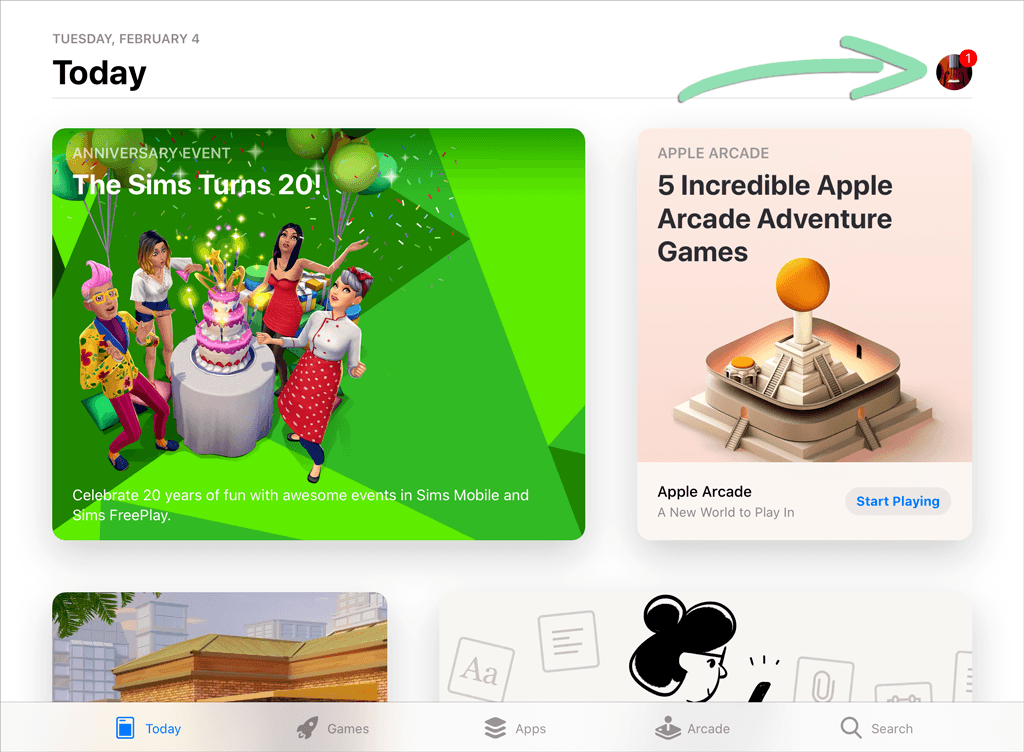
Tap your profile icon.
-
Under Available Updates, tap Update next to the Lightspeed Retail POS (S) app.
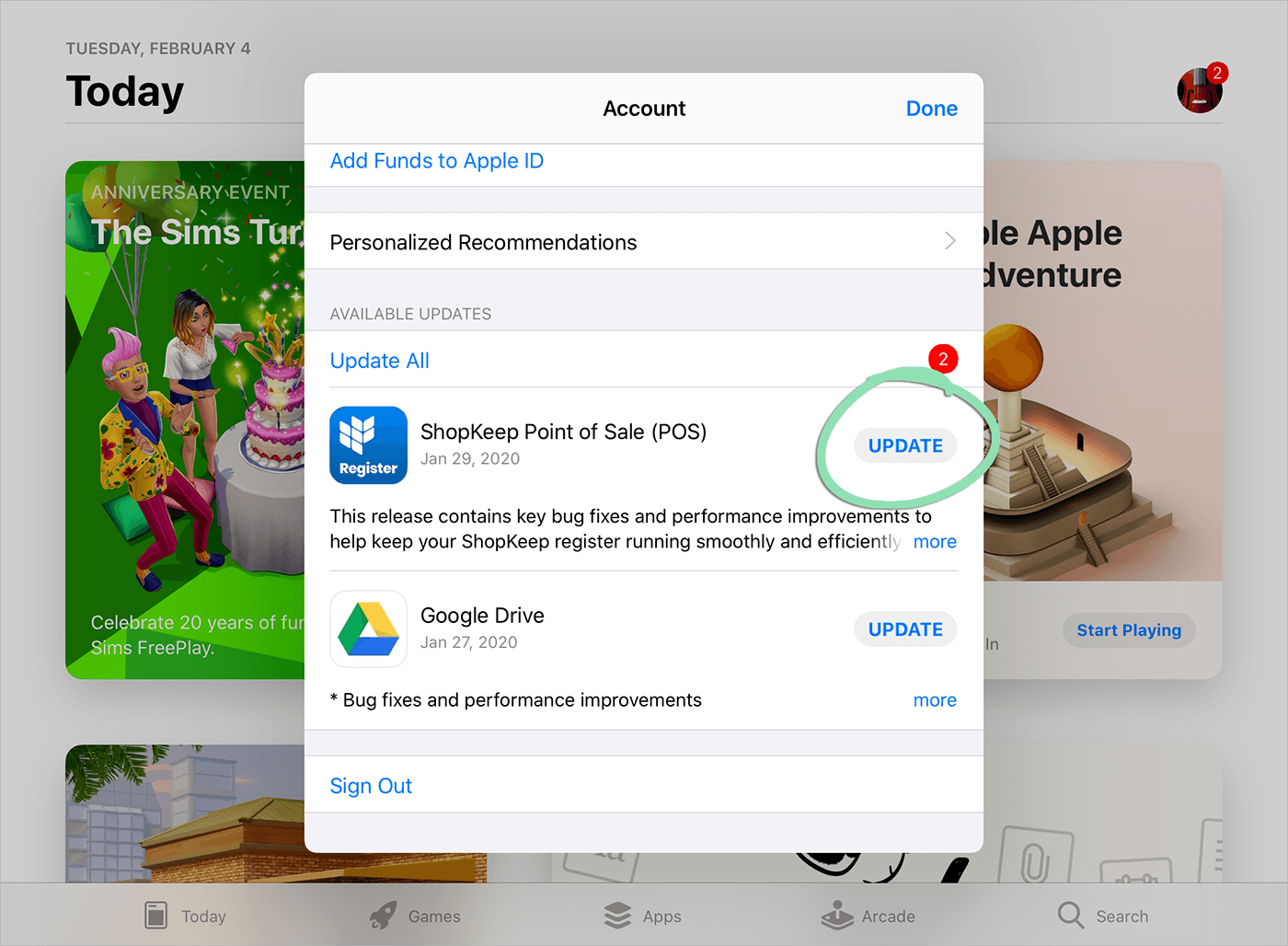
- After the update has downloaded, open Retail POS (S-Series).
-
Wait for the register to update its database.
Update times vary based on internet speed, number of inventory items, and number of customers. The larger the register database, the longer updating will take. In some cases, updating the Retail POS (S-Series) app can take 10 minutes or more to finish after downloading. Once the update is complete, the sign-in screen will display.
