Tenders are the payment methods customers use, such as cash, credit, deposit, and gift cards. Manage tender settings to accept a variety of payment types at the register in addition to the default options.
Understanding tender types
Standard, Additional, and Redeemable tenders categorize all accepted payment methods and liability tenders accepted at the register. Learn below about the tenders included in each group.
These tenders are used for reporting purposes only and may not represent integrations with Lightspeed Retail. Payment must be processed separately outside of the register for external tenders, eCommerce, and Mobile Payment.
Standard Tenders
Standard tenders are the most commonly used payment methods.
- Cash: Use to accept physical cash into a cash drawer.
- Credit: Use to accept credit and debit cards with integrated credit card processing.
-
Other: Use to accept any alternative forms of payment not listed on this page.
Lightspeed eCom (E) orders paid online and processed at the register and supported orders marked Paid in the eCommerce Dashboard will appear in reporting as being tendered to eCommerce (if enabled) or Other (if eCommerce is not enabled). When invoice reporting is enabled, paid invoices will appear in reporting as being paid with Other.
Additional Tenders
Additional tenders are payment methods, such as checks or mobile payments, that are not standard or redeemable tenders.
- Check: Use to accept personal checks.
- Coupon: Use to accept a coupon without affecting sales tax on a sale.
-
eCommerce: Use to manually record online sales if not using Lightspeed eCom (E) or legacy BigCommerce integration.
Lightspeed eCom (E) orders paid online and processed at the register and supported orders marked Paid in the eCommerce Dashboard will appear in reporting as being tendered to eCommerce (if enabled) or Other (if not enabled).
- External: Use to record credit, debit, or EBT card payments run through an external terminal. External tenders available include Amex, Credit, Debit, EBT, and V/MC/Dsc.
- Mobile Payment: Use to record payments accepted through an external mobile app.
-
Pay by Link: Use to send customers a link they can visit to pay for a sale from their own device.
This is only available to merchants who have signed up for online and mobile payments and are using the Retail POS (S-Series) app for iOS with Saved Sales Sync enabled. To learn how to use this tender, visit our Pay by Link article.
Redeemable Tenders
Redeemable tenders are for liabilities like deposits, gift cards, or gift certificates and must be set up with a liability item used for issuing the liability to customers.
- Deposit: Use deposits to accept refundable, partially refundable, and/or non-refundable prepayments.
- Gift Card: Use to accept Integrated Gift Cards as payment.
- Gift Certificate: Use to accept gift certificates as payment. Gift certificates don't integrate with Lightspeed Retail, and individual balances must be tracked manually.
Setting active tenders
In BackOffice, select standard, additional and redeemable tenders to enable them for use at the register.
-
In BackOffice, click Settings and select Tenders.
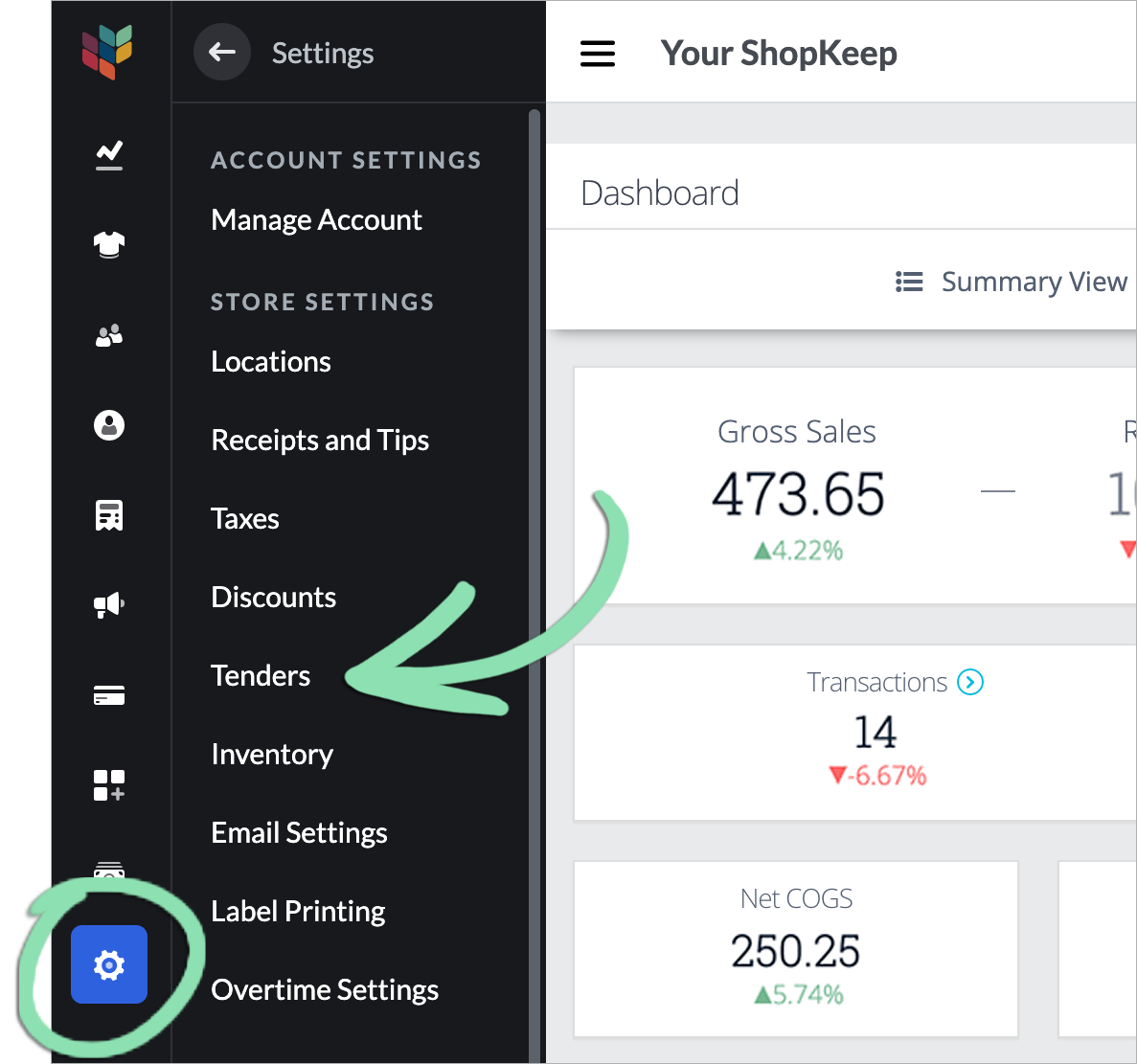
-
Tap the checkbox next to a tender to enable or disable it.

-
Get updates on the iOS register to sync the changes to the register.
If you receive an error while getting updates, visit our troubleshooting guide for help.
Using tenders at the register
Select a tender to complete a sale at the register and properly record the payment method in sales reporting.
-
Ring up a sale.
Visit our Running Sales at the Register article for more information.

-
Tap ... and select a tender, or tap a default tender.
- If enabled, Cash and Credit take priority as default tenders on the sale screen.
- After selecting Split Tender, Gift Card, or Pay by Link, additional steps are required to complete the sale. For help finishing one of these transactions, visit the article for that specific feature.
- Don’t see a tender on the register? Visit our troubleshooting guide for help.

To split payment between multiple tenders, tap … and select Split Tender.
When performing a return, if the original tender used to complete the sale has been disabled, that tender will not be available to return to.
-
Select a receipt option and tap Done, or tap No Receipt.


-
(Optional) Process payment for the sale through an external terminal or app.
This is required for: eCommerce, External Amex, External Credit, External Debit, External EBT, External V/MC/Dsc, and Mobile Payment.
Reporting with tenders
Track the total revenue coming in from each tender using the Dashboard in BackOffice.
-
In BackOffice, click Reports and select Dashboard.

-
Select a date range.

-
Click Summary View.

-
View the report in a new tab.
The Summary View shows the total amount received from each tender.

To view the tenders used for individual transactions, use the Transactions Table. Visit the Transactions Table support article to learn more.