This feature is only available for Lightspeed Retail merchants on select pricing packages.
Lightspeed eCom (E): Advanced Topics
After your Lightspeed eCom (E) Integration is set up, learn how to manage, market, and grow your online webstore. Organize products into categories, control where you ship orders, offer discount coupons, set up your store on an existing domain or WordPress site, customize emailed order notifications, advertise and sell products on sites like Facebook and Amazon, and offer webstore gift cards to online customers.
Product Categories
Assign products to categories in Lightspeed eCom (E) to help customers navigate the online store. Customers can click a category to view the products contained in it, allowing them to quickly find what they are looking for.
Not sure what type of categories to set up? Visit the Departments and Categories page in BackOffice to use your BackOffice department and category assignments as a guide.
- From the eCommerce Dashboard, click 'Catalog' and select 'Categories'.

- Click 'Add Root Category'.
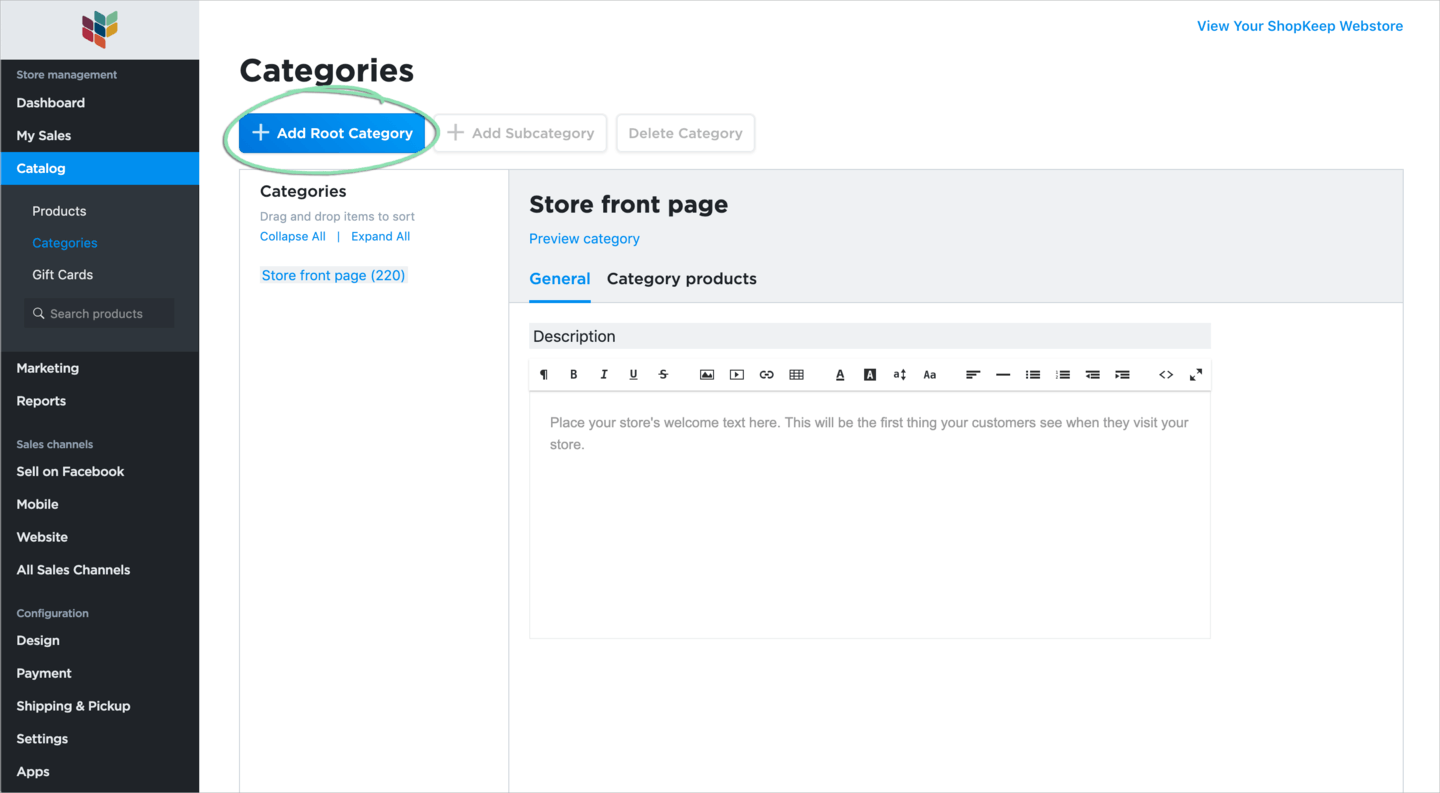
- Enter a 'Name'.
This name, the image from step 4, and the description from step 5 are customer-facing and will appear in your online store.
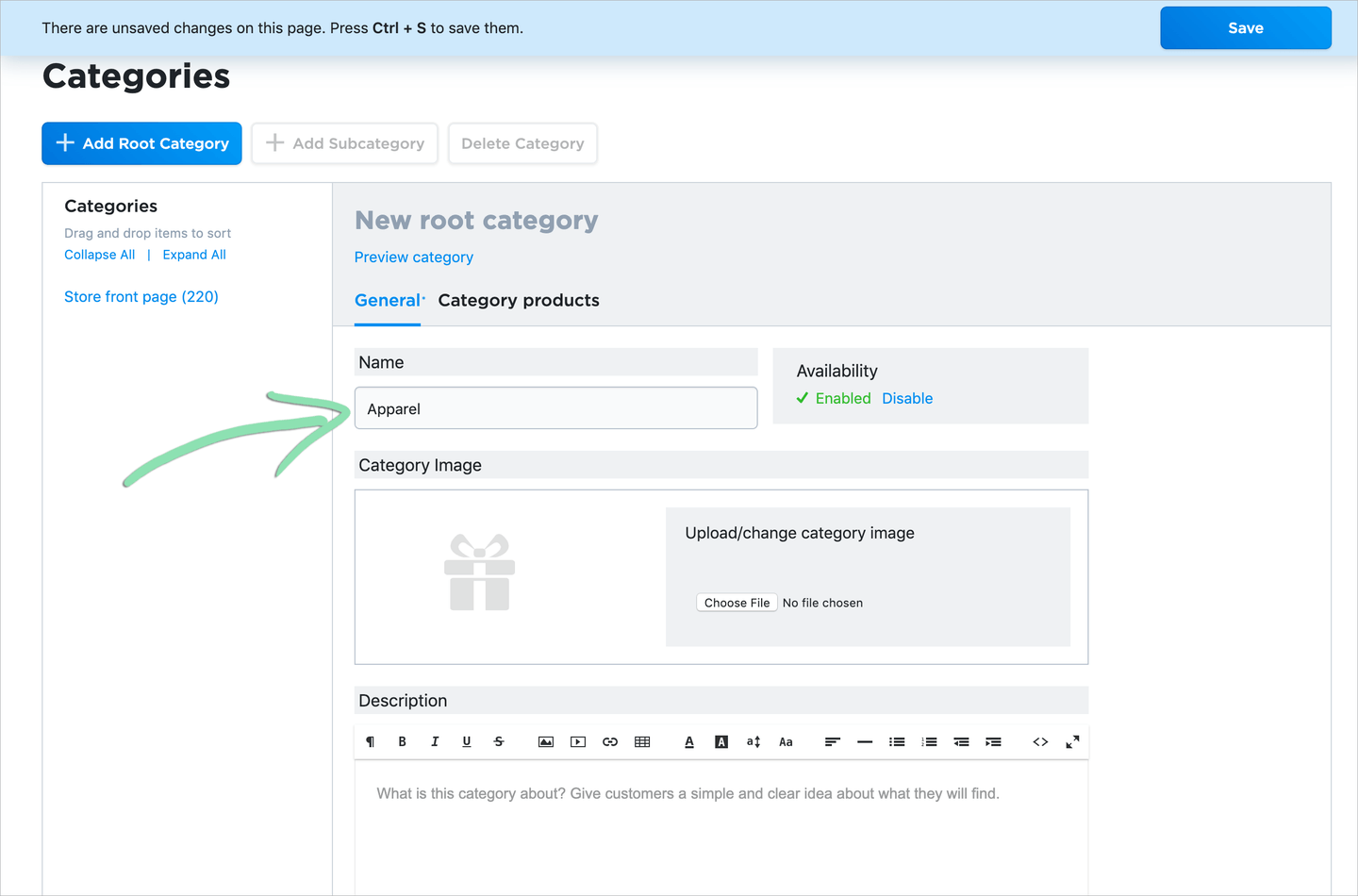
- (Optional) Click 'Choose File' to upload a category image.

- (Optional) Enter a 'Description' of the category.

- Click 'Save'.
- Click 'Category Products', then select 'Assign Products to Category'.
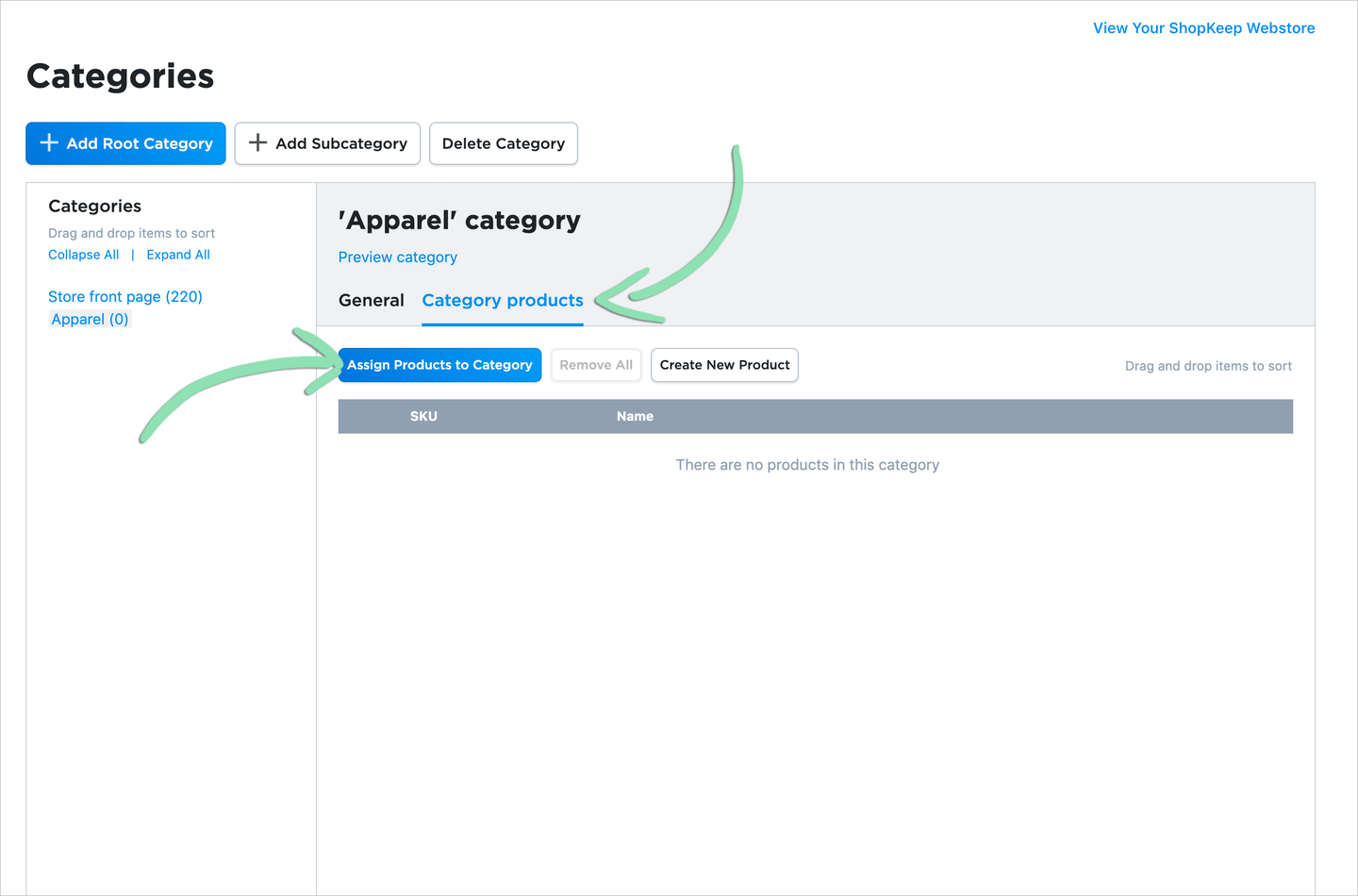
- Select products to assign to the category, then click 'Assign Products'.

Categories appear on the front page of the online store. Customers can click a category to view the products contained in it.

Learn how to create subcategories, change the order in which categories appear, and learn about other ways to manage categories here.
Manage Shipping Regions
Set up a destination zone to restrict the regions to which the business will ship or deliver orders and control which shipping methods apply to each region.
If you ship to all 50 US states or to all of the US and Canada, skip steps 1 – 5 as these destination zones are set up by default for all online stores.
- From the eCommerce Dashboard, click 'Shipping & Pickup' and select 'Zones'.

- Click 'Add New Zone'.

- Enter a 'Name' for the zone.
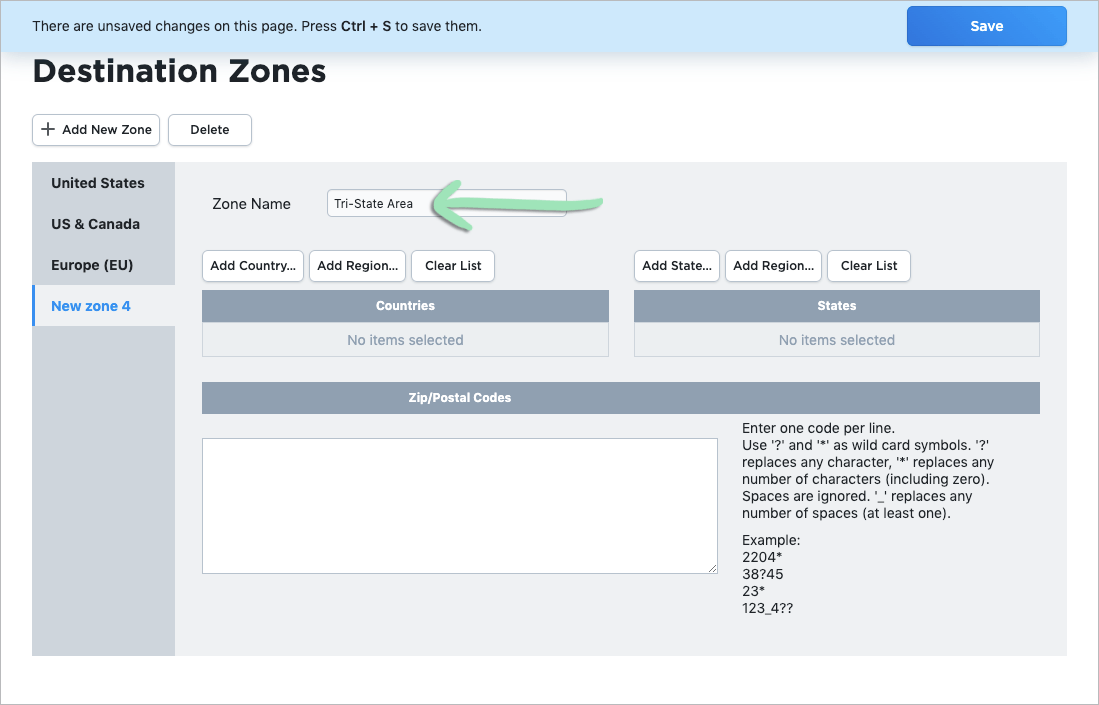
- Use the 'Add Country', 'Add Region', and 'Add State' buttons to add the countries, regions, and/or states to which you are able to ship or deliver.
Only ship or deliver to specific ZIP or postal codes? Enter those in the ‘Zip/Postal Codes’ field, one per line.
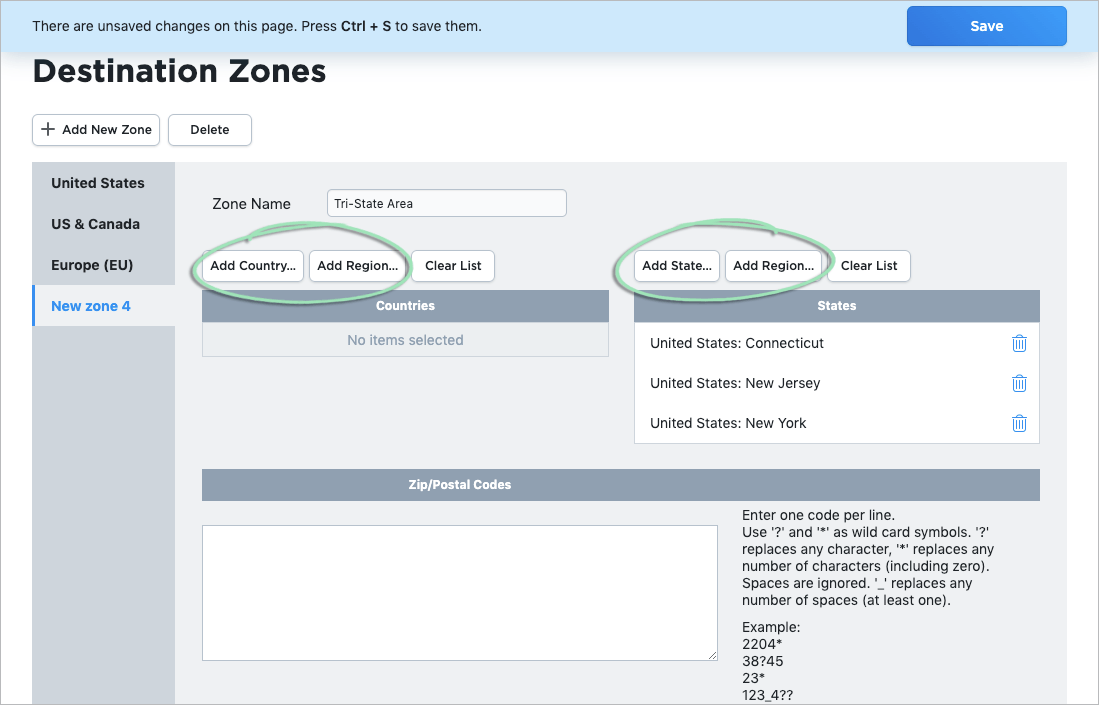
- Click 'Save'.
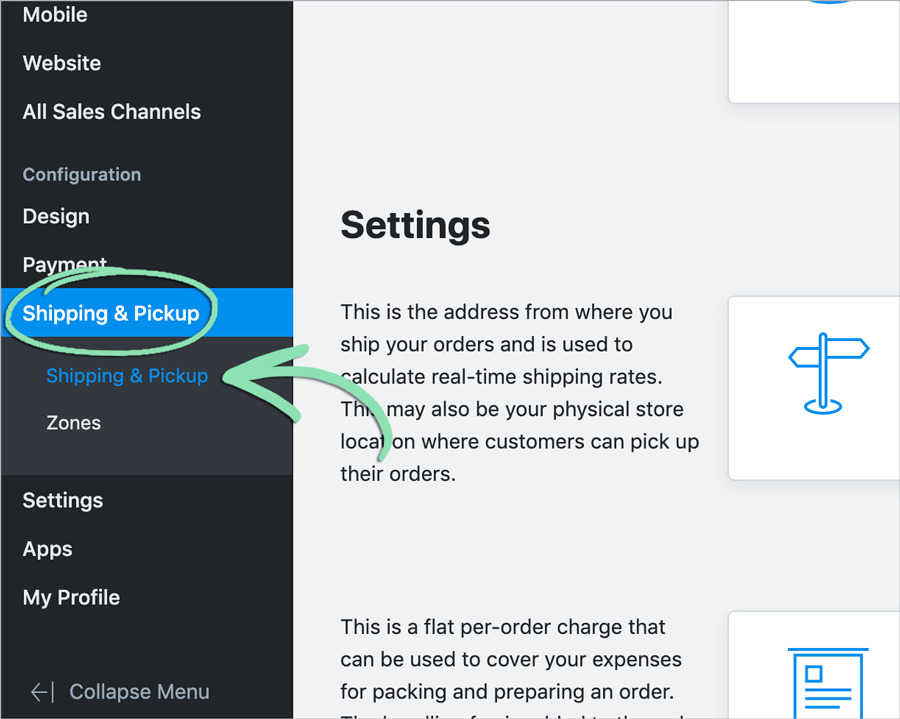
- From the eCommerce Dashboard, click 'Shipping & Pickup' and select 'Shipping & Pickup'.
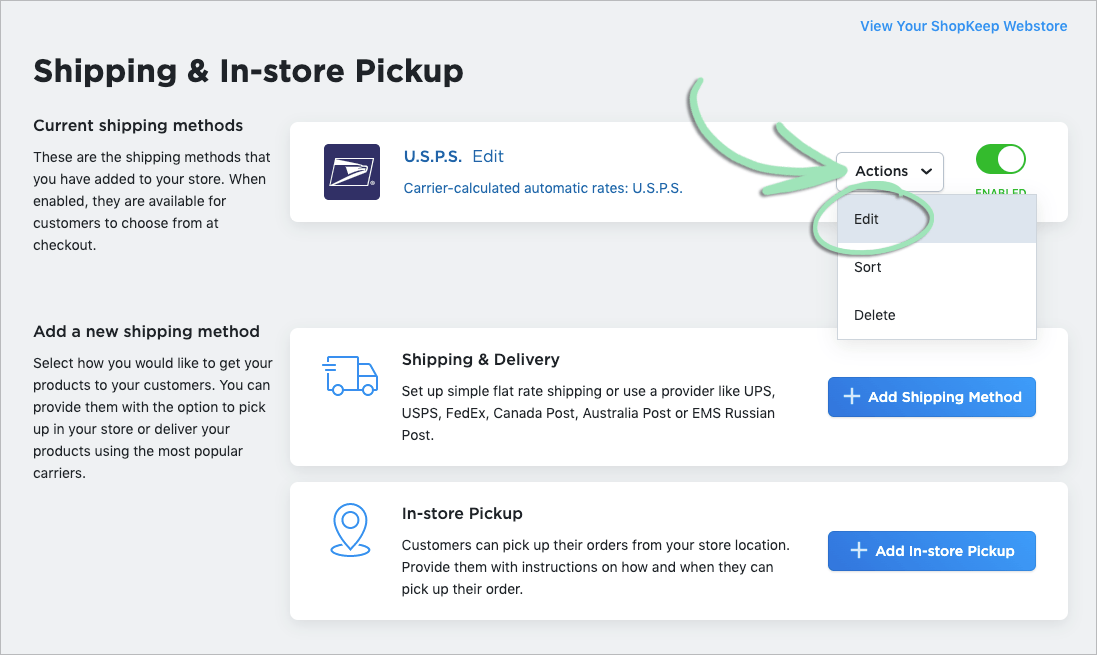
- Click 'Actions' and select 'Edit' for an existing shipping method.
For help setting up shipping methods, visit our Lightspeed eCom (E) setup article.
- From the 'Shipping Region' drop-down, select the destination zone you are able to ship or deliver to for the selected shipping method.
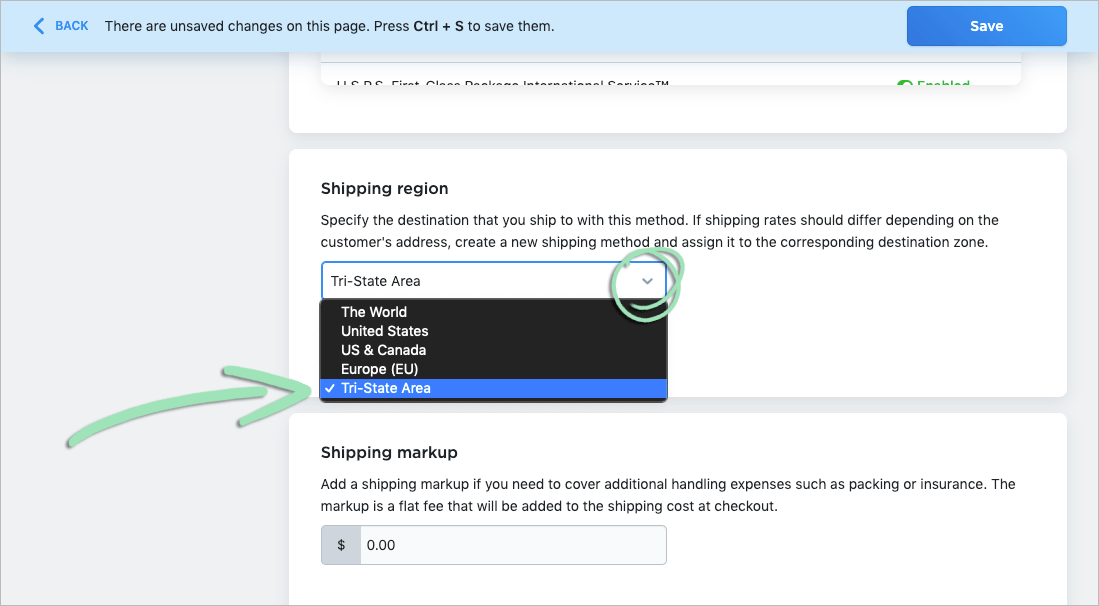
- Click 'Save'.
- (Optional) Repeat steps 1 - 9 as needed to restrict shipping regions for other shipping methods.
Need additional help? Learn more about managing destination zones and shipping methods here.
Online Discount Coupons
Increase sales and build customer loyalty by offering Discount Coupons in Lightspeed eCom (E) for your online store. Customers can enter a coupon code at checkout to get a discount on their purchase. Learn how to add Discount Coupons to your store below.
- From the eCommerce Dashboard, click ‘Marketing’ and select ‘Discount Coupons’.
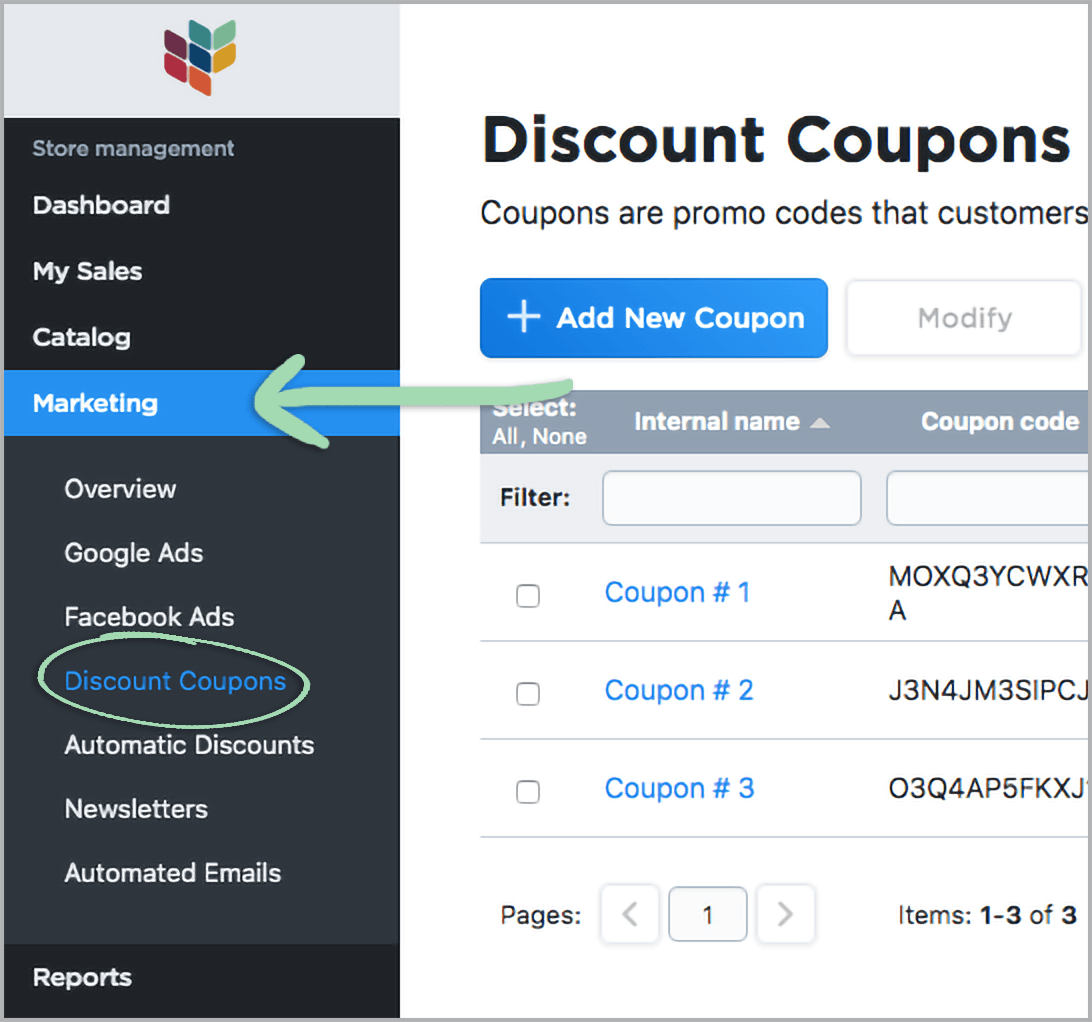
- Click ‘Add New Coupon’.

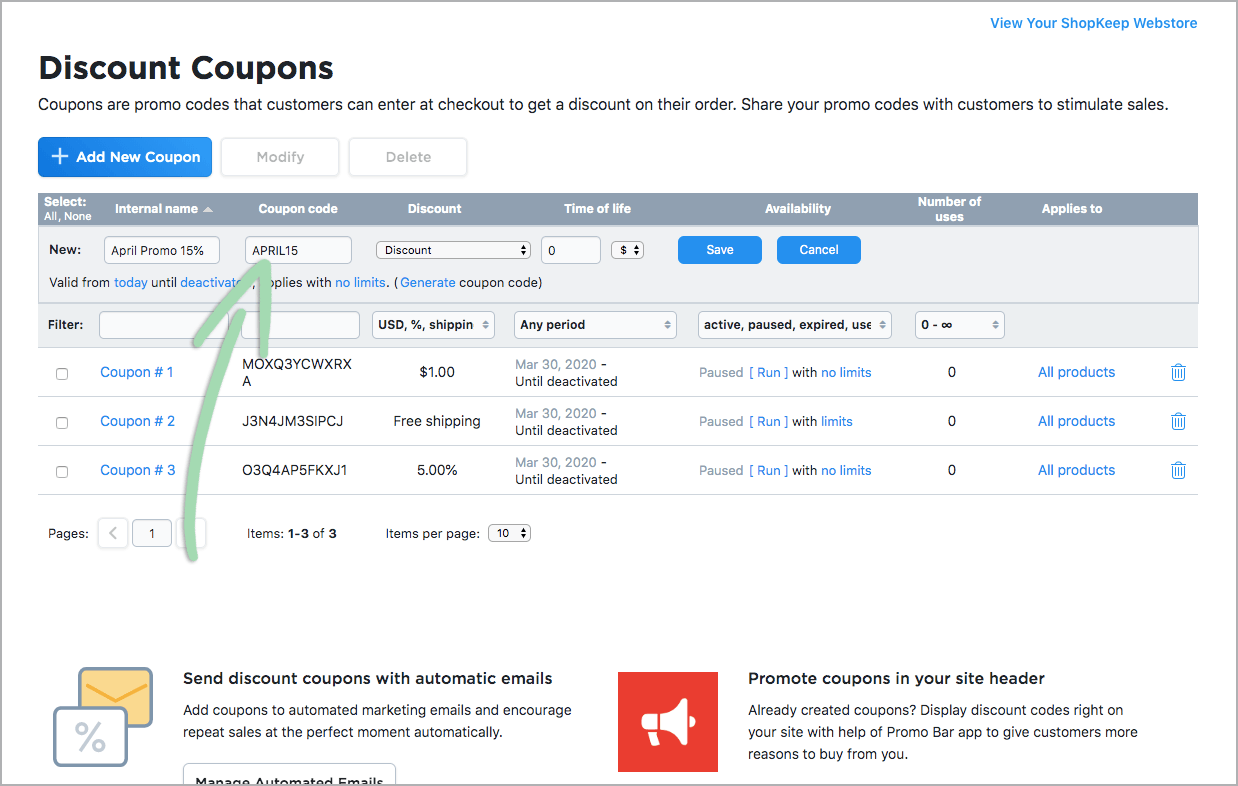
- Enter a name for the coupon.
Coupon names cannot be seen by customers.

- (Optional) Edit the randomly generated code.
- Click the dropdown menu and select a discount option.
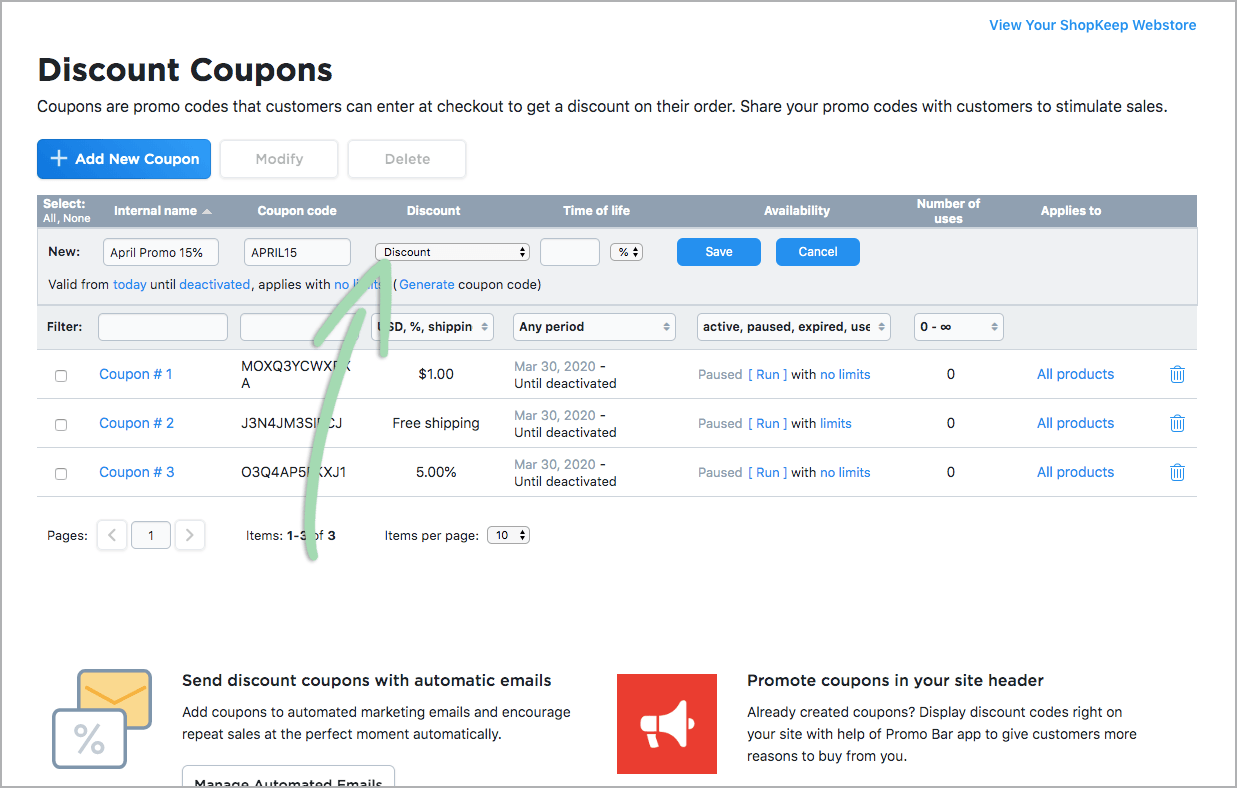
Discount | A fixed value (e.g. $10 off) or percentage (e.g. 15% off) discount.
Free shipping | No additional charge for shipping.
Free shipping + Discount | No additional charge for shipping, and either a fixed value or percentage discount. - From the dropdown menu, select ‘$’ for a fixed value discount or ‘%’ for a percentage discount, and enter a discount value.
If ‘Free shipping’ was selected in the previous step, skip this step as the dropdown will be disabled.
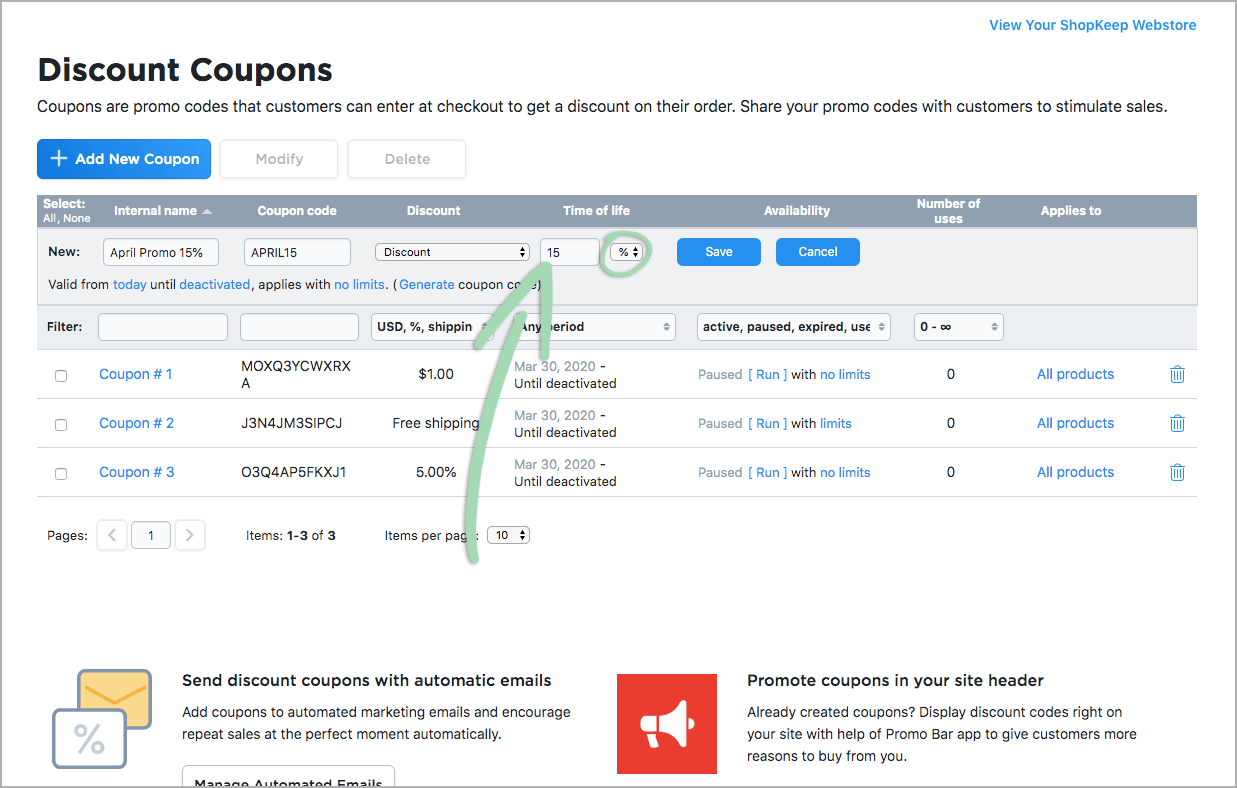
- Click ‘Save’.
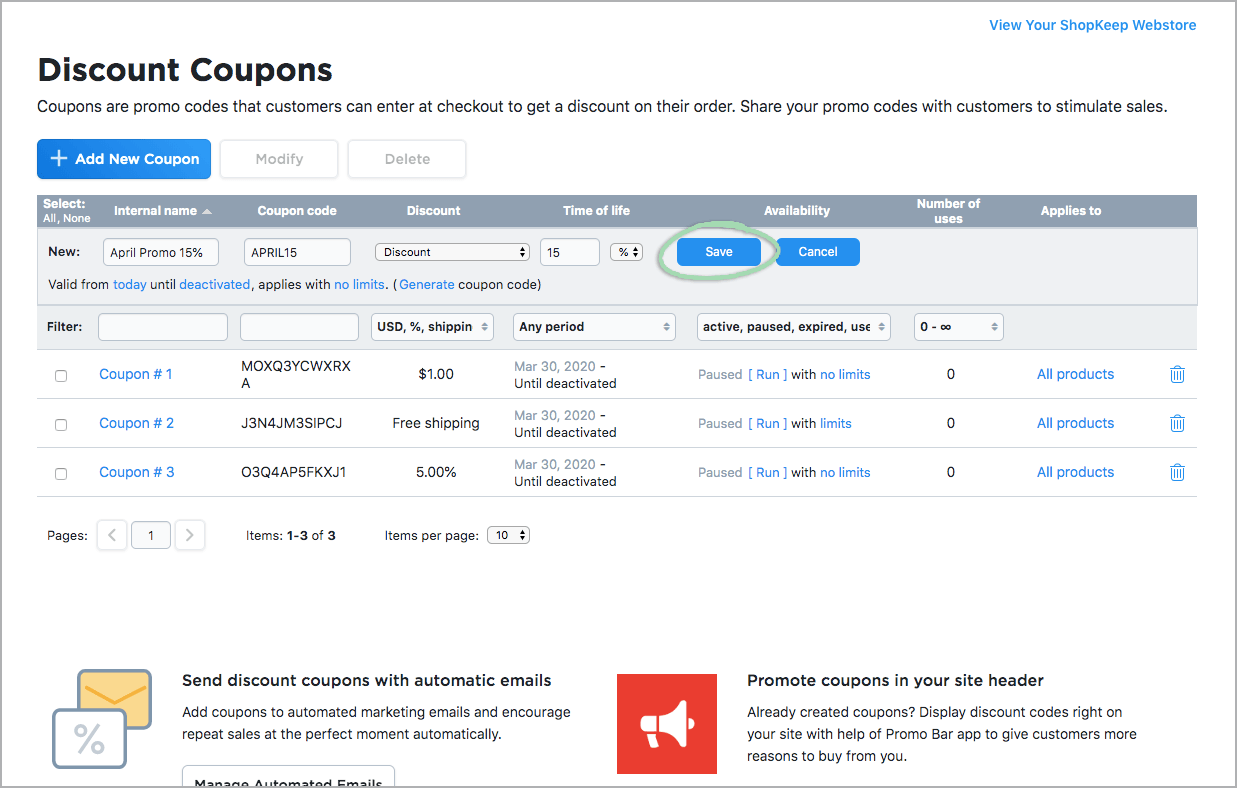
- After creating a discount, learn how to add restrictions, modify and delete discounts, manage discount coupons, and more here.
Use Your Own Domain
If you own a domain name, connect it to Lightspeed eCom (E) so customers can visit that domain or one of its subdomains to access your online store. Once setup is complete, your online store will be available to customers at the specified URL via a secure HTTPS connection encrypted by an SSL certificate.
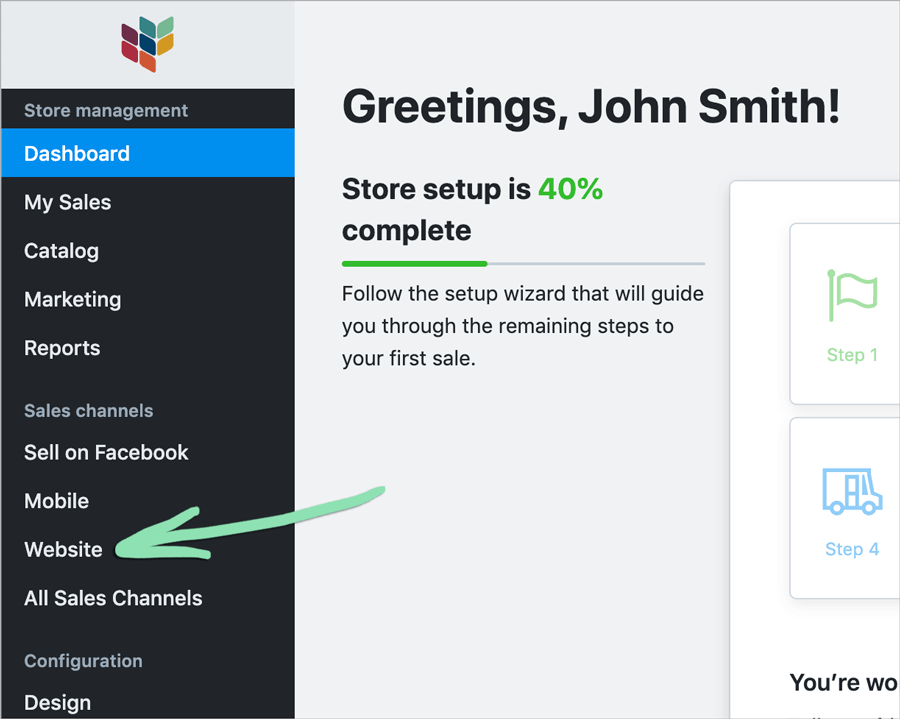
- From the eCommerce Dashboard, click 'Website'.
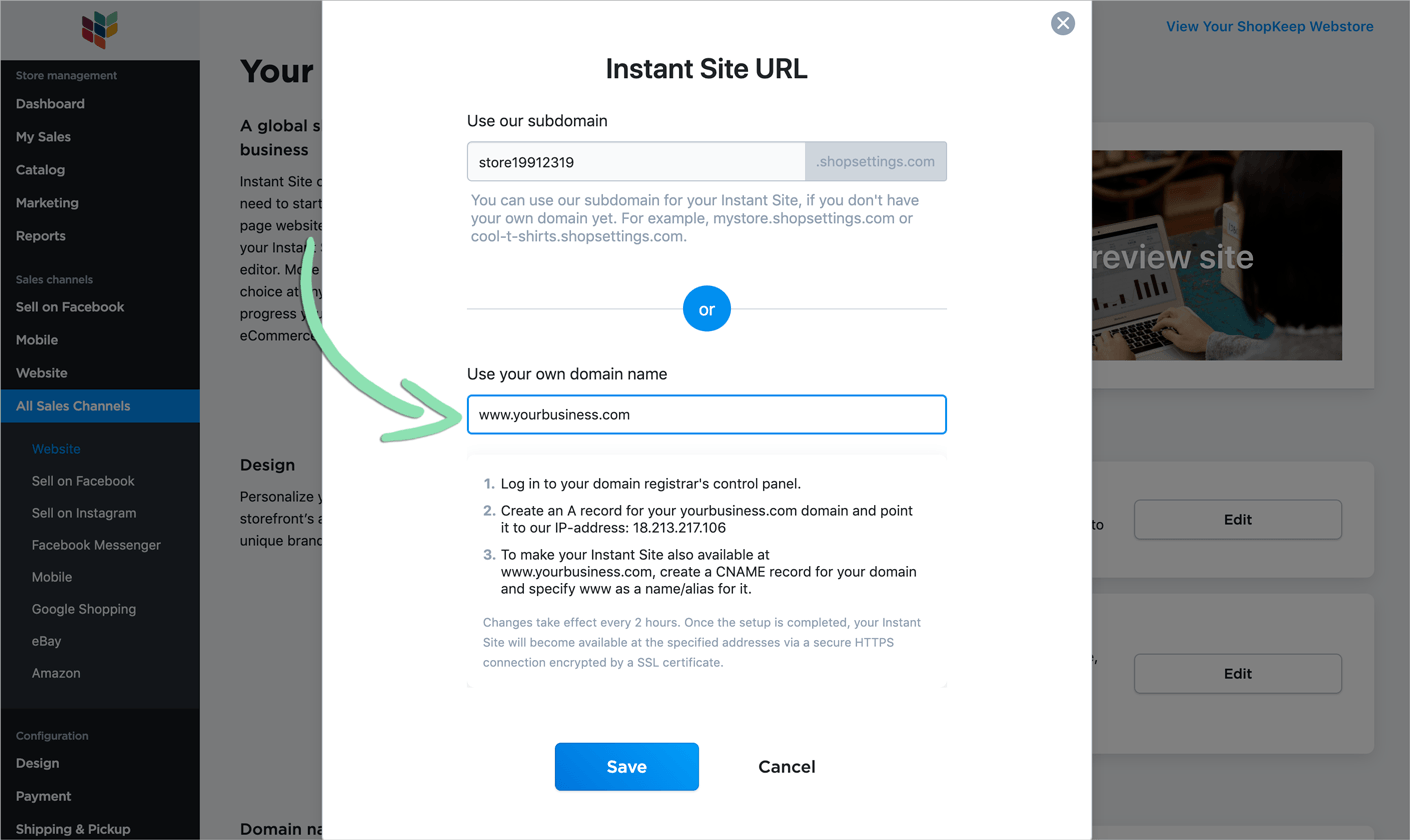
- Click 'Change Address'.

- Under 'Use your own domain name', enter a domain (e.g. www.yourbusiness.com) or subdomain (e.g. store.yourbusiness.com) to use for the online store.
This must be an existing domain or subdomain owned and managed by your business.
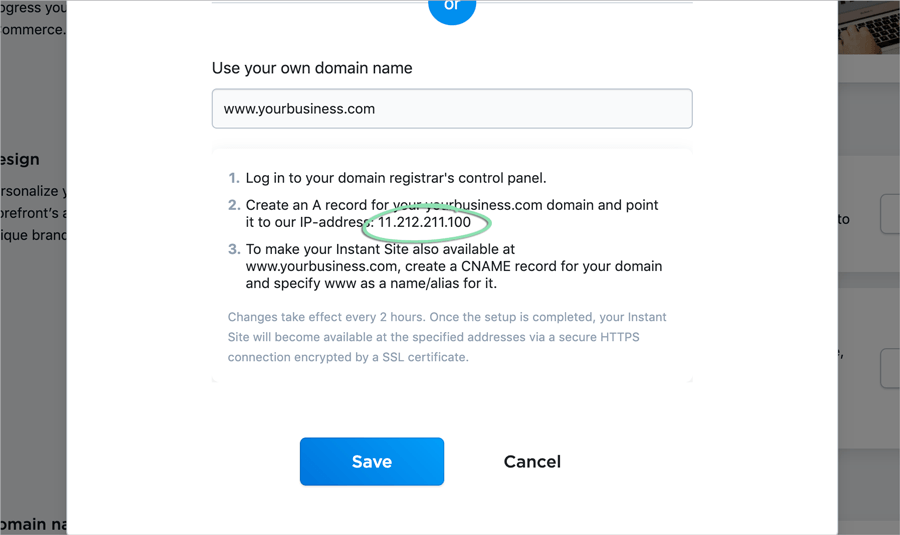
- Copy or make note of the IP address listed in step 2 of the prompt.
This will be used later and will need to be entered into the registrar for the domain during step 7.
- Click 'Save'.
- Log into the control panel for your domain registrar.
Don’t know who the registrar is? Look it up here.
- In the registrar's control panel, create an A record for the domain or subdomain entered in step 3.
- If using a domain (e.g. www.yourbusiness.com), create a CNAME record for your domain using 'www' as the name or alias.
For help for steps 7 and 8, contact your domain registrar for support.
- Wait 2 hours for all changes to be applied.
Need additional help? Learn more about connecting a domain name or subdomain here.
WordPress Plugin
Businesses using WordPress for their website or blog can install a WordPress plugin to add their Lightspeed eCom (E) online store to the WordPress platform.
- Click here to download the online store WordPress plugin.
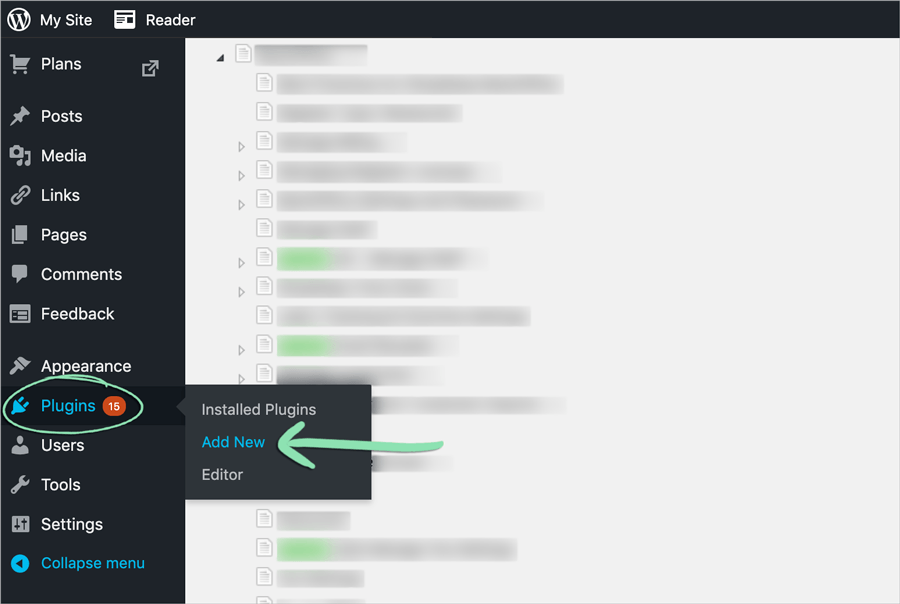
- From the WordPress Admin page, click 'Plugins' and select 'Add New'.
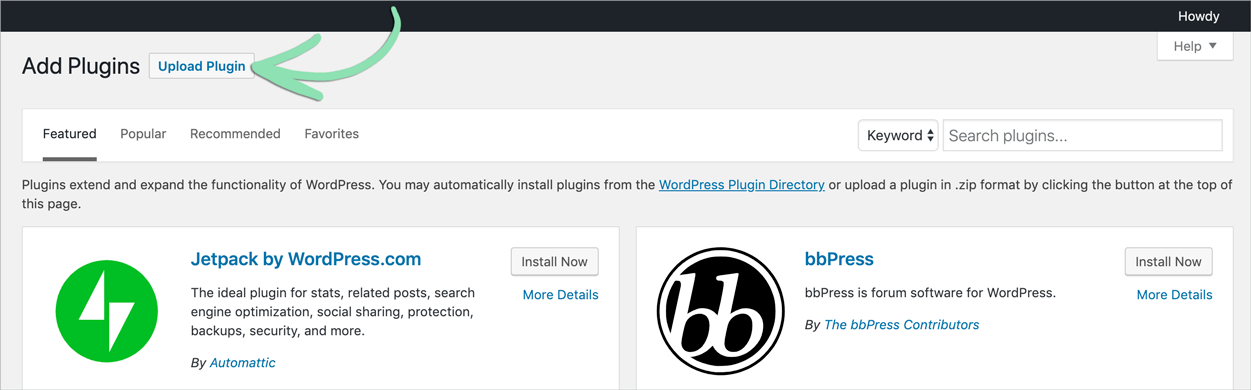
- Click 'Upload Plugin'.
- Click 'Browse' and select the .ZIP file downloaded in step 1.

- Click 'Install Plugin'.
- After the plugin is installed, click 'Activate Plugin'.
- On the WordPress side menu, click 'Online Store' and select 'Setup'.
- Click 'Connect' and follow the prompts to assign your online store to WordPress.
A new ‘Store’ page will be added to WordPress, from which the online store can be accessed, after completing this step.
Learn how to add products to other WordPress pages and about other ways to manage the online store in WordPress here.
Edit Existing Orders
Edit a customer’s order to fix any mistakes they made when placing it. The customer’s email, address, shipping details, payment method, and order products can all be modified as needed.
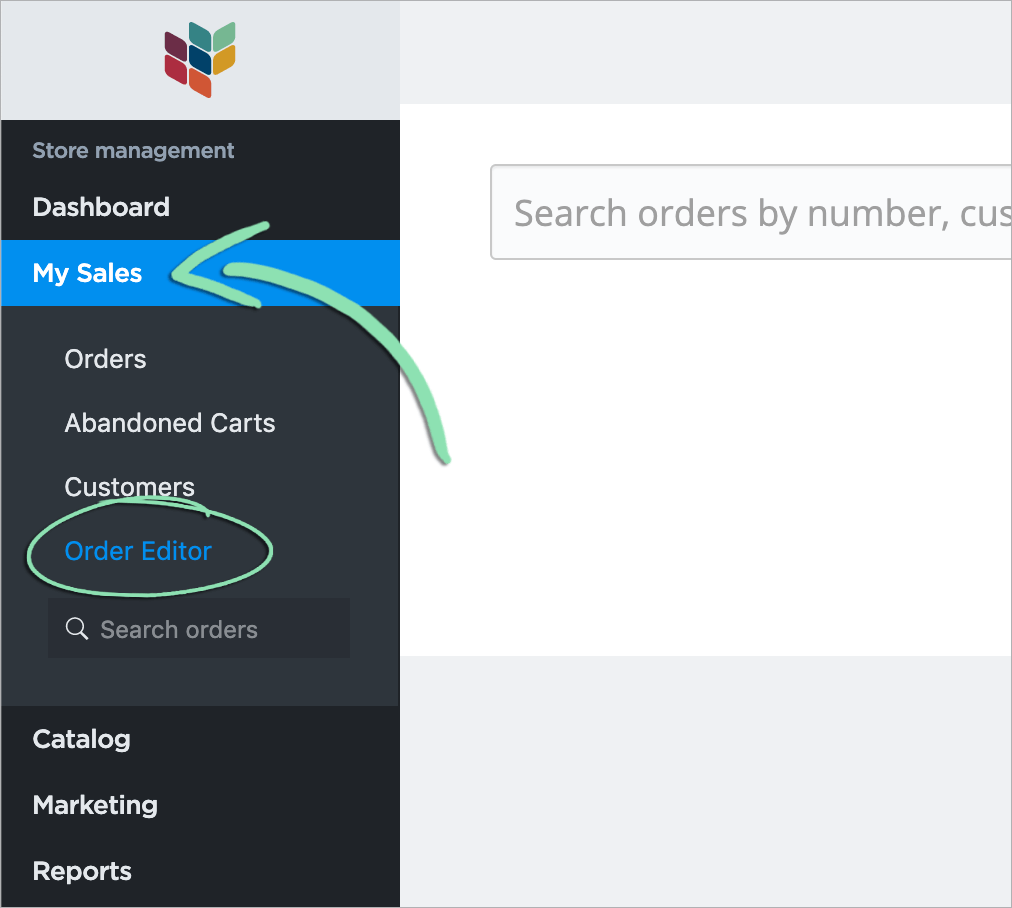
- From the eCommerce Dashboard, click ‘My Sales’ and select ‘Order Editor’.
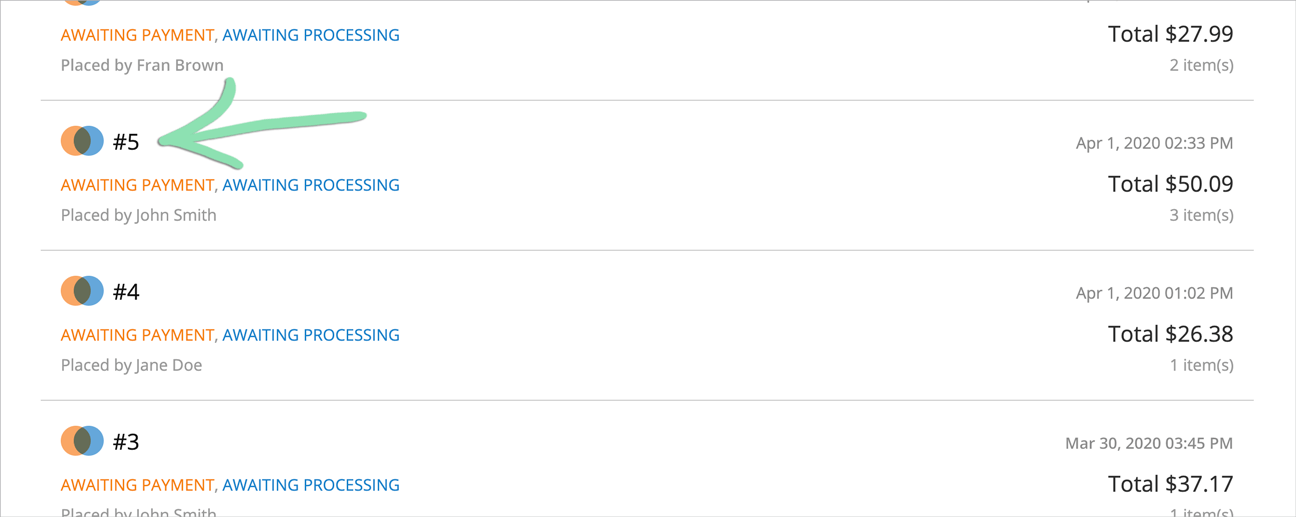
- Select the order that needs to be edited.
- Click ‘Edit’ to edit a specific section or product or click ‘Add product’ to add new products to the order.
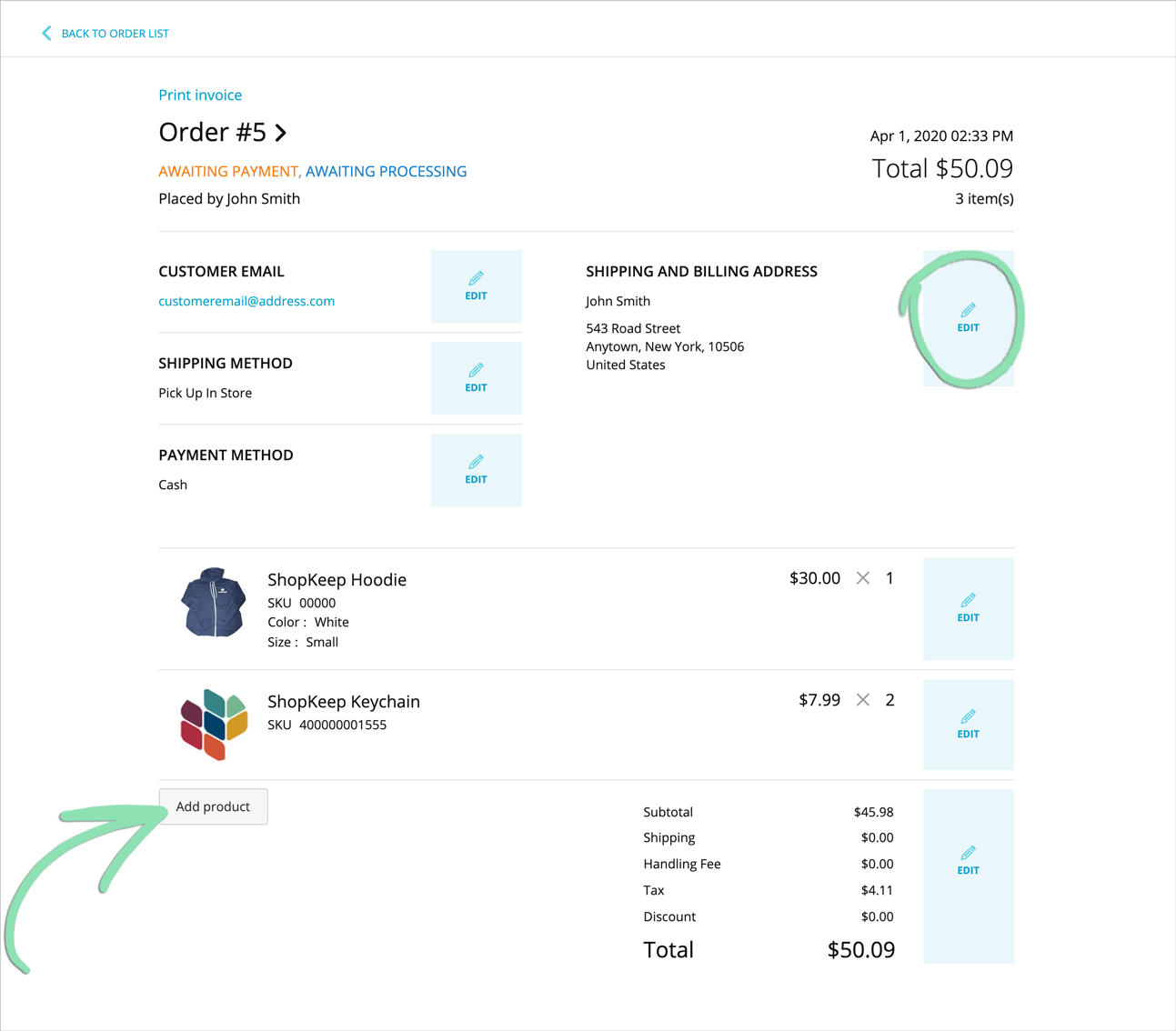
- Click ‘Save changes’ or ‘Add product’ to save changes made.
- If the order total changes, charge or refund the customer the difference.
Refunds and additional charges must be manually processed outside of Lightspeed eCom (E).
- If adding, removing, or changing the quantity of products, manually update the quantity of each item in BackOffice to reflect the correct amount left on hand after editing the order.
Editing products on an order will not automatically update the quantity on hand of those products in Lightspeed eCom (E) or BackOffice.
Learn more about editing orders, such as how to remove products, here.
Sell on Facebook, Instagram, and Amazon
Sell the products in your online store on Facebook, Instagram, and/or Amazon to open up new sales channels and reach more customers.
This feature requires an upgraded Lightspeed eCom (E) plan. For information on upgrading, visit our Lightspeed eCom (E) setup article.
To be able to sell products on Facebook, you must:
- From the eCommerce Dashboard, click 'Facebook'.
If you already have a ‘Shop’ section on the Facebook page for the business, connecting an online store will overwrite all existing products in that section.

- Click 'Connect Facebook Page'.
- Select the Facebook business page where you will sell your products, then click 'Save'.
- Follow the prompts to accept the Merchant Commerce Terms for Facebook.
- Follow the steps here to learn how to sync and list products on Facebook, how customers place orders, and how to process Facebook orders.
To be able to sell products on Instagram, you must:
- From the eCommerce Dashboard, click 'Other Channels' and select 'Sell on Instagram'.
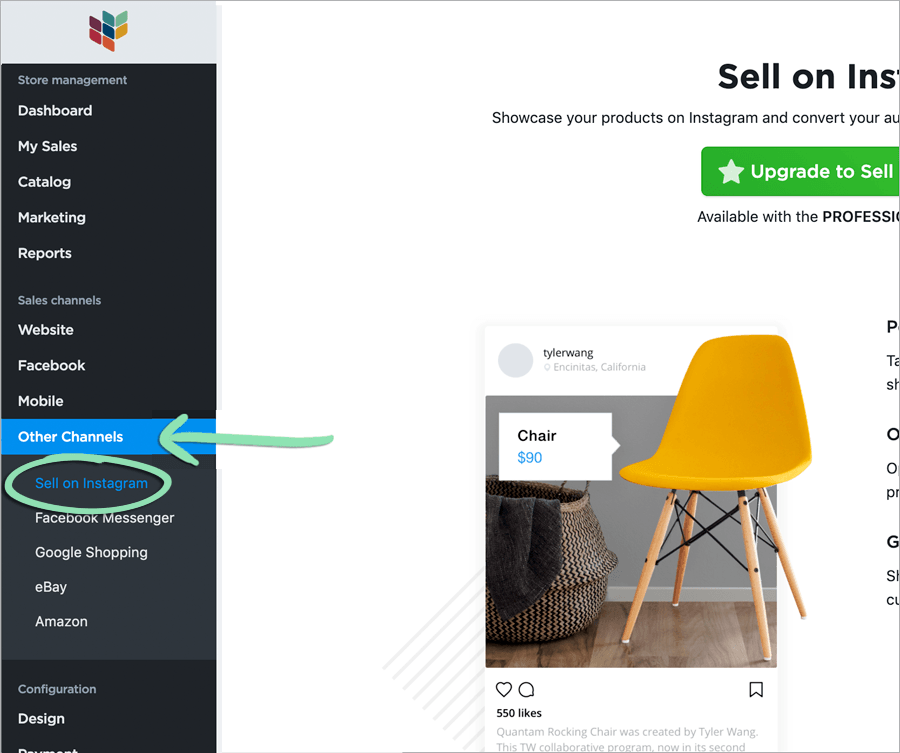
- Click 'Connect Instagram'.
- Log into your Instagram account.
- Follow the steps here to learn how shopping works on Instagram, how to enable product tagging, and how to tag products in Instagram posts.
To be able to sell products on Amazon, you must:
- From the eCommerce Dashboard, click 'Other Channels' and select 'Amazon'.

- Click ‘Get Started’, then follow the prompts to link an Amazon account.
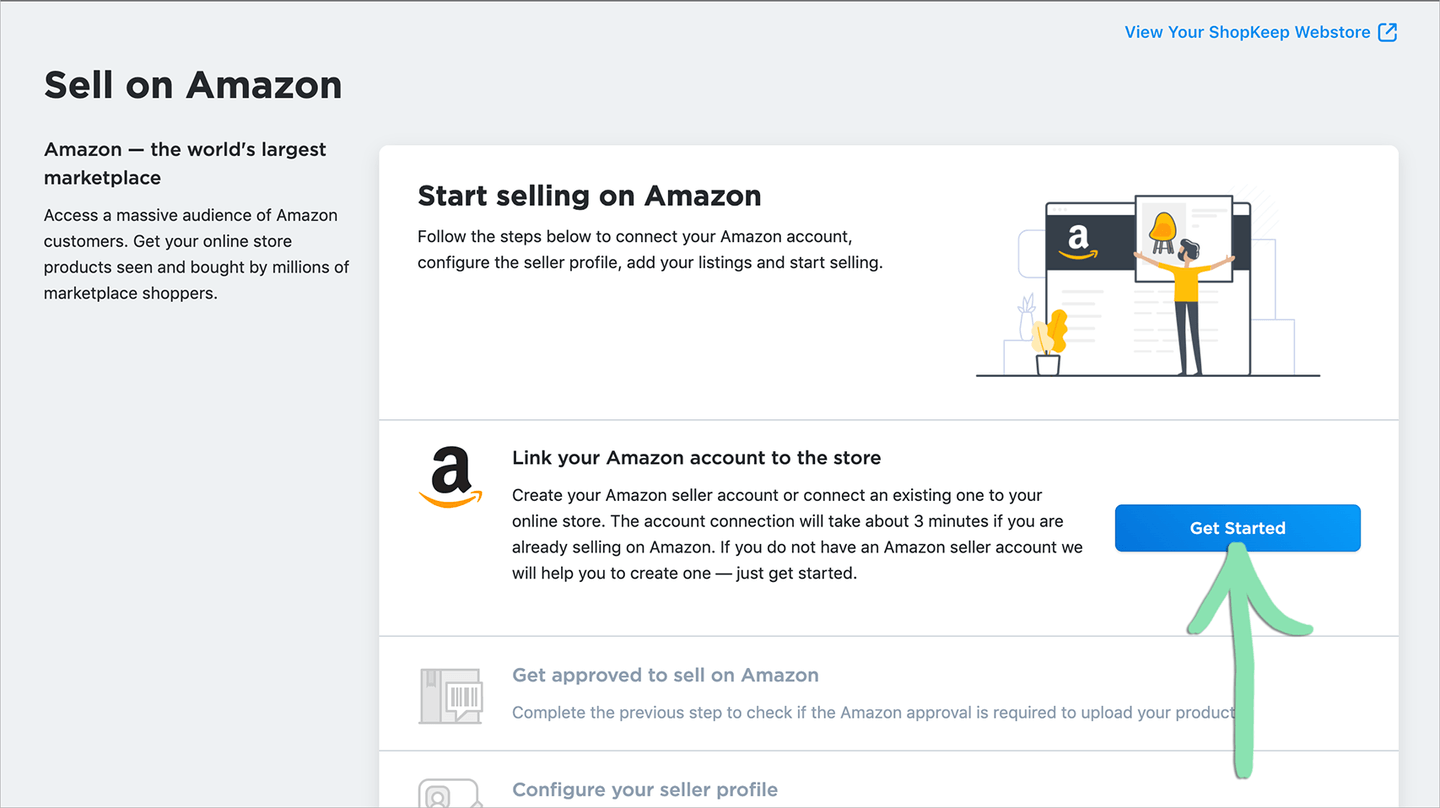
- Follow the steps here to enable products for sale on Amazon.
Advertise on Facebook and Google
Advertise on Facebook and/or Google to get more exposure for your products and business and drive sales to your online store.
Before advertising on Facebook, you must connect a Facebook account to the online store.
- Follow the steps here to create and install the Facebook pixel.
The Facebook pixel tracks who visits your online store from Facebook, allowing for better targeted ads.
- Follow the steps here to create an ad campaign, ad set, and ads.
- From the eCommerce Dashboard, click 'Marketing' and select 'Google Ads'.

- Click 'Enable'.
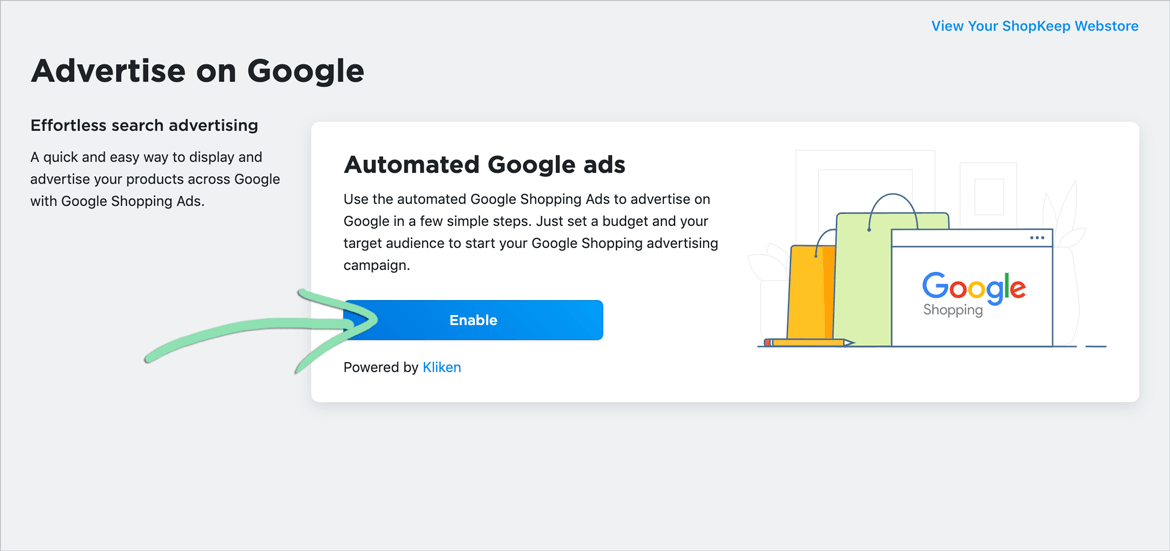
- Follow the prompts to set up a Google ad campaign.
Customize Email Notifications
Email notifications are fully customizable automatic emails that are sent to the Business Owner or customers to update on important events that happen in the store. Automatically send order confirmation notifications to customers, receive notifications when an order is placed or changed by a customer, when an item’s quantity is getting low, and more.
This feature requires an upgraded Lightspeed eCom (E) plan. For information on upgrading, visit our Lightspeed eCom (E) setup article.
Customer & Admin Notifications
Customize the content of notification emails sent to the Business Owner or customers.
By default, the Business Owner email address receives an email notification when an order is placed, and when stock is running low for an item.
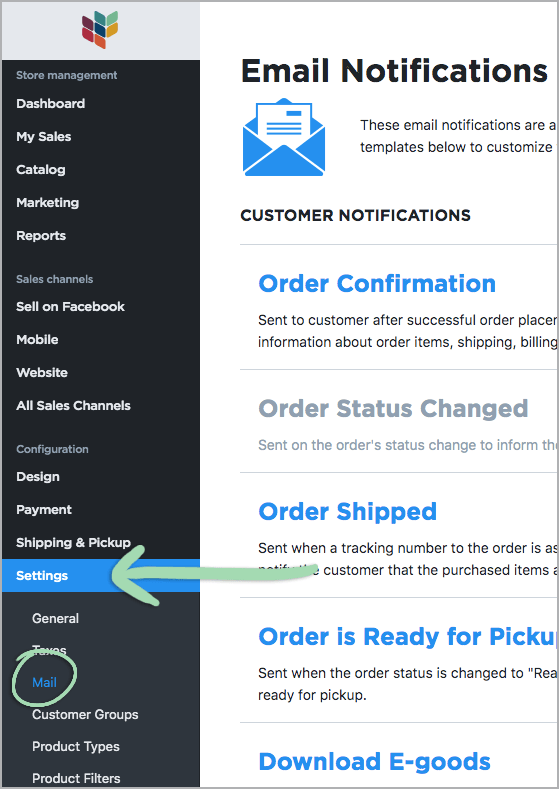
- From the eCommerce Dashboard, click 'Settings' and select 'Mail'.
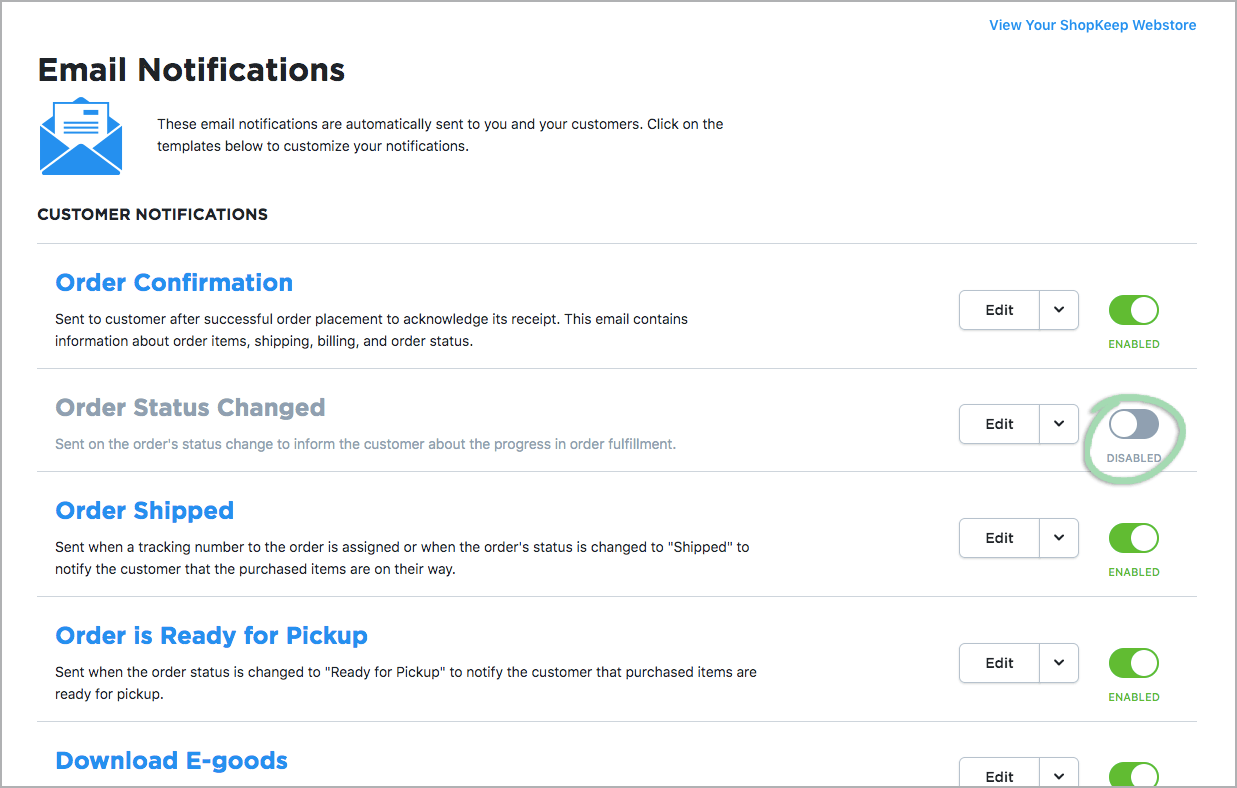
- (Optional) Click to disable or enable specific email notifications.
All notifications are enabled by default.
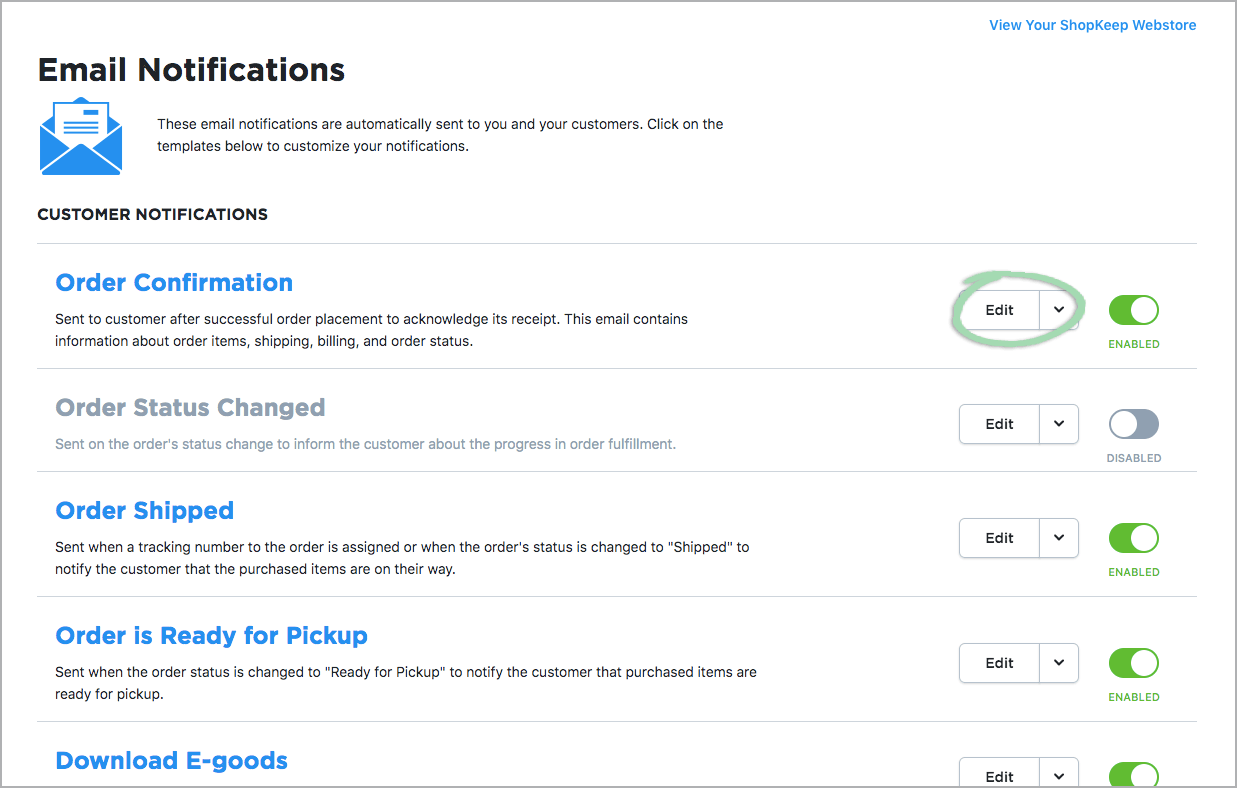
- Click ‘Edit’ next to the email notification you want to customize.
- Read this detailed guide to learn more about editing the email notification templates and how to customize the email content.
Mail Settings
Customize the email address customers receive email notifications from, the email address(es) that receives business owner email notifications, and add a logo to display on all customer notifications.
- From the eCommerce Dashboard, click 'Settings' and select 'Mail'.
- Scroll to the ‘Mail Settings’ section, then click ‘Change’.
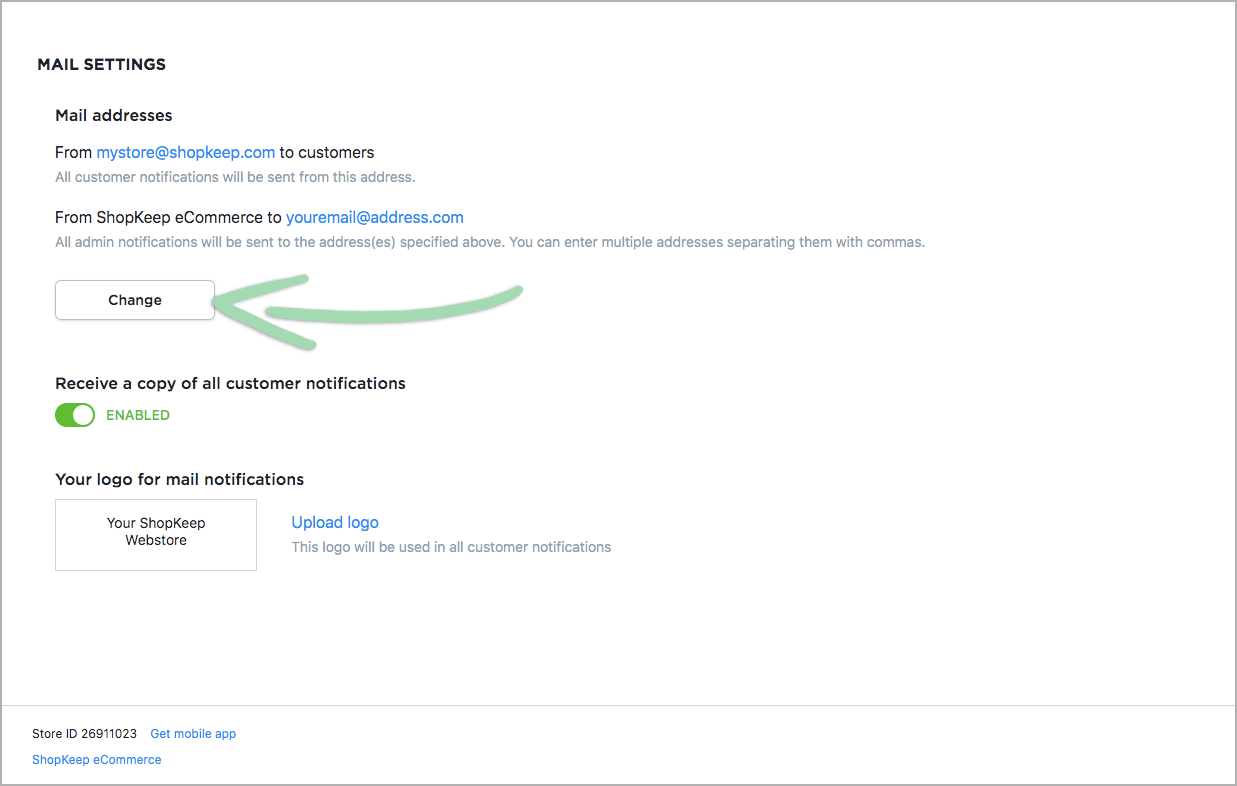
- Edit the email address(es) you wish to change.
- Edit ‘Store email’ to change the email address customers see on received email notifications.
(Optional) As well as an email address, add a ‘From name’ to add a name to email notifications customers receive. - Edit the ‘Send admin notifications to’ email to change the email address(es) that will receive Business Owner email notifications.
Receive email notifications to multiple email addresses by adding more, separated by a comma.
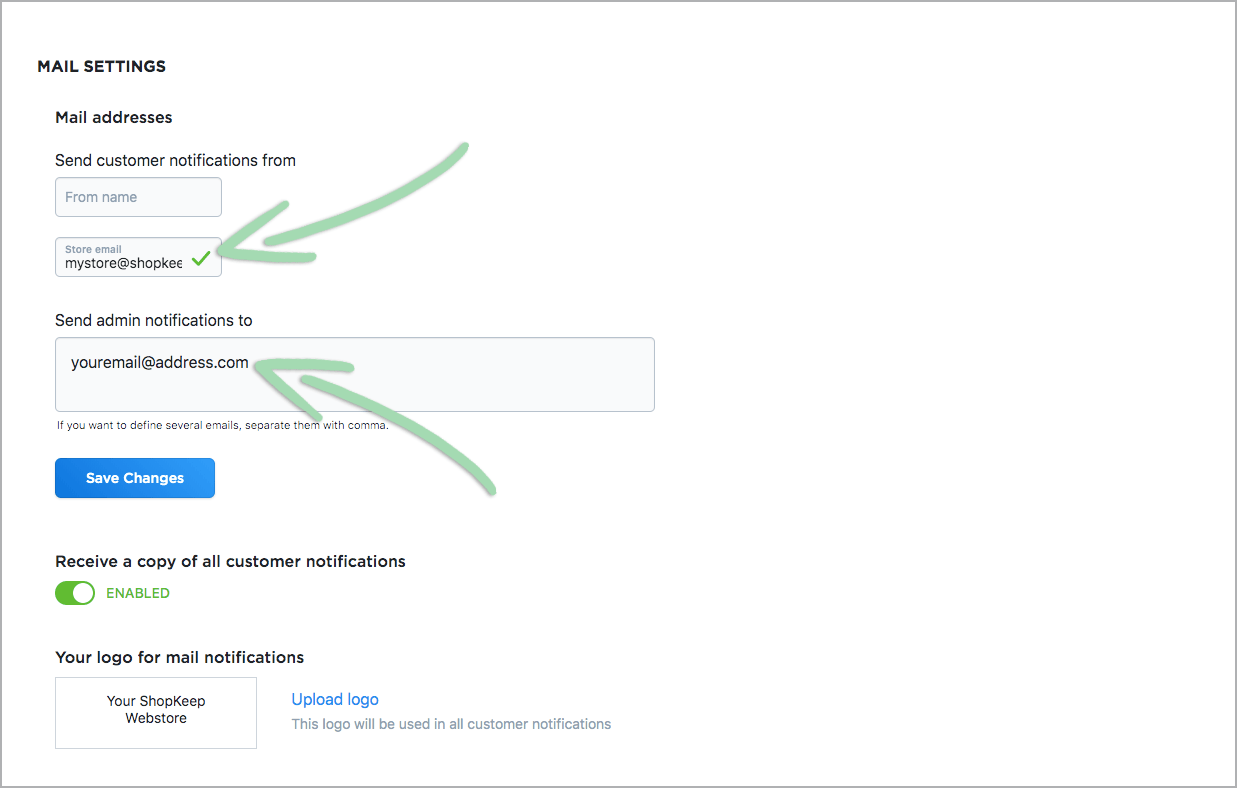
- Edit ‘Store email’ to change the email address customers see on received email notifications.
- Click ‘Save changes’.

- To receive a copy of all customer notifications, click to enable.
When disabled, the business owner will not receive any email notifications customers receive.

- Click ‘Upload Logo’ to browse your computer for an image file to use as your logo for mail notifications.
Logo settings save automatically after a file is selected.

Online Gift Cards
With Lightspeed eCom (E) gift cards, you can sell webstore-only gift cards in your online store that customers can redeem online for merchandise.
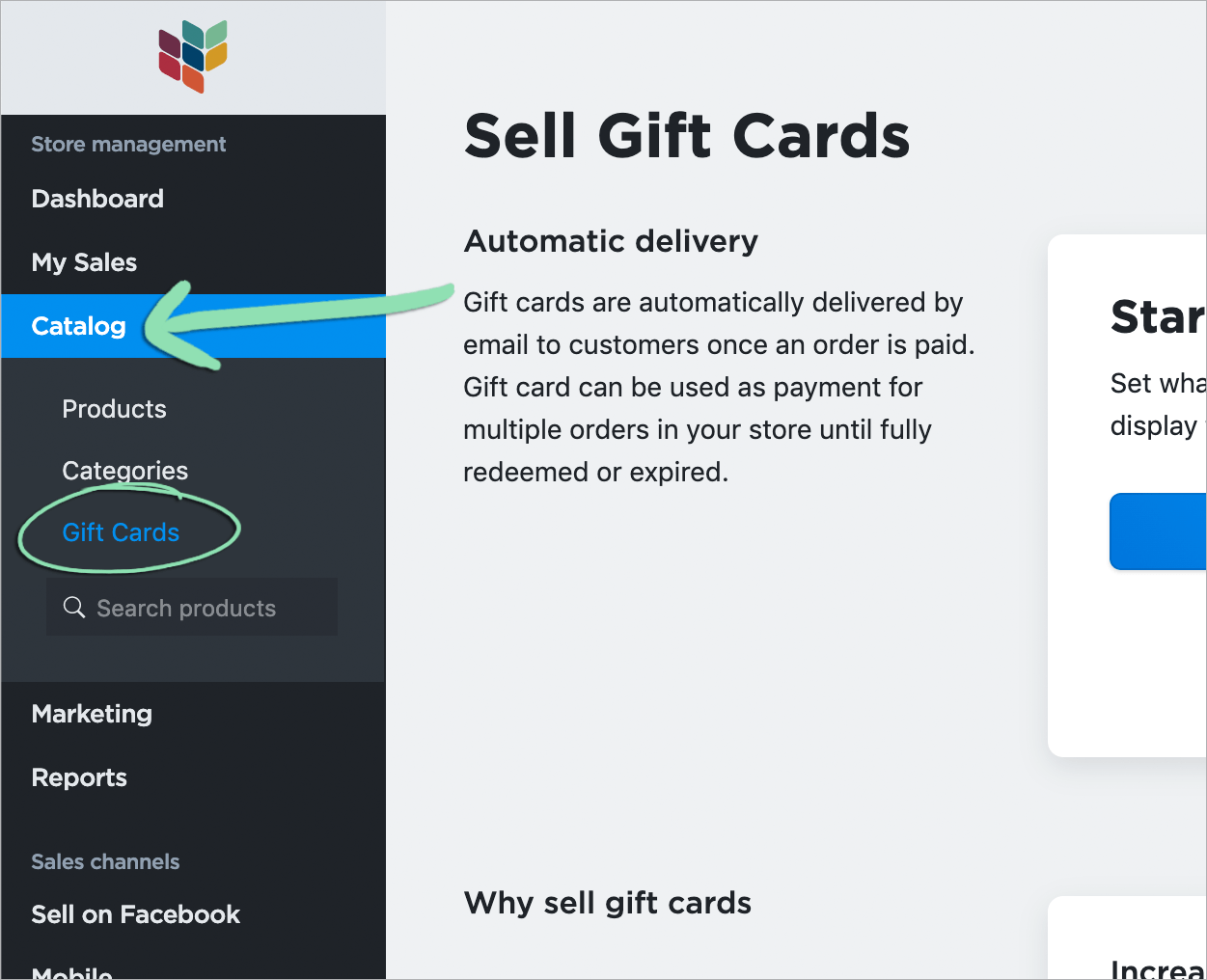
- From the eCommerce Dashboard, click 'Catalog' and select 'Gift Cards'.
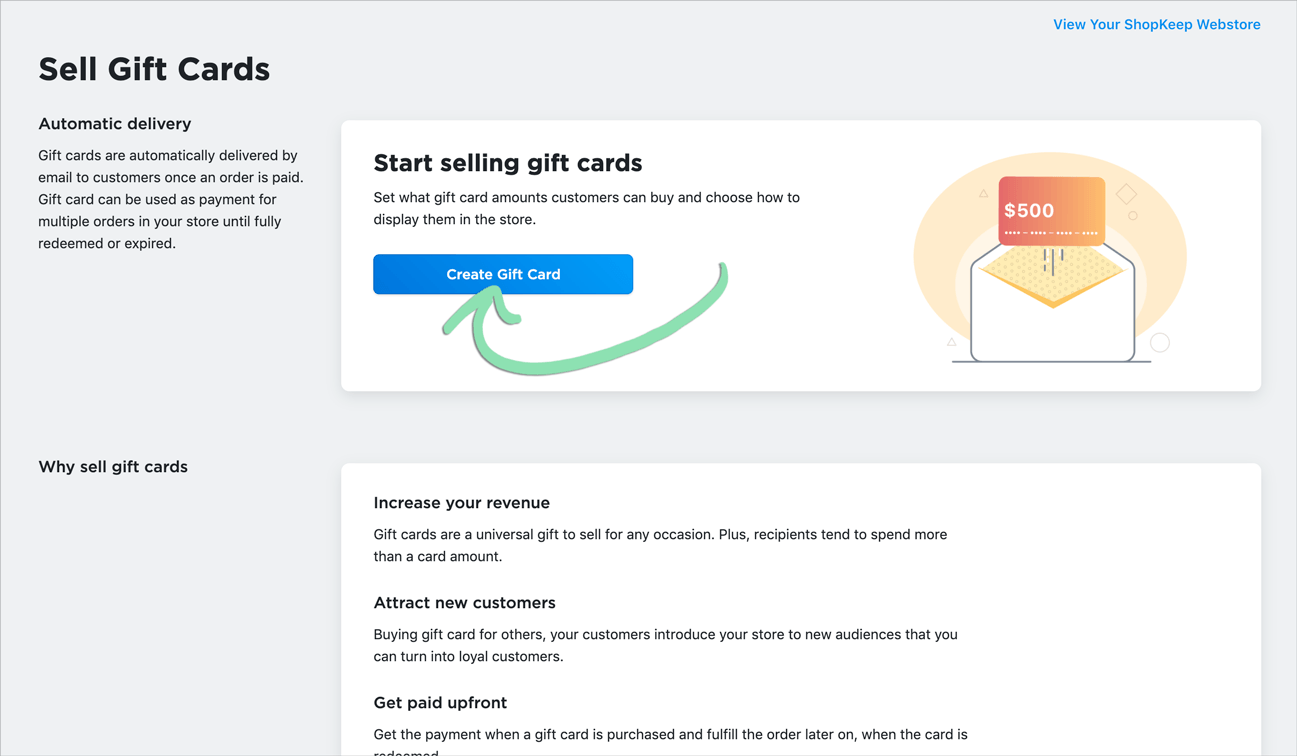
- Click 'Create Gift Card'.
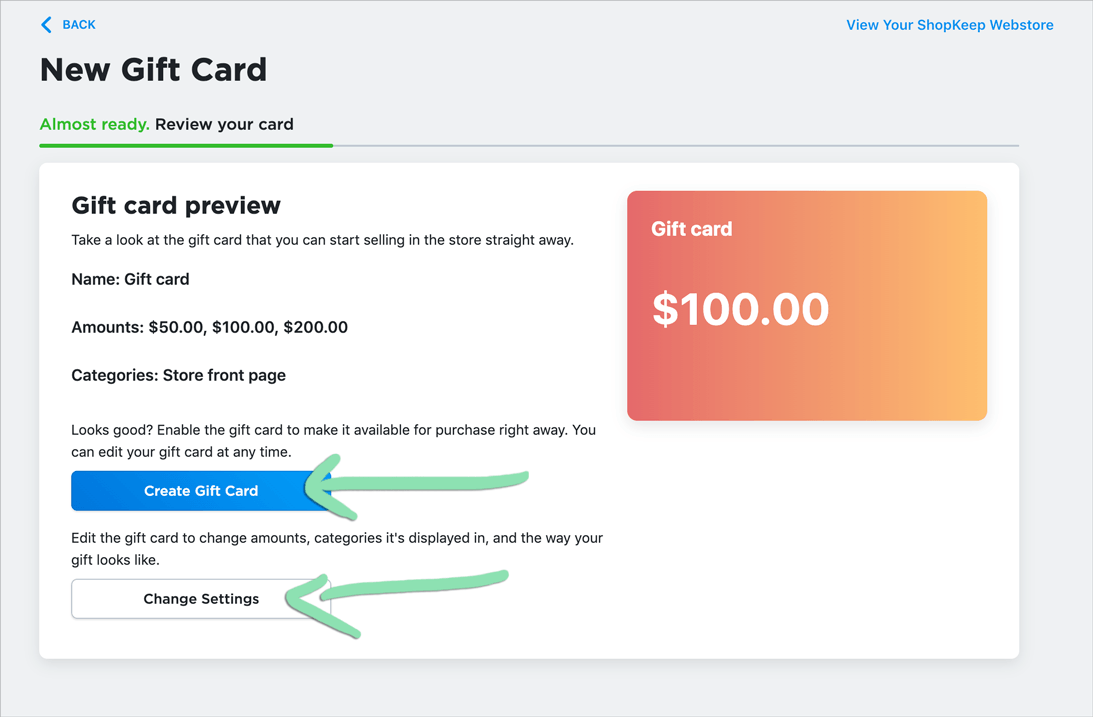
- To enable gift cards for sale immediately using the default settings listed, click ‘Create Gift Card’. To modify gift card values, descriptions, and settings before starting to sell gift cards, click ‘Change Settings’.
Learn how customers purchase and redeem gift cards, how to manage sold gift cards, and read answers to frequently asked gift card questions here.
BackOffice and Pocket Reporting
Learn how Lightspeed eCom (E) orders appear in BackOffice and Lightspeed Pocket reporting and about the differences between how orders appear when eCommerce online ordering is enabled or disabled.