Activate the Retail POS (S-Series) app to load your Lightspeed store onto an iPad. After the app is activated, sign in to the register and open a register shift to begin processing sales and returns.
Before activating Lightspeed Retail, you must download the Retail POS (S-Series) app on an iPad. For help downloading the app, visit our Introduction to the iPad article.
Activating Lightspeed Retail
Activate the Retail POS (S-Series) app to link a new register to your account and begin using Lightspeed Retail on an iPad. There are two ways to activate: from the app itself or from BackOffice on an iPad.
From the Retail POS (S-Series) app
You can activate a register from within the Retail POS (S-Series) app using a Lightspeed Retail store name and manager code. If you have an Android tablet, you must use this method to activate the app.
-
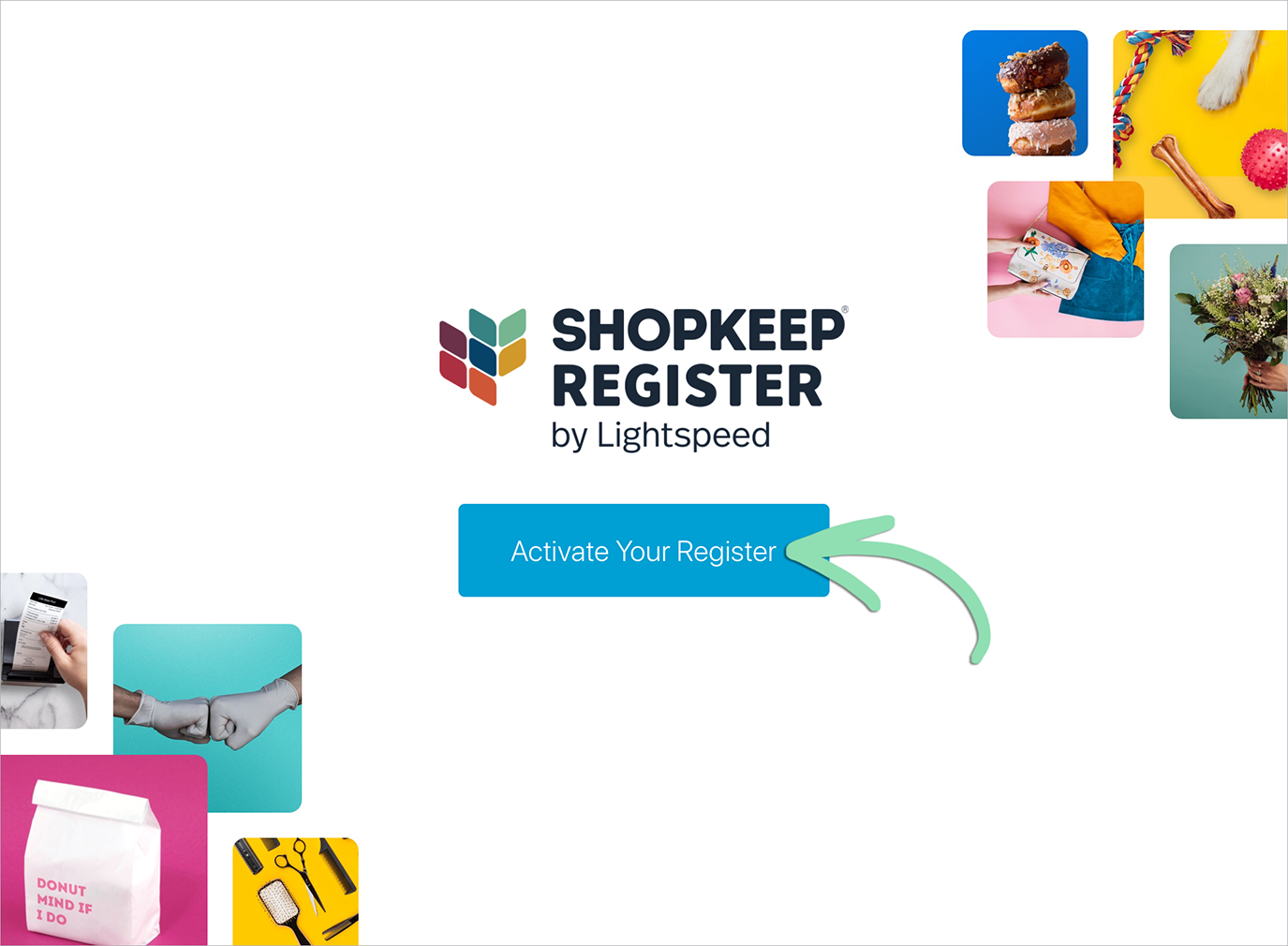
In the Retail POS (S-Series) app, tap Activate Your Register.
- Enter your store name and manager code.
- Store Name: Lightspeed Retail account name with no spaces or punctuation.
- Manager Code: 4-digit code found in the BackOffice staff list and Lightspeed Retail welcome email.
-
Tap Activate.

-
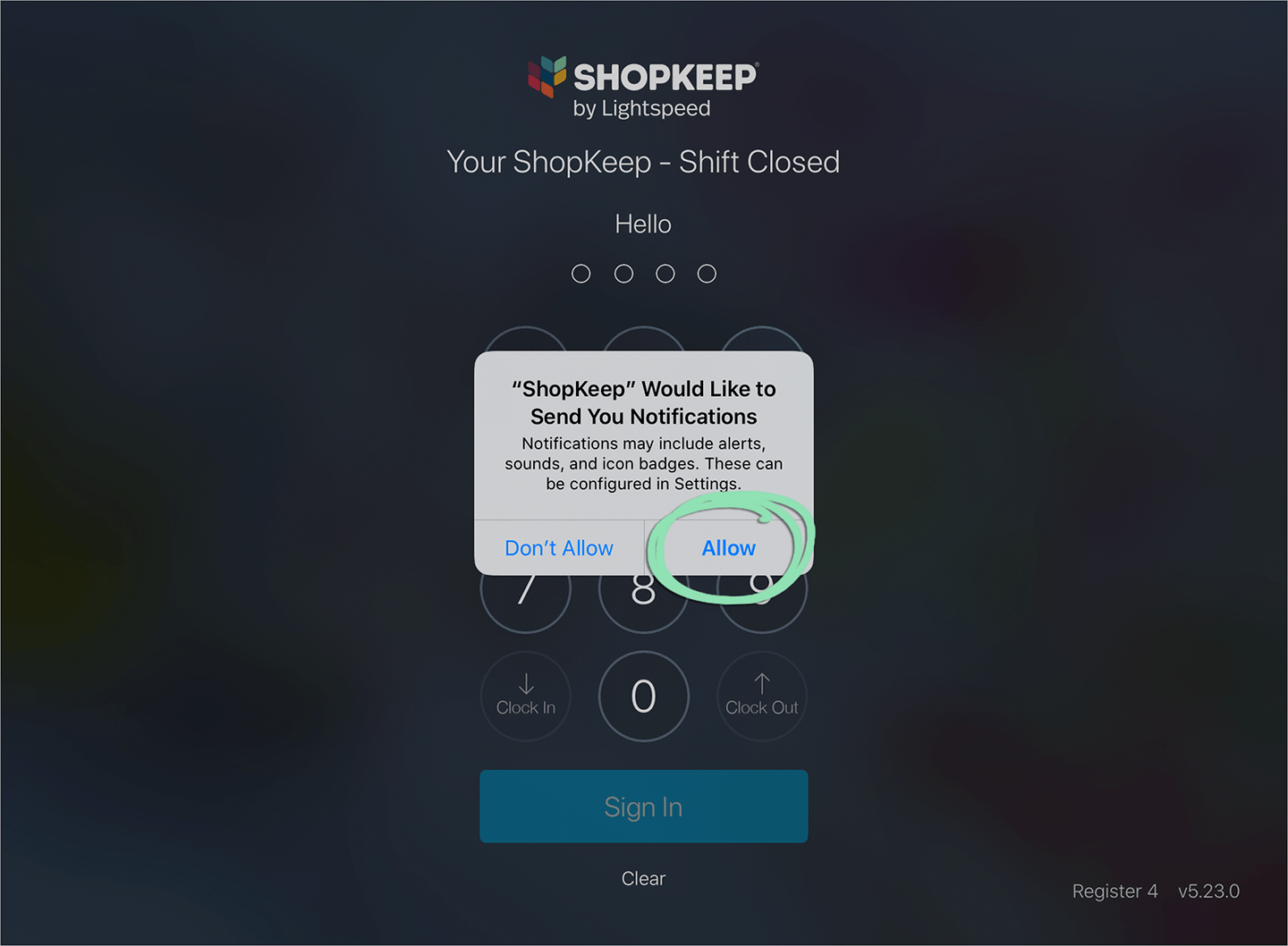
(Optional) If prompted, enable push notifications.
Notifications alert you with updates on matters affecting your Lightspeed Retail account, such as when there is a service disruption. Notifications can be disabled at any time from the Settings app on the iPad.
If not prompted during activation, you may be asked later to enable notifications from the sign in screen after a register shift is closed.
Tap Yes, then select Allow.

From BackOffice on an iPad
You can also activate a register from BackOffice on an iPad.
-
On the iPad, open the Safari app and log in to BackOffice.
Need help logging in? Visit our BackOffice Login and Overview article.
- Follow the steps here to load the mobile version of the webpage.
-
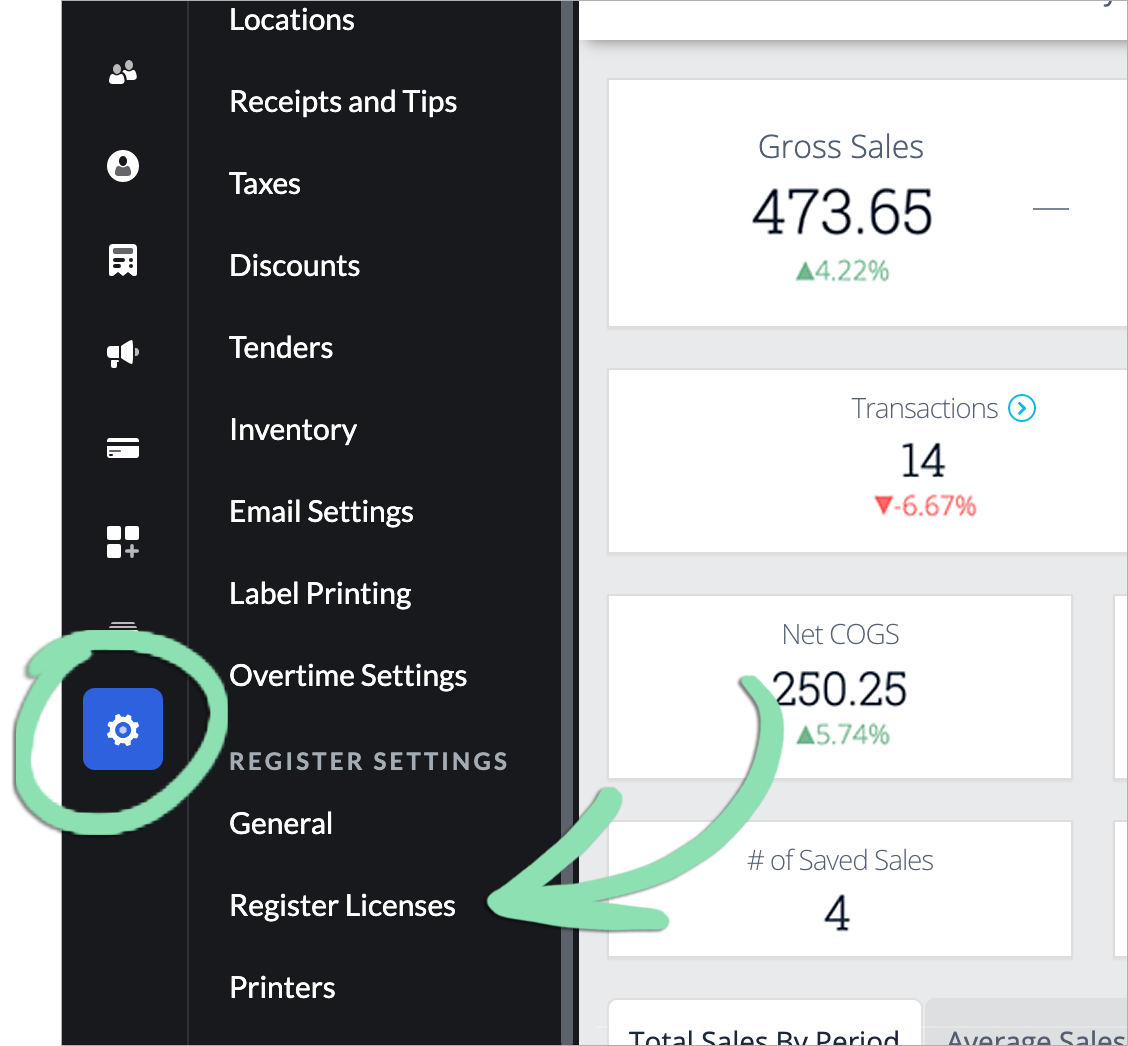
Tap the Settings icon, then select Register Licenses.
-
Select Activate Your Register.
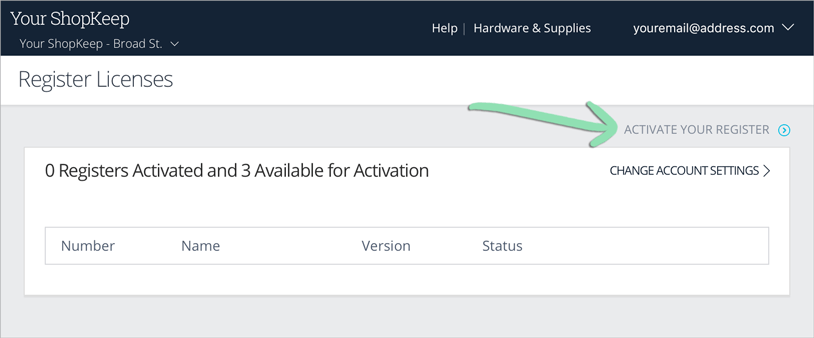
-
Tap Got it? Let’s do this.

-
Tap Activate Your Register, then select Open.
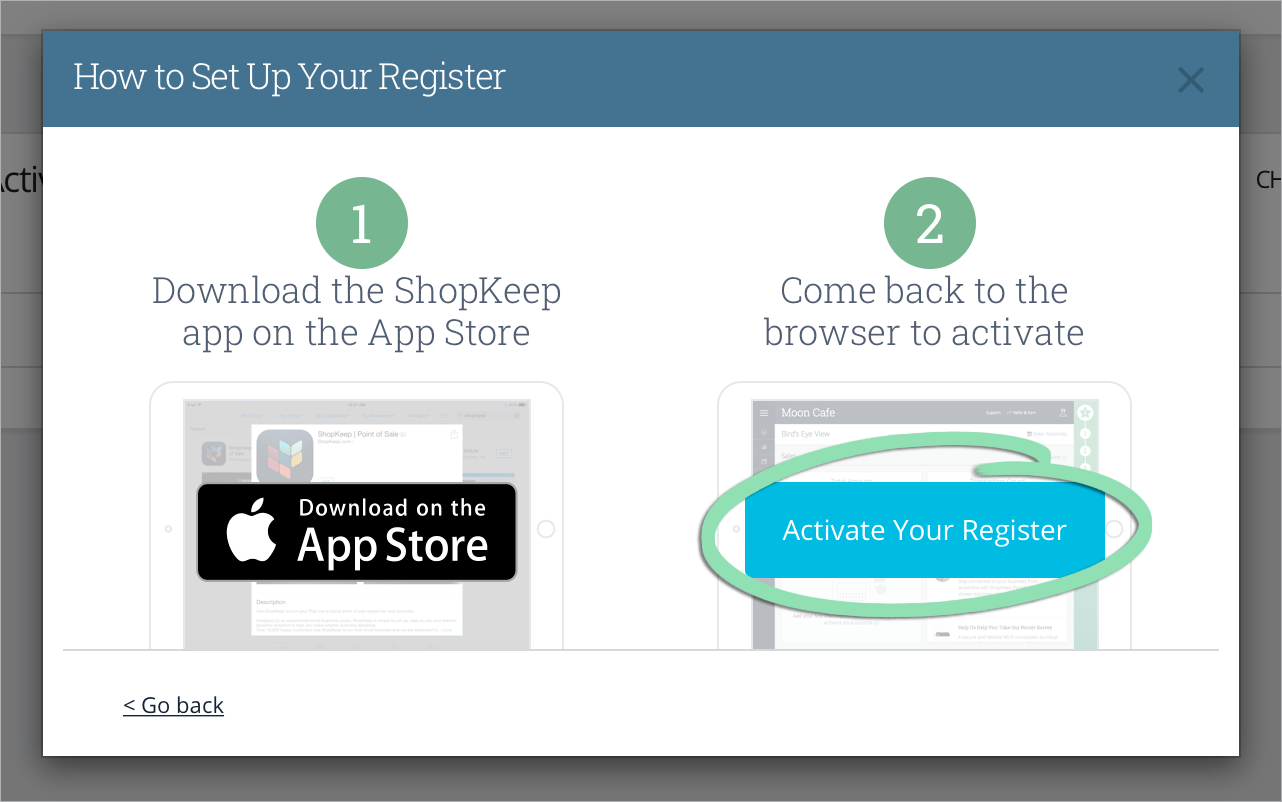

-
(Optional) If prompted, enable push notifications.
Notifications alert you with updates on matters affecting your Lightspeed Retail account, such as when there is a service disruption. Notifications can be disabled at any time from the Settings app on the iPad.
If not prompted during activation, you may be asked later to enable notifications from the sign in screen after a register shift is closed. Stay tuned as we roll out this feature to everyone.
Tap Yes, then select Allow.
Signing in and opening a register shift
After activating the Retail POS (S-Series) app, sign in and open a register shift to enable staff to start processing transactions on the register.
-
Enter a 4-digit manager code and tap Sign In.
Signing in is only necessary if more than 1 employee is set up in BackOffice. If unable to sign in to the register, visit our Login / Access Troubleshooting guide for help.
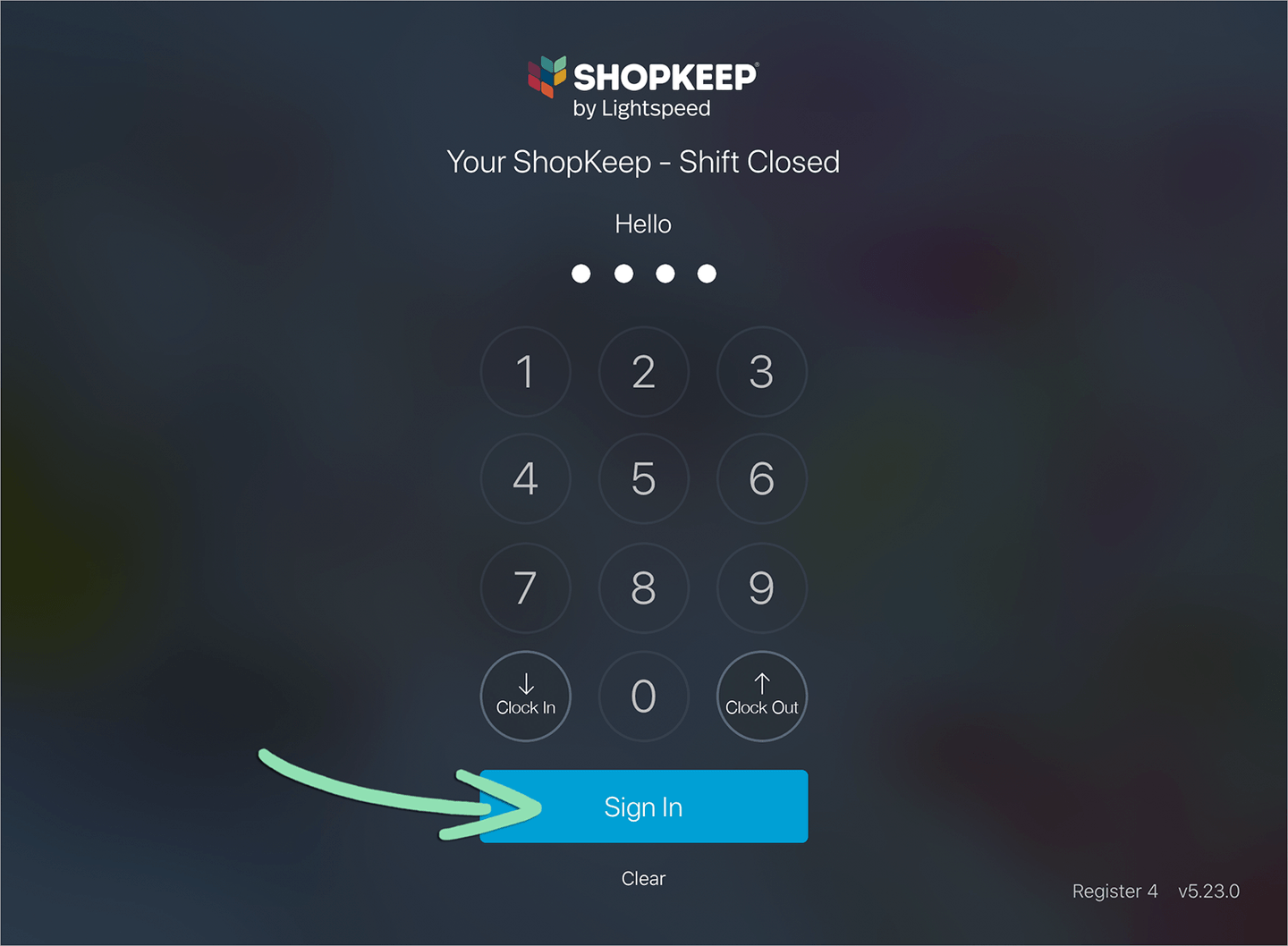
-
If necessary, select Open Register Shift on the Main Menu.


-
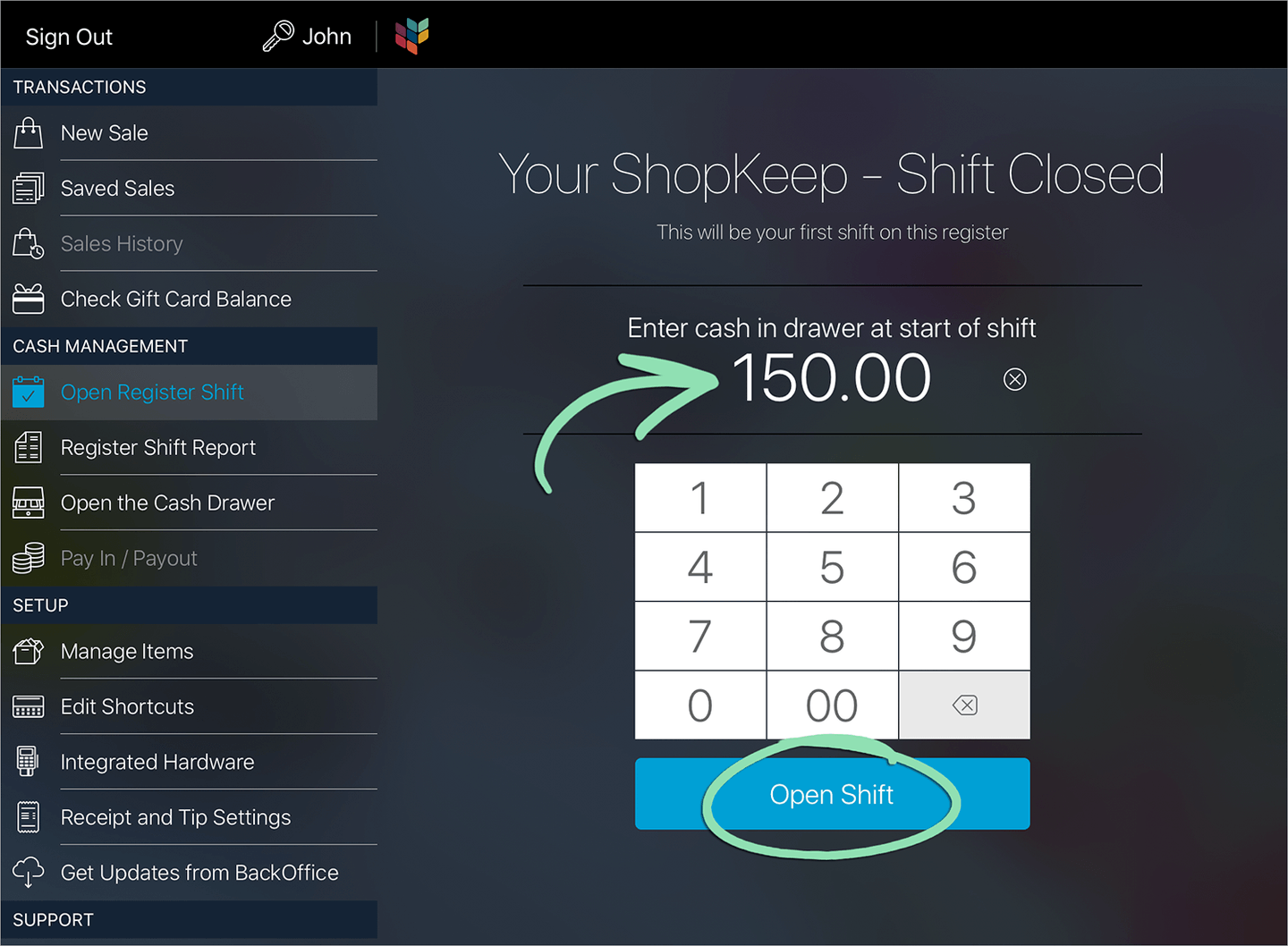
Enter the starting cash amount, and tap Open Shift.
This amount can't be changed after the register shift is opened.