Items with Variants in BackOffice
Items with Variants affect a number of BackOffice operations. Follow along and learn all about them, from receiving and adjusting to reporting and more!
Item List
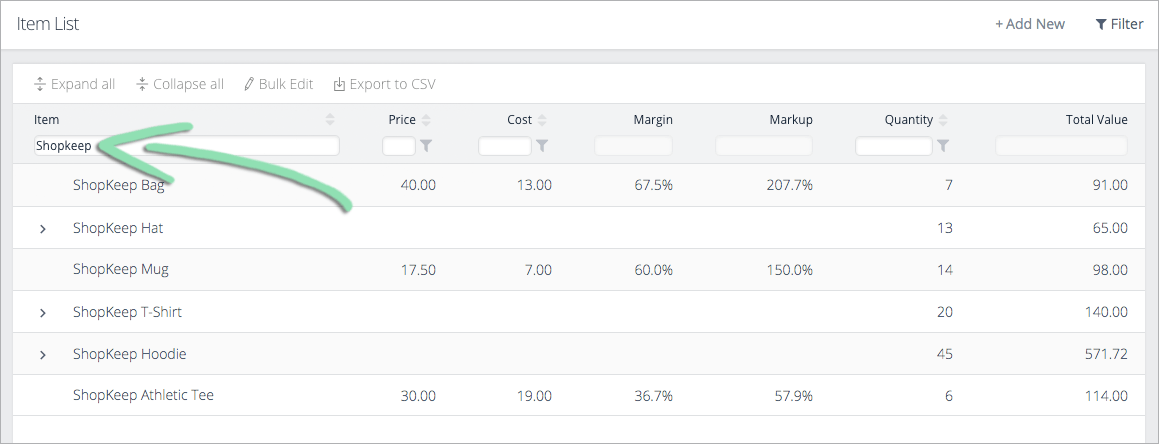
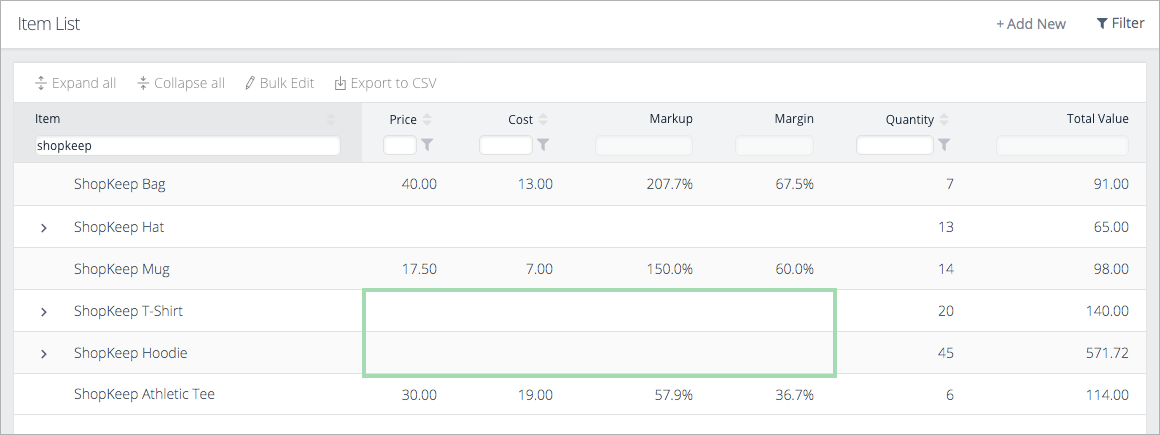
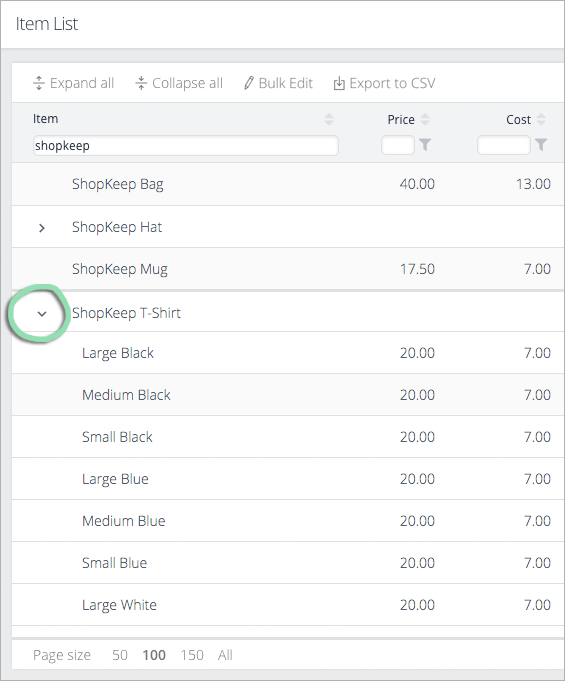
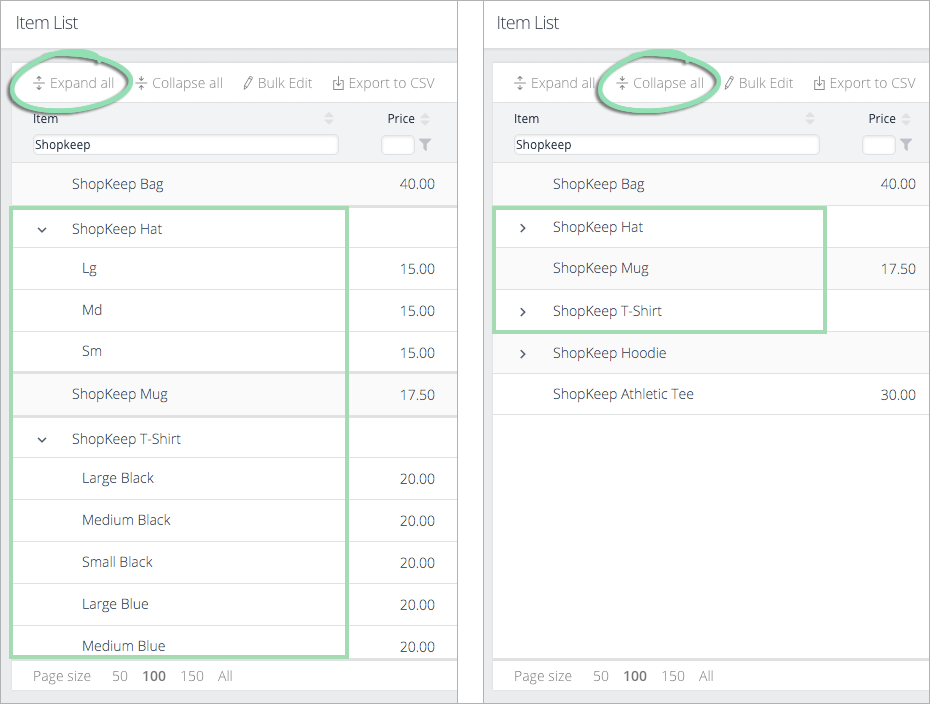
Visit our Organize Inventory article to find out how to access and use the Item List.
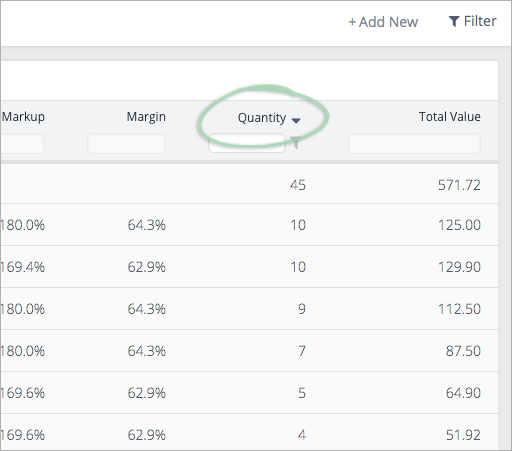
Update Inventory
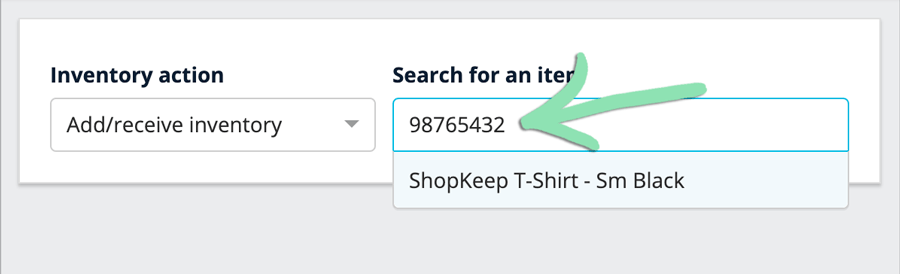
Visit our Update Inventory article to find out how and where to add, receive, remove, and adjust inventory.
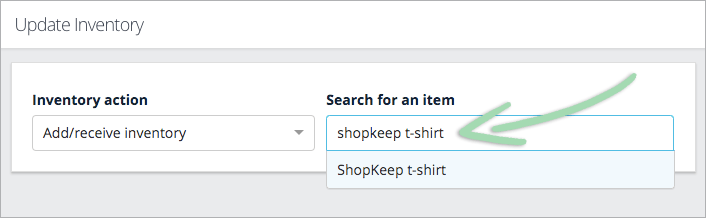
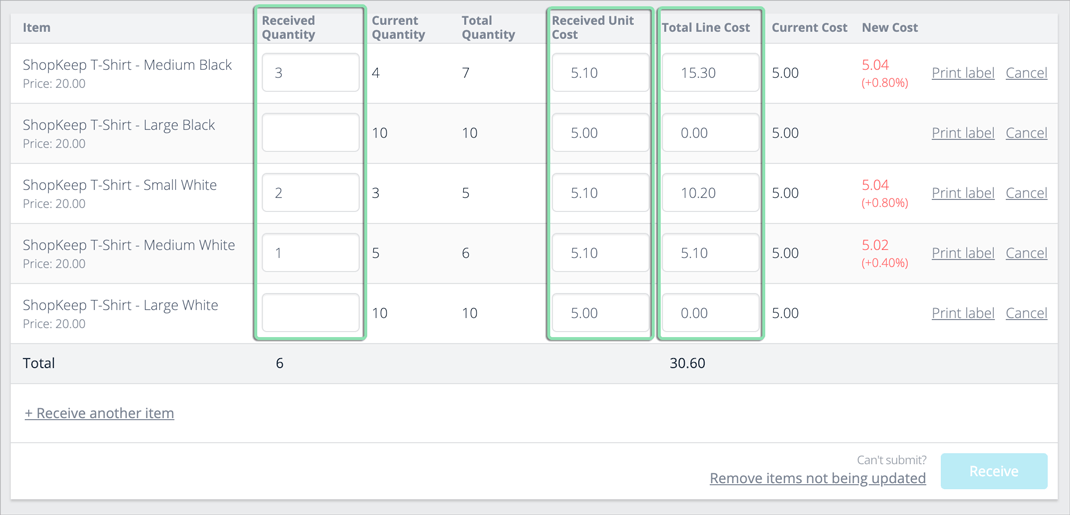
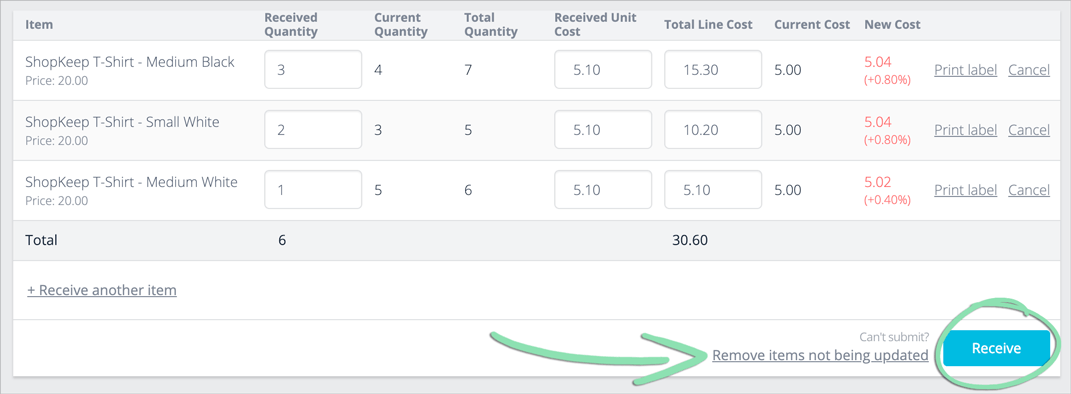
Analytics and Reporting
Visit our BackOffice support page to find out how to access and view reporting.
Dashboard
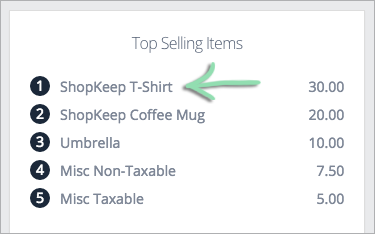
The Dashboard’s ‘Top Selling Items’ tile displays the sales total for all of an item’s variants. It does not show individual variants.
Transactions Report
Search the Transactions Report by item or variant name to narrow down the transactions that display.
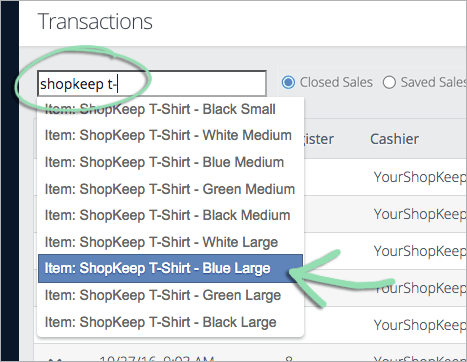
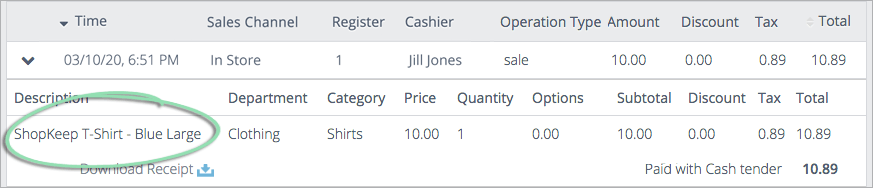
Items appear on the Transactions Report & Transaction by Item export with both the item and variant name.
Sales by Item
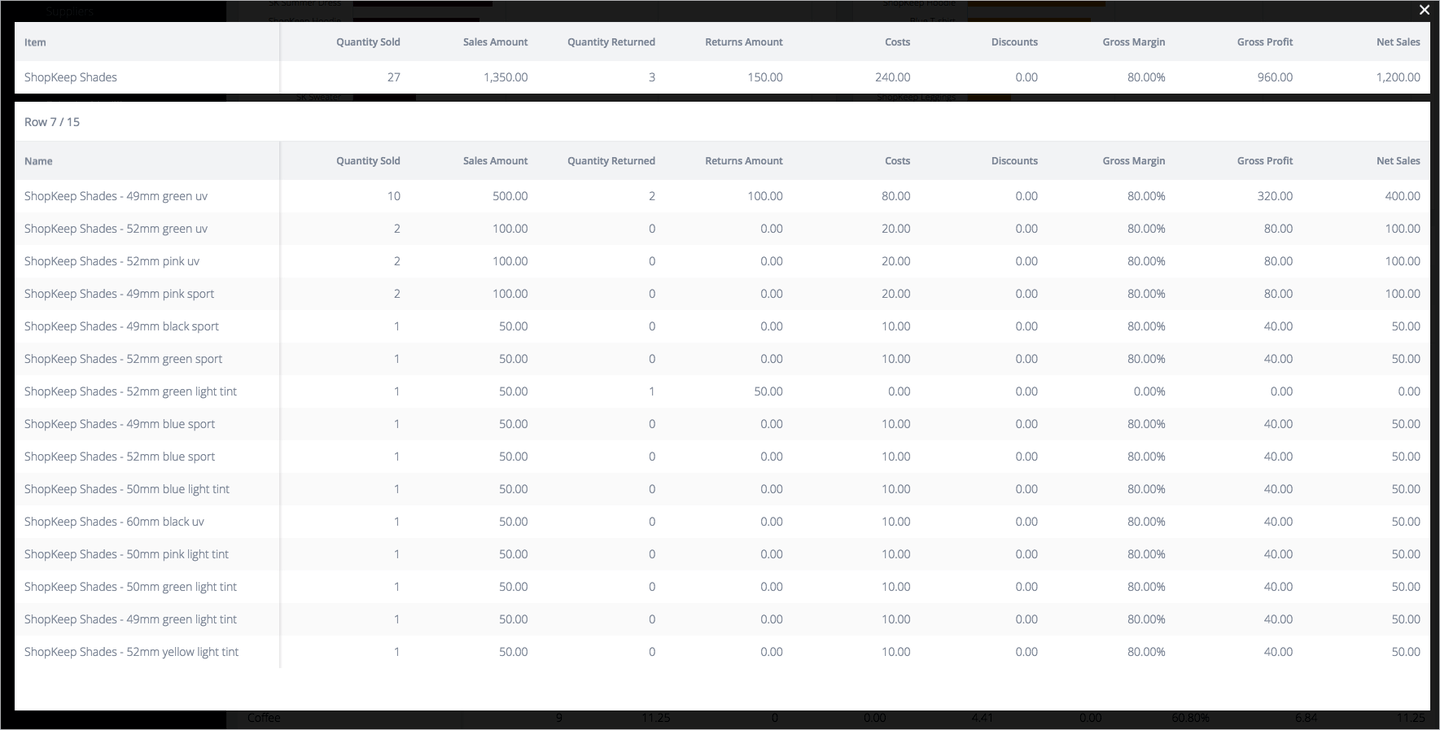
The Sales by Item report shows Quantity Sold, Sales Total, etc. combined for all of an item’s variants.
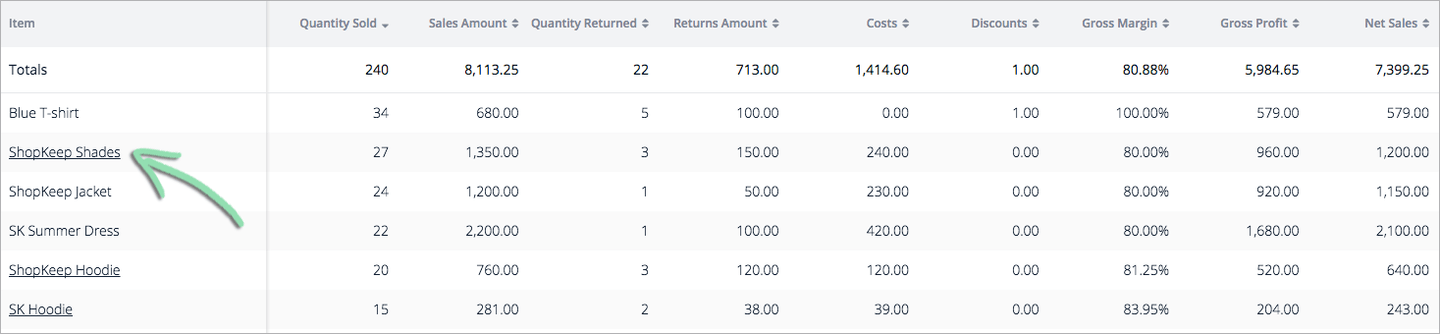
Click an item row to see details on the variants used in sales/returns of the item.
Quantity History Report
Click View History to see all quantity history for each individual variant item.
In the Item List, click the variant line item to view details.
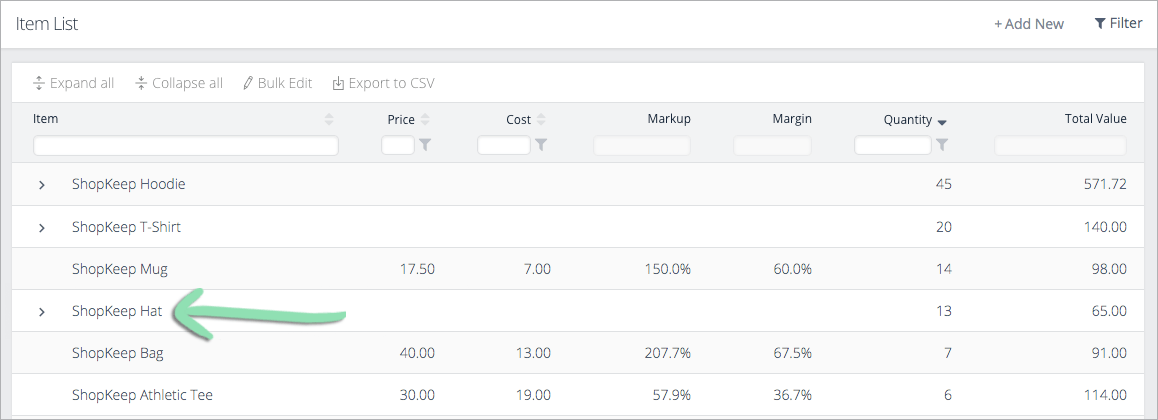
Click the down arrow to view history details of each individual variant.

Sales, returns, adjustments, receiving, and removal events are listed for the selected time frame.

Reorder Report
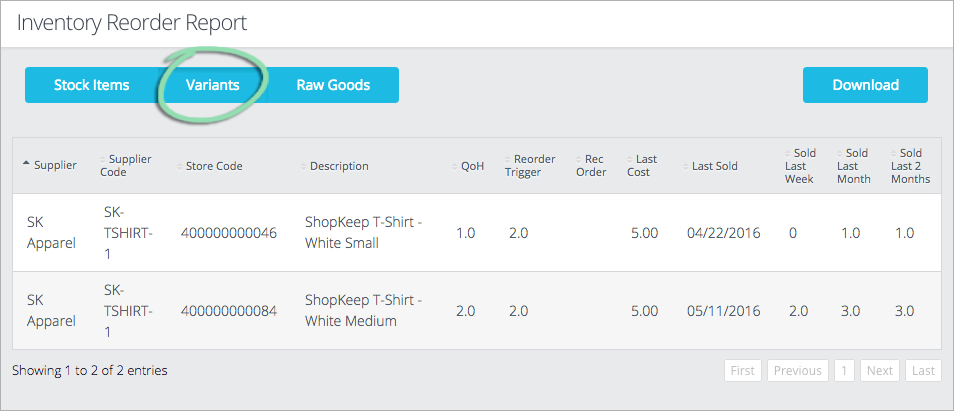
Select Variants to filter the Reorder Report and show which variants have hit their Reorder Trigger.
Stock Items Export
The Stock Items Export lists each individual variant. Use this report to view all of your items in one place.

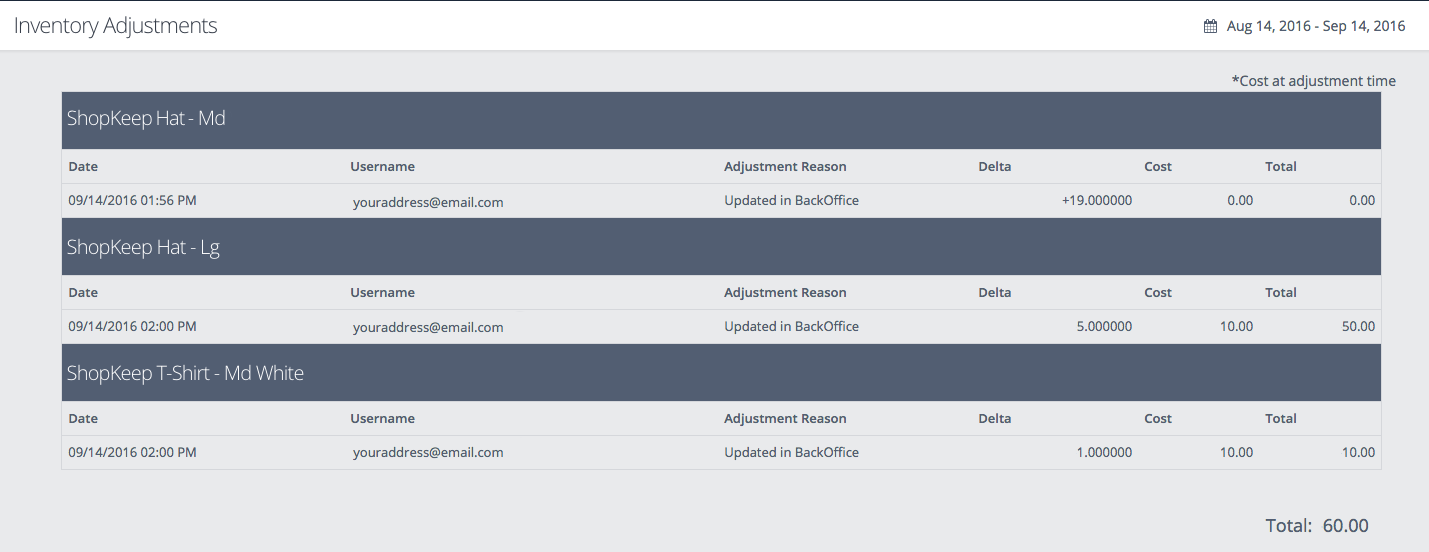
Adjustment History
Adjustment History displays the name of the item and the variant and information about what was adjusted or removed.
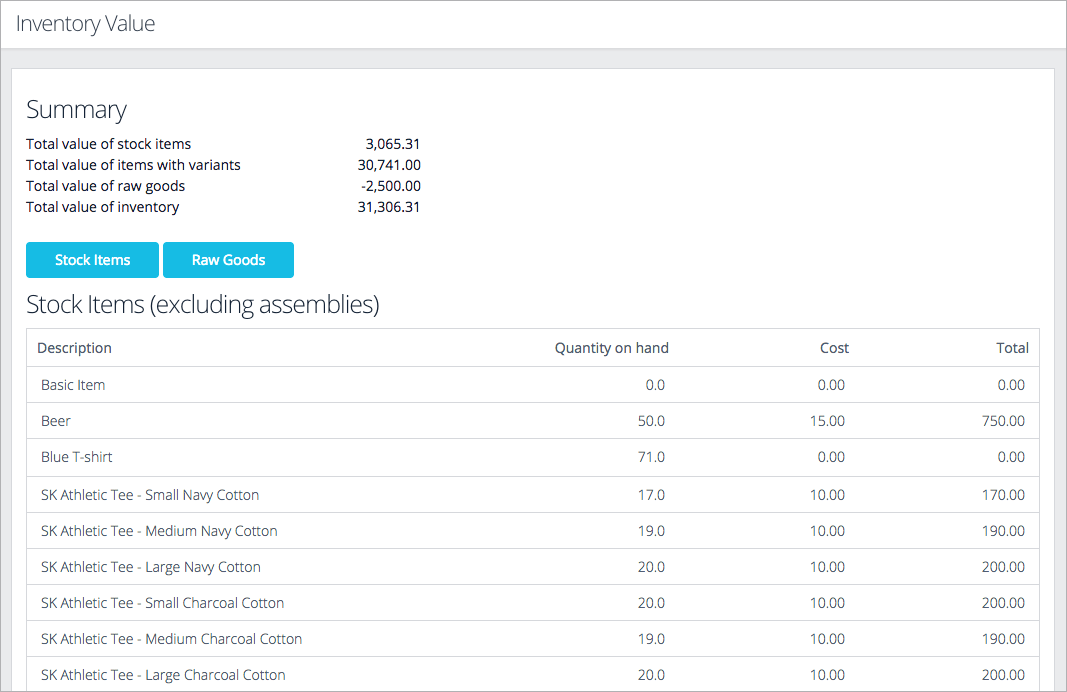
Inventory Value
The Inventory Value report includes the value of items with variants in the total inventory value and lists each individual variant as its own line item.
Unsupported Features
Currently, there are some BackOffice features that are incompatible with items that have variants. Not to worry, these all still work for basic items.
If you run into any issues related to items with variants, visit our Troubleshooting Guide for help.