Lightspeed Retail can be used effectively by a variety of businesses, but it must be set up properly for each one. This article covers features available for restaurants and shows how to use the Register Type setting in BackOffice to set up Lightspeed Retail for optimal use in a restaurant.
From adding the number of guests to a check to learning the average sale value per guest, you can use restaurant-specific features and reporting built with restaurant users in mind.
Understanding restaurant-specific features
Below are the current restaurant-specific features available for Lightspeed Retail merchants using the Restaurant Register Type.
Register
- Guest Count: The ability to record the number of guests per transaction at the register. Learn how to use the Guest Count feature here.
- X and Z Reports: See the number of guests served per shift. Learn more about X and Z reports here.
BackOffice
- Dashboard: See the total number of guests served and the average sale value per guest. Learn more about the Dashboard here.
- Shifts Summary: See the number of guests served per shift. Learn more about the Shifts Summary here.
Lightspeed Pocket
- Guest Activity: See the total number of guests served, average number of guests per sale, and average sale amount. Learn more about Lightspeed Pocket here.
Enabling the restaurant register type
Set your Lightspeed Retail store’s Register Type to Restaurant in BackOffice to begin using restaurant-specific features. Please note that the Register Type governs all registers in that location.
-
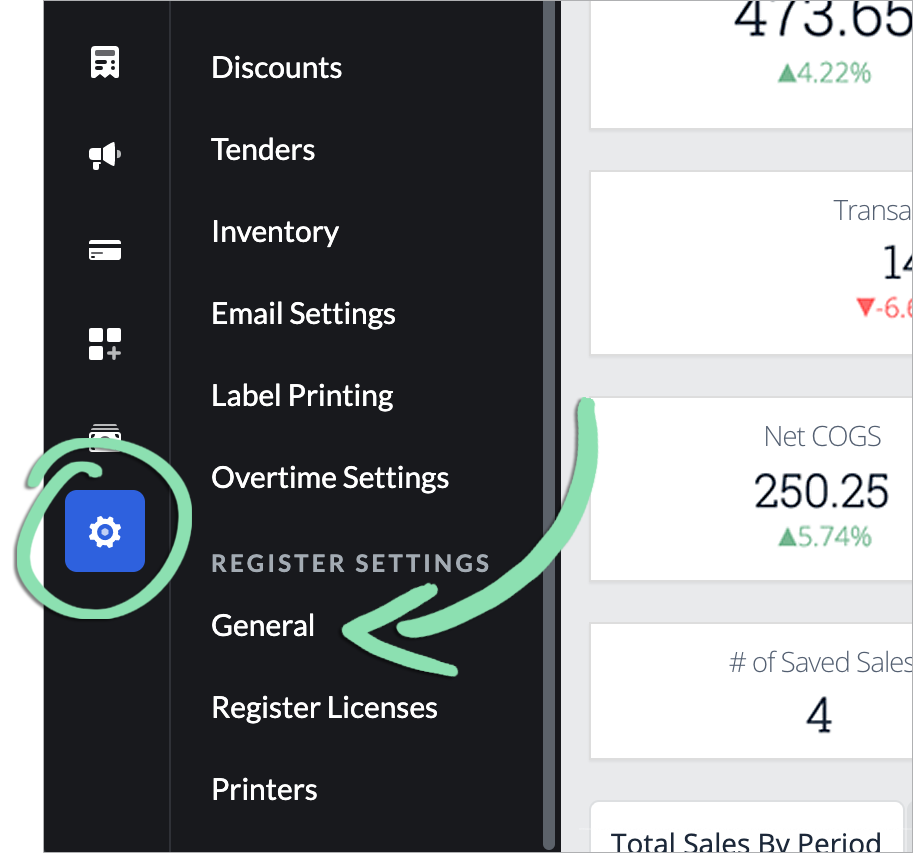
In BackOffice, click Settings and select General.
-
Scroll down to Register Type and select Restaurant from the dropdown menu.

- Click Save.
- At the register, sign in as a manager.
- Get updates on the iOS register to set the Guest Count feature live on the register.