The time clock in the Retail POS (S-Series) app allows employees to clock in and out so that managers can track all hours worked via the BackOffice Time Clock report. Employees clock in and out to record the beginning and end of their work shift and of any unpaid breaks.
The Time Clock report in BackOffice shows the hours staff worked based on their clock punches recorded at the register.
For more employee reporting, run the Labor Tracking Report to view employee overtime and double-time hours, or the Sales by Employee Report to analyze employee sales.
Clocking in and out
Employees clock in and out at the register with a unique register code to record the start and end of their shift and of any unpaid breaks. For help creating new employees, visit our Manage Staff article.
Time clock use requires an active Internet connection at the register and more than 1 employee to be set up in BackOffice. Without the Internet, clock punches will not be recorded or synced to BackOffice.
-
If signed in to the Retail POS (S-Series) app, tap Sign Out on the Main Menu to return to the sign-in screen.
Sign Out is only available when more than 1 employee is set up in BackOffice.

-
On the sign-in screen, enter a register code.
If you don't know your register code, learn how to find it here.
-
Tap Clock In / Clock Out to record a clock punch.
If staff clock in or out at the wrong time or have other time clock issues, visit our troubleshooting guide for help.

-
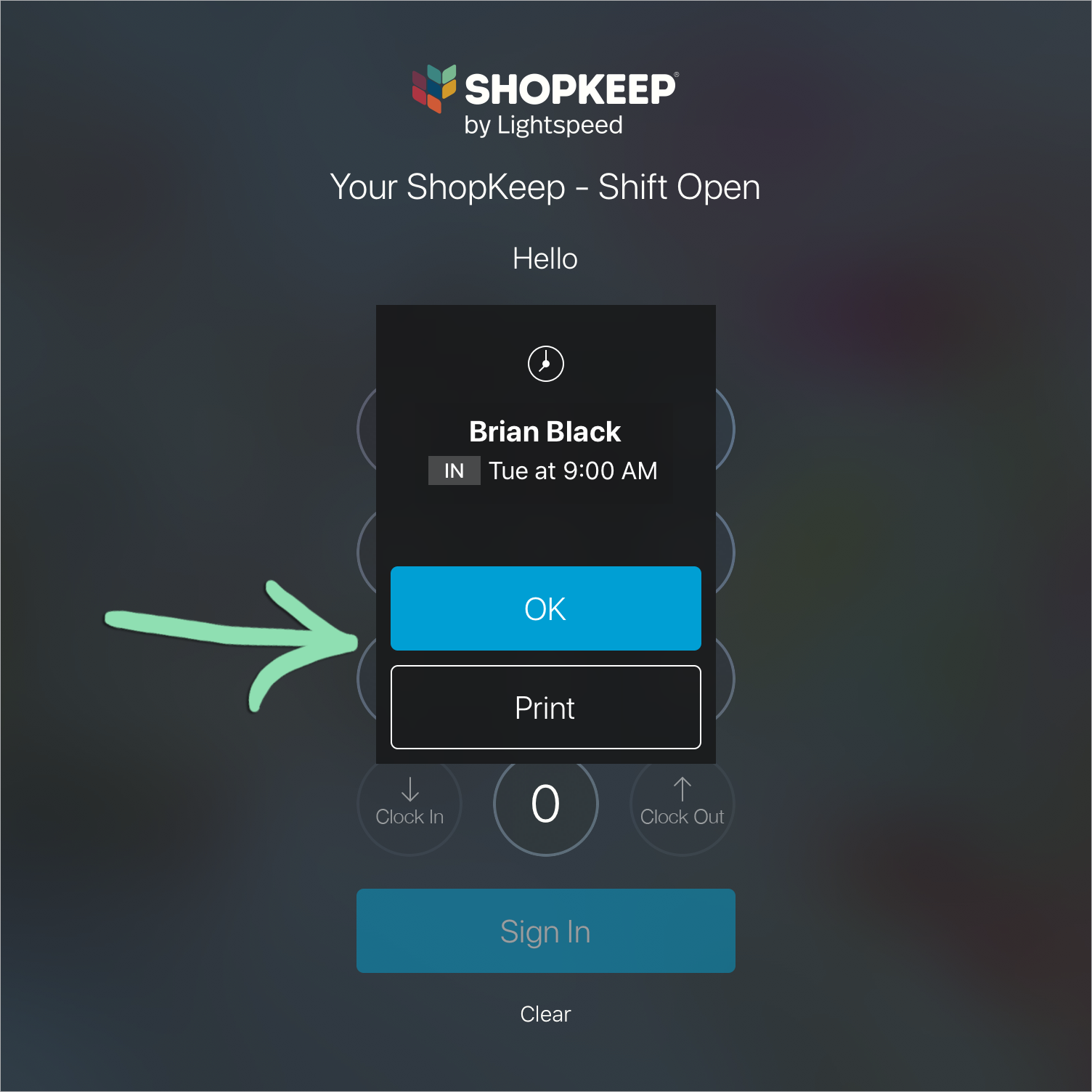
Tap OK to dismiss the clock punch notification or Print to print a chit to a connected receipt printer confirming the punch.
- Employees must be clocked in to be able to clock out, and vice versa.
- If you don’t have a receipt printer, take a screenshot or photo of the screen on iOS.
Clock In Notification
 Clock Out Notification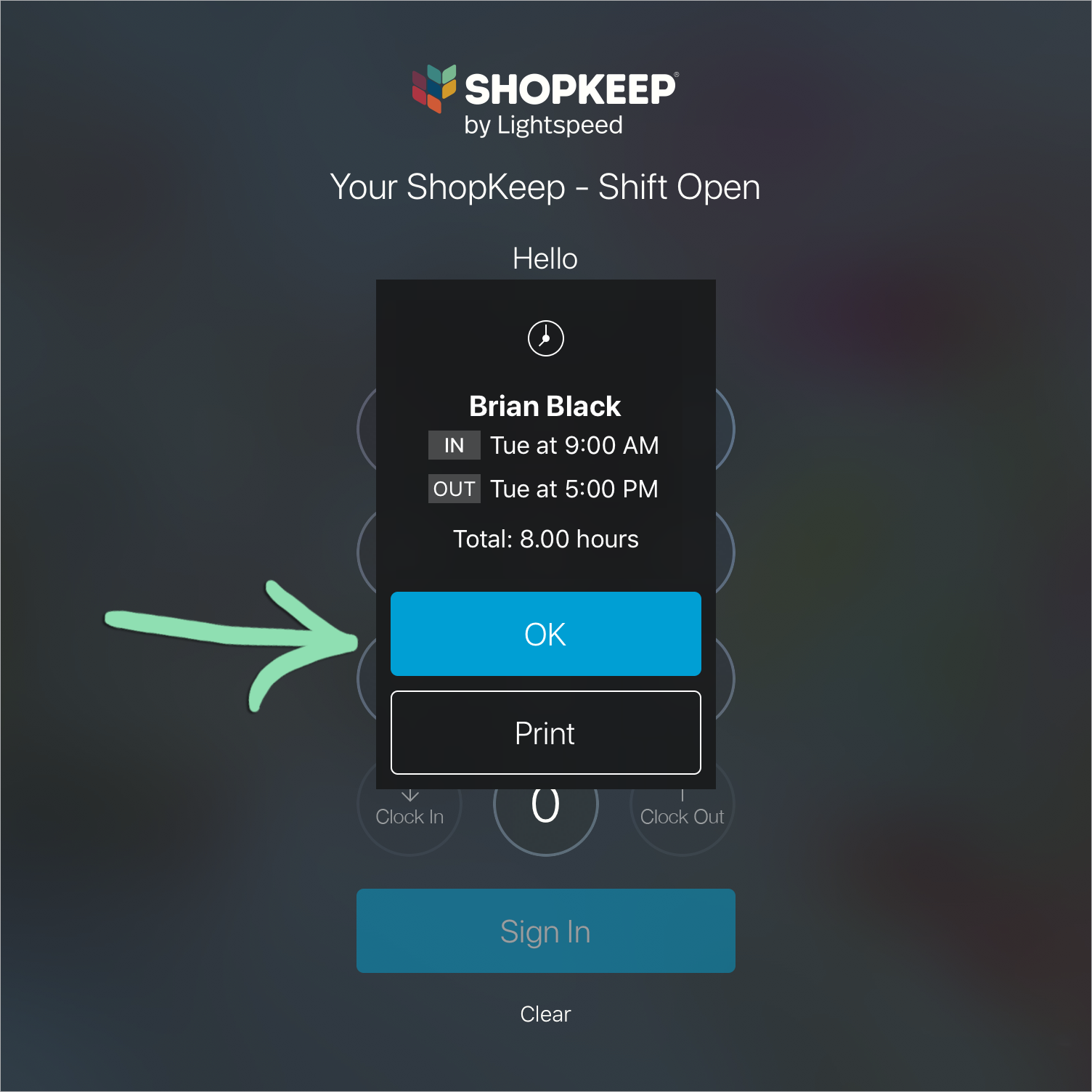
Running and reading the report
From BackOffice, run the Time Clock report to view the hours each employee worked and their clock punches over a date range.
-
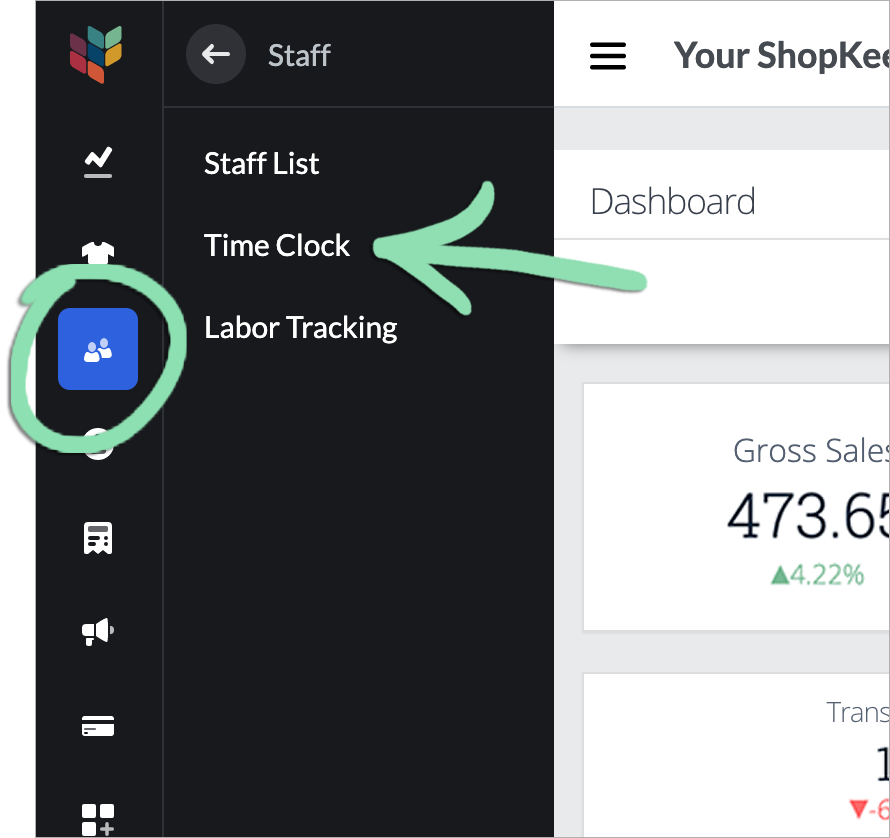
In BackOffice, click Staff, then select Time Clock.
-
Click the date icon to choose a preset or custom range, then click Retrieve.
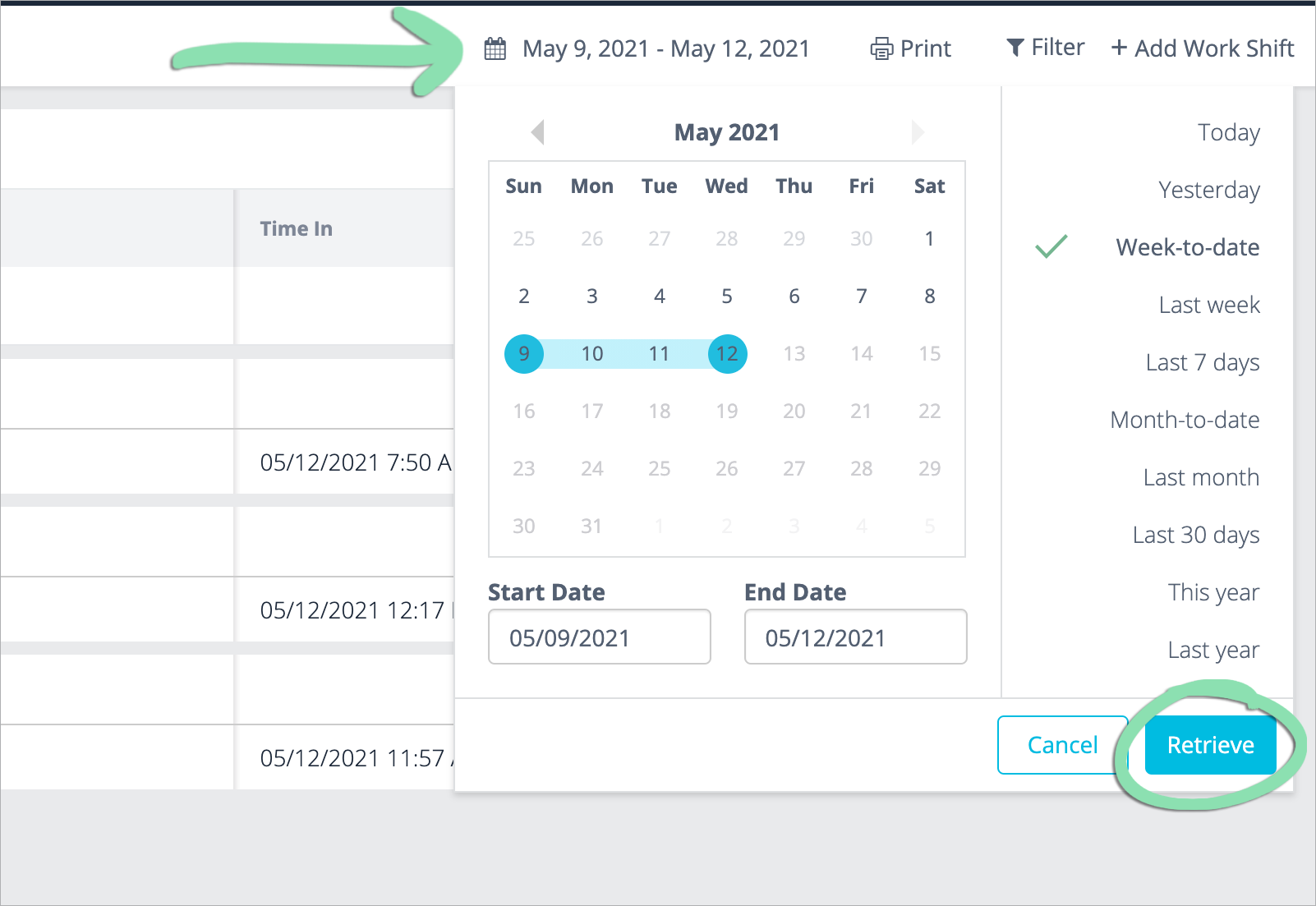
The Time Clock report shows each employee’s clock punches and total hours worked over the selected date range. The report is grouped by employee, and the duration of each work shift is listed in decimal hours*.
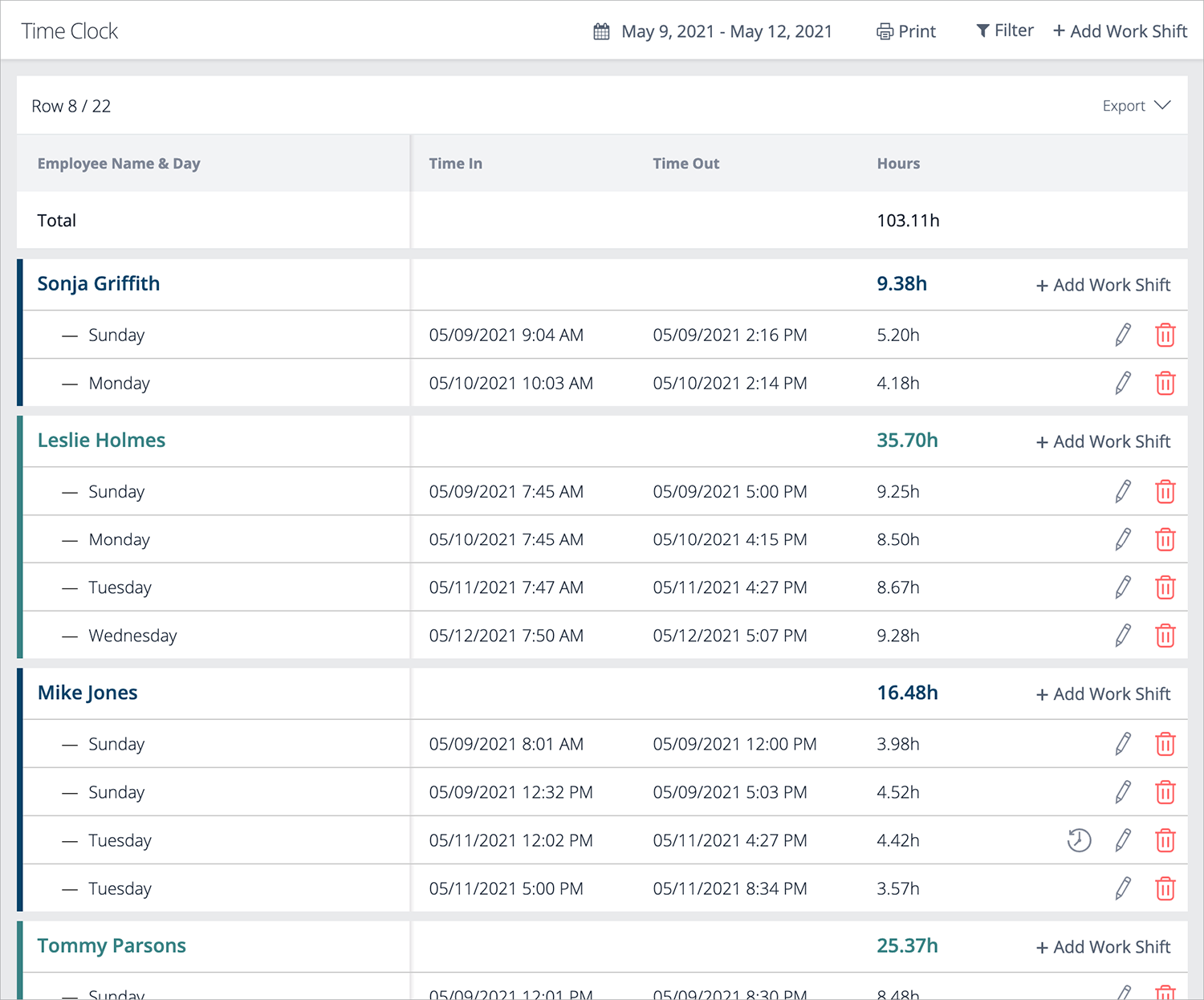
- Employee Name: Name of staff member as it is currently entered in BackOffice.
- Day of Week: Day the work shift occurred.
- Time In: Date and time the employee clocked in for their shift.
- Time Out: Date and time the employee clocked out for their shift.
-
Hours: Number of decimal hours* worked by the employee during that shift. Hours are not totaled until both in and out clock punches are recorded.
*The decimal in ‘Hours’ represents a fraction of an hour, not minutes. For the number of minutes, multiply the number after the decimal point by 60. For example, 8.10 hours is 8 hours and 6 minutes (0.10 x 60).
If clock punches are incorrect or missing, visit our troubleshooting guide for help.
Filtering the report
Filter the report to view the hours of specific employees, hide or show data columns, and hide or show deleted, incomplete, or complete work shifts.
-
Click Filter.
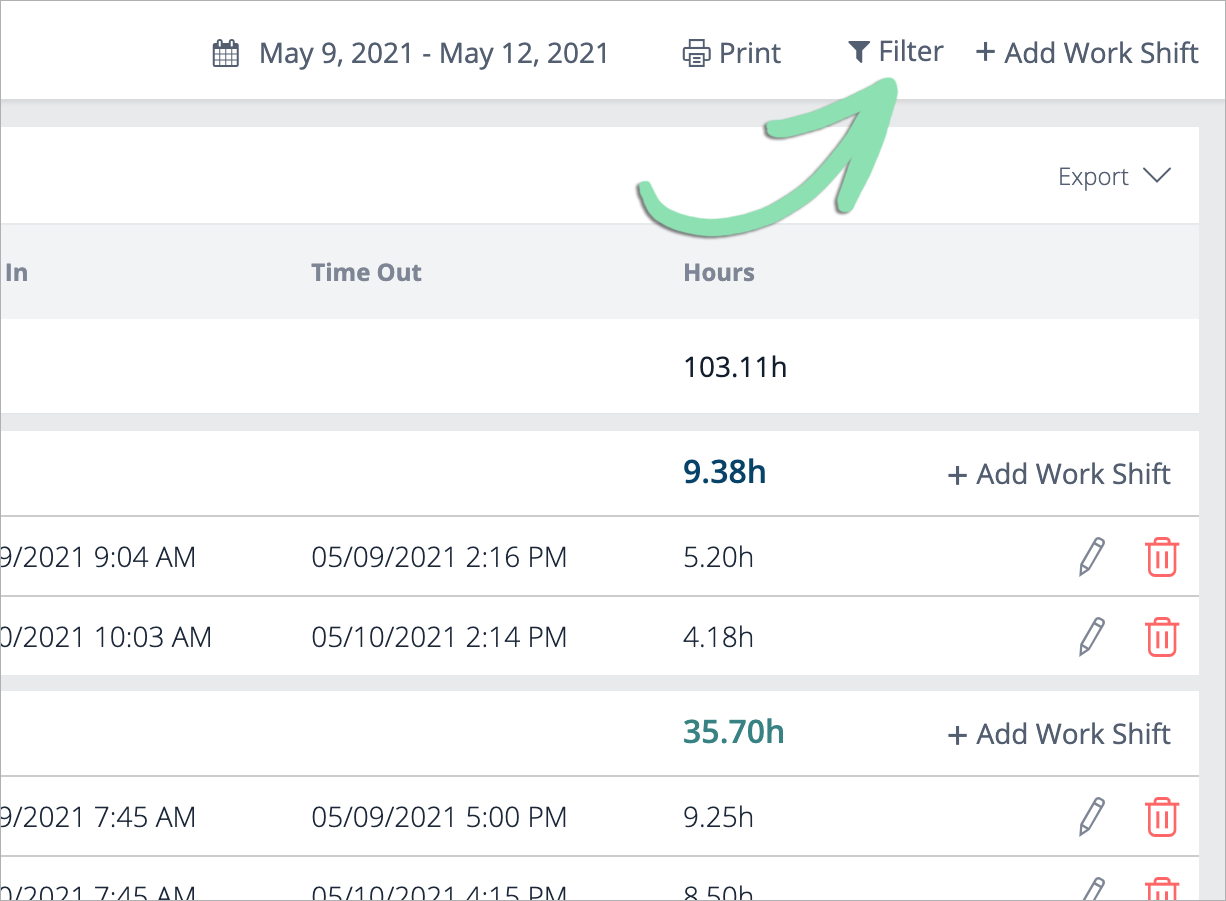
- Select a filter, then check or uncheck boxes to show or hide report information.
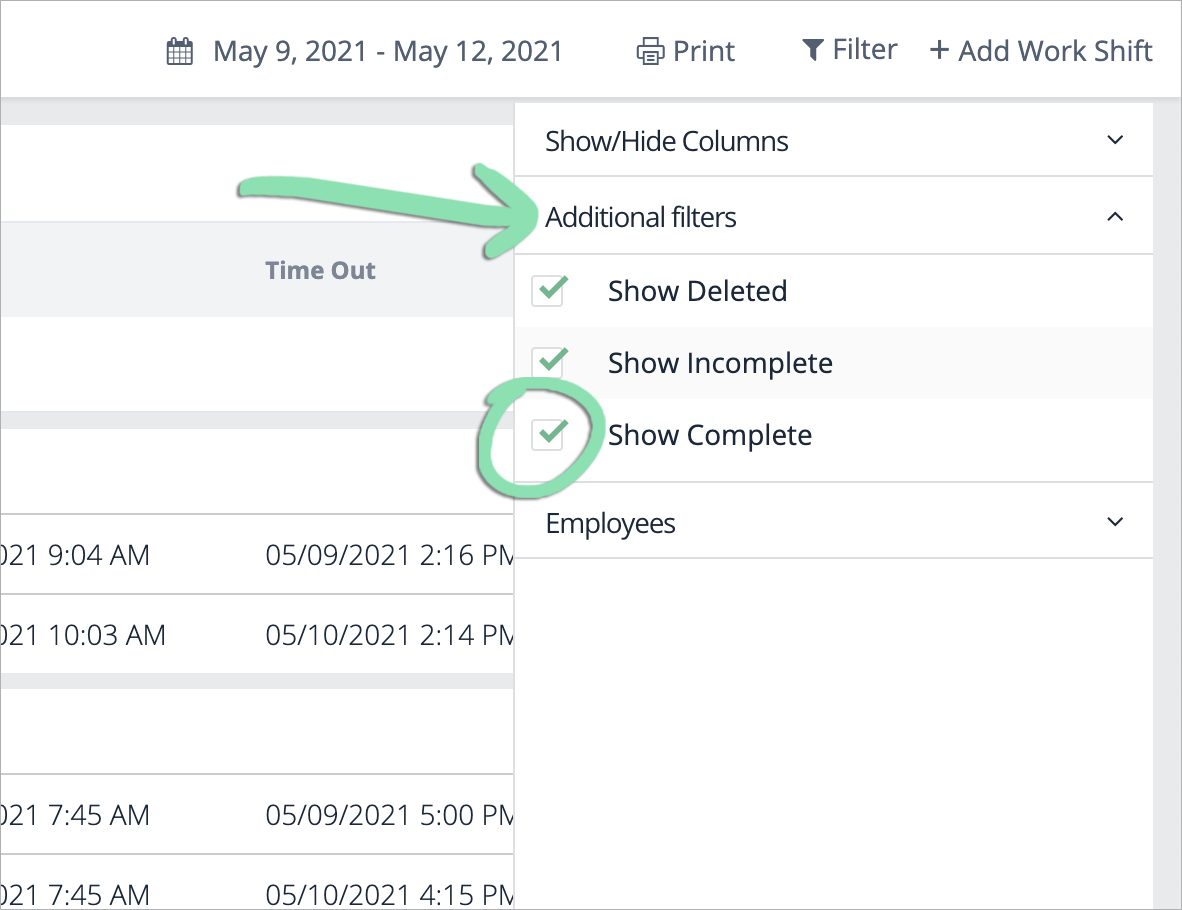
- Show/Hide Columns: Add or remove the Time In, Time Out, and/or Hours columns from the report.
- Additional Filters: Show or hide deleted, incomplete, and/or complete work shifts on the report.
- Employees: Show or hide specific employees on the report.
Exporting and printing the report
View Time Clock report data outside of BackOffice by either exporting it to analyze in your own spreadsheet software or printing it in our printer-friendly format that can be printed or saved.
Exporting the report
-
Click Export and select an option for exporting the report.
Complete shifts: Export only work shifts that have both a Time In and Time Out.
Complete & incomplete shifts: Export all work shifts, including those missing a Time In or Time Out.
-
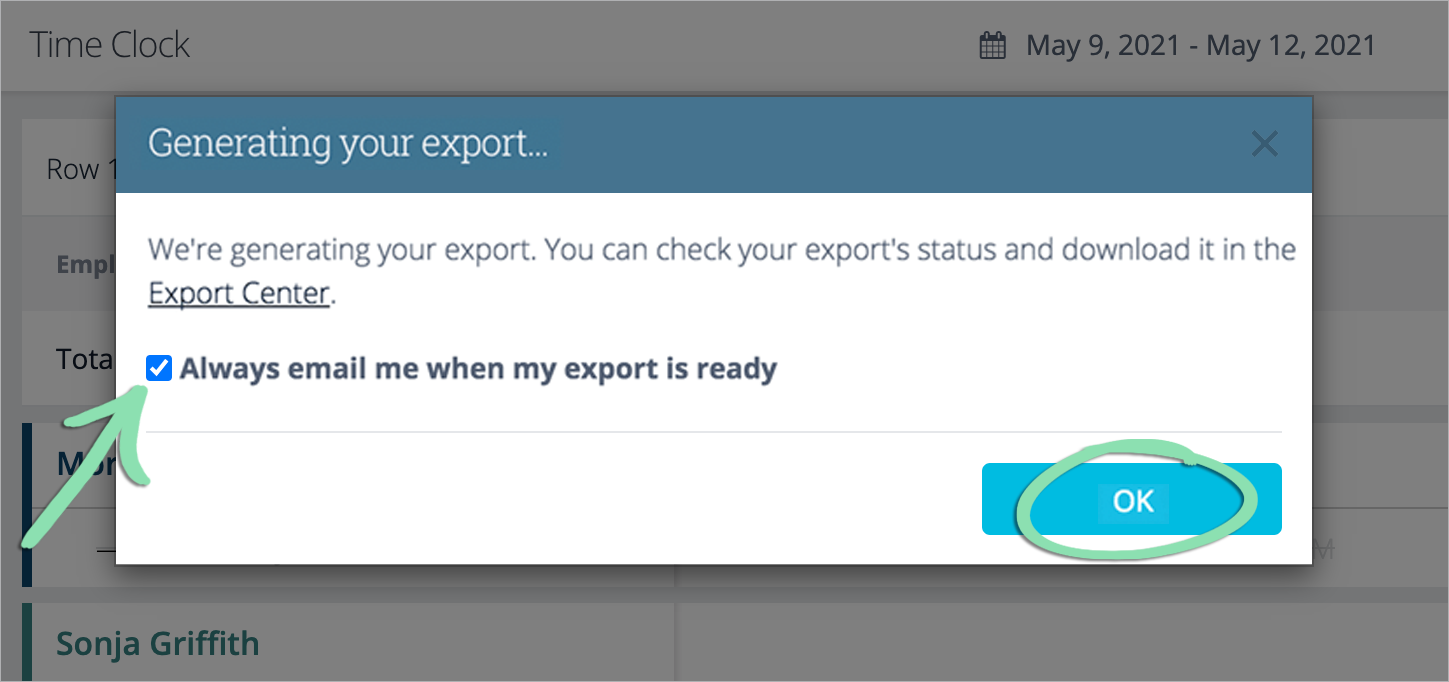
Wait for the export to be generated. Check the box to be notified by email when exports are ready for download (optional).
Exports ready in a few seconds will automatically download. Click Close to close the message box.
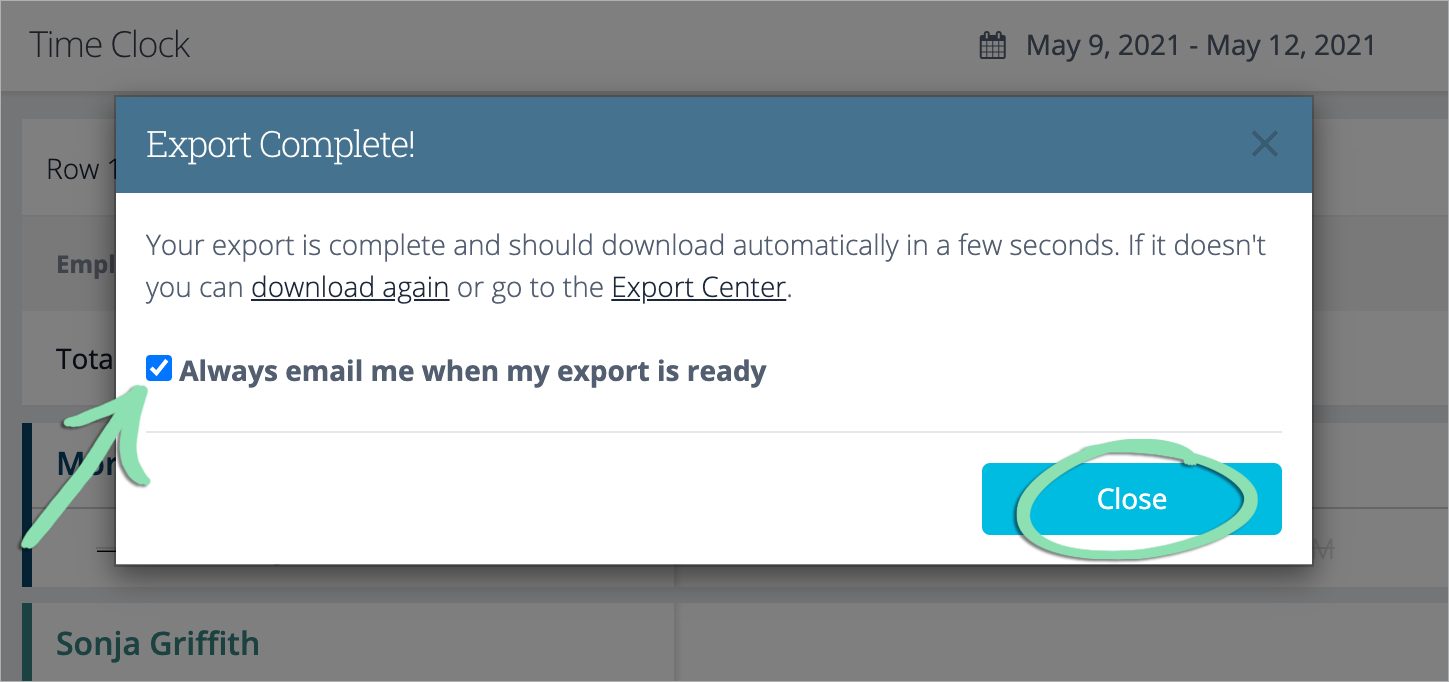
Exports that take more than a few seconds to generate are downloadable via the Export Center when ready. Click OK to close the message box.
-
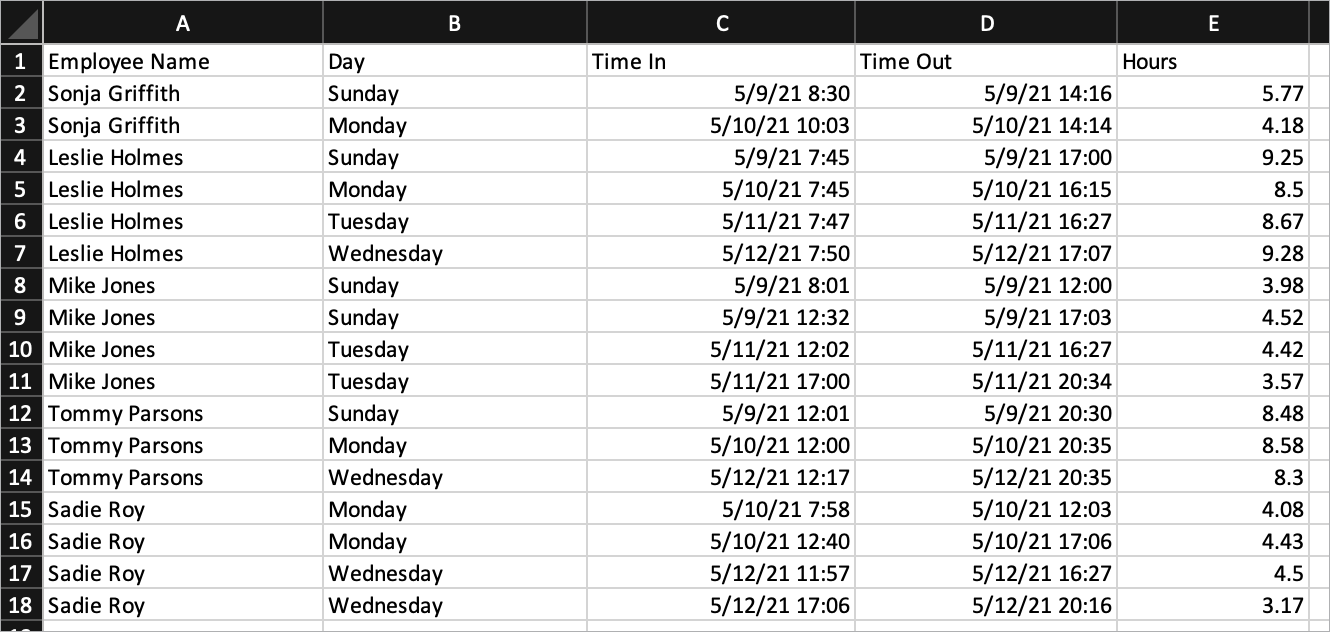
After downloading, the export is ready to open in any spreadsheet software.
Printing the report
-
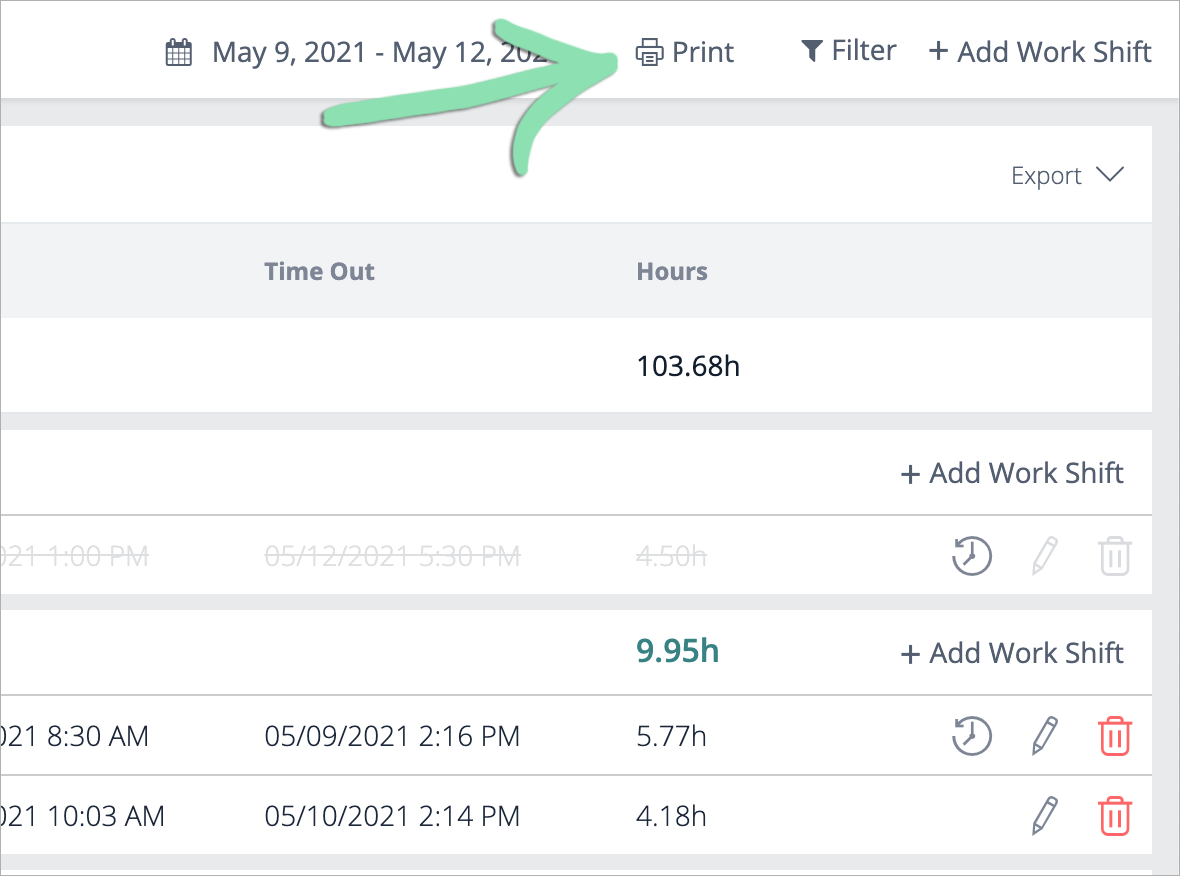
Click Print.
-
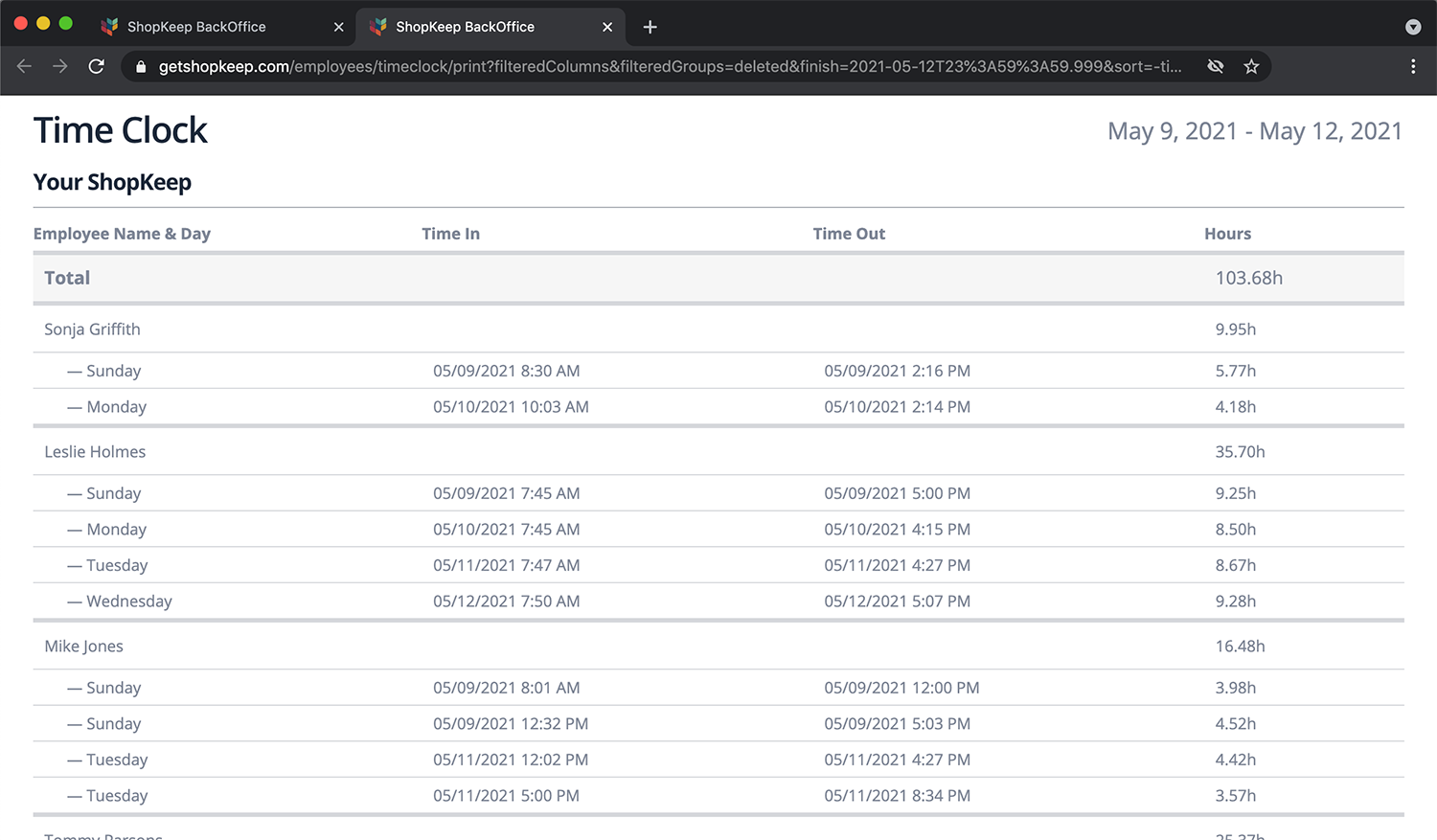
Wait for the report to open in a new browser tab.
-
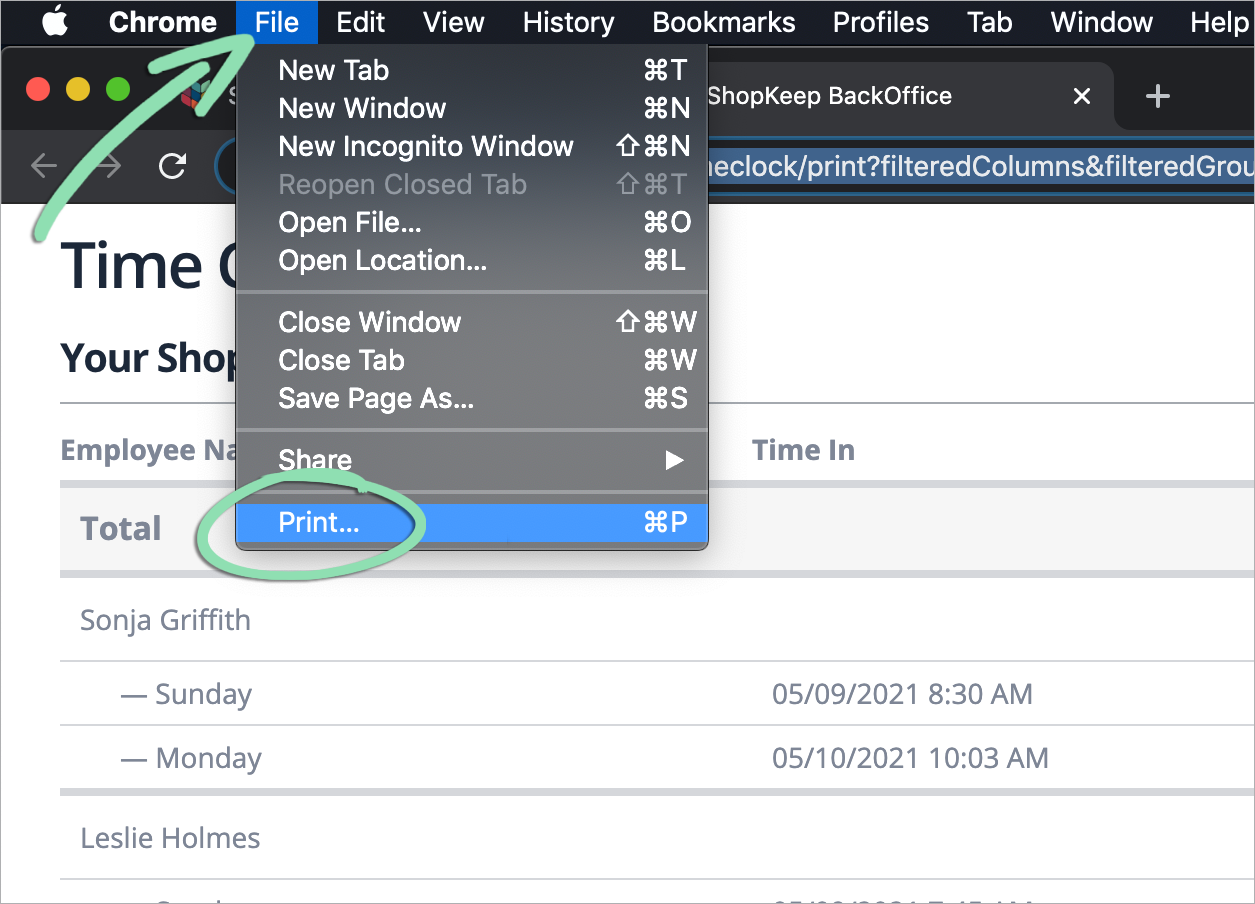
Click File on the web browser’s menu, then click Print.
You can also choose to save the print view as a PDF for easy sharing.
Managing Time Clock records
Learn how to add, edit, and delete work shifts on the BackOffice Time Clock report to modify time clock records and correct errors made by staff while clocking in or out.
Adding work shifts
If an employee does not clock in or out for their work shift, manually add the shift to the Time Clock report.
-
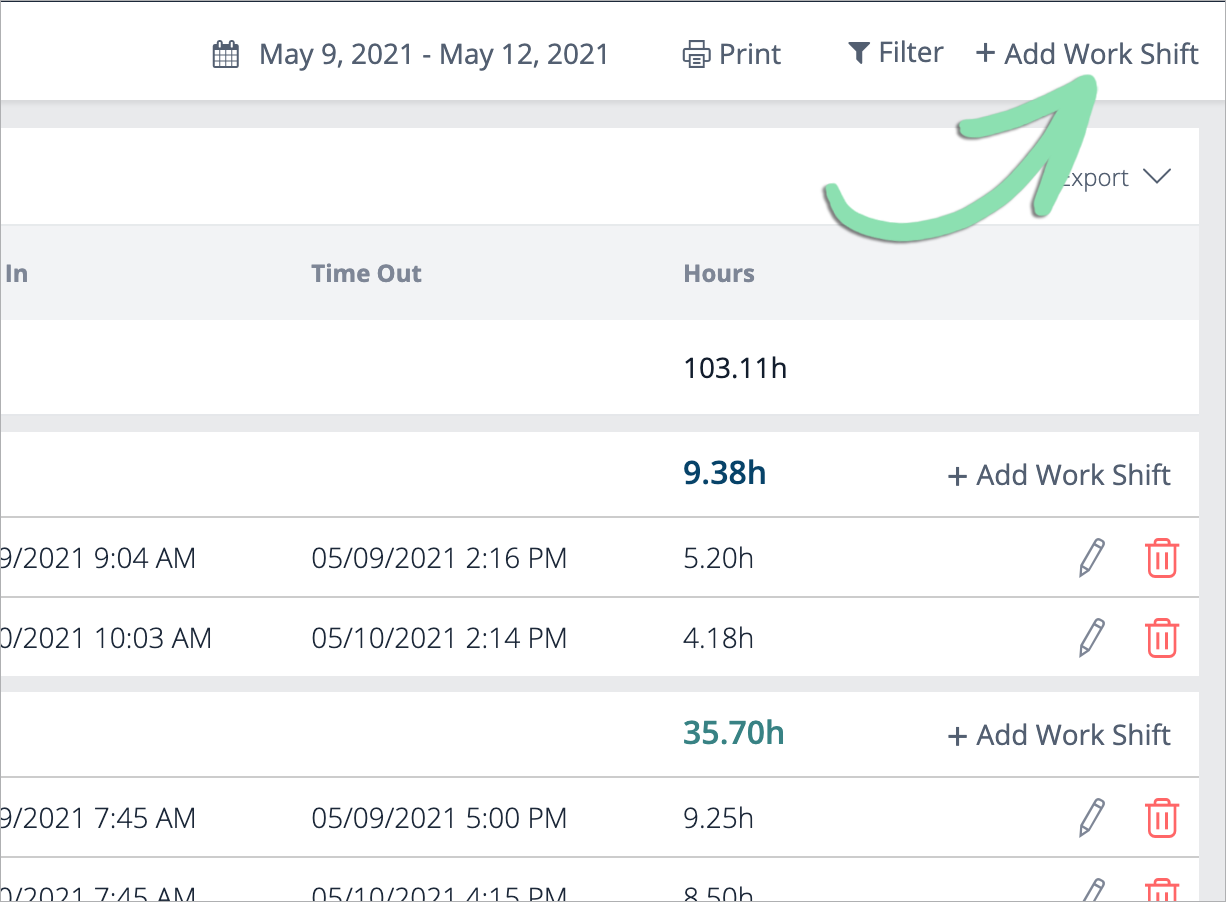
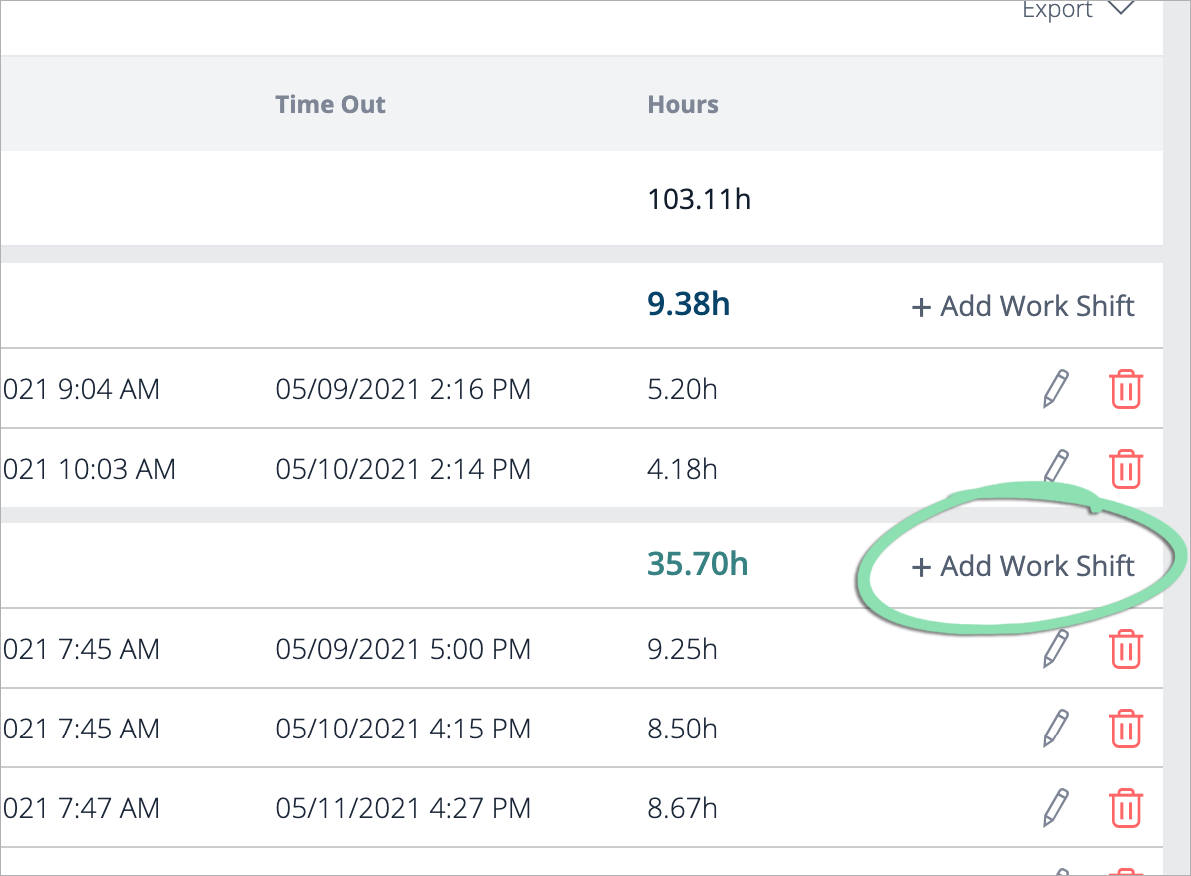
On the Time Clock report, click Add Work Shift at the top of the page or next to an employee.
-
Enter the work shift information.
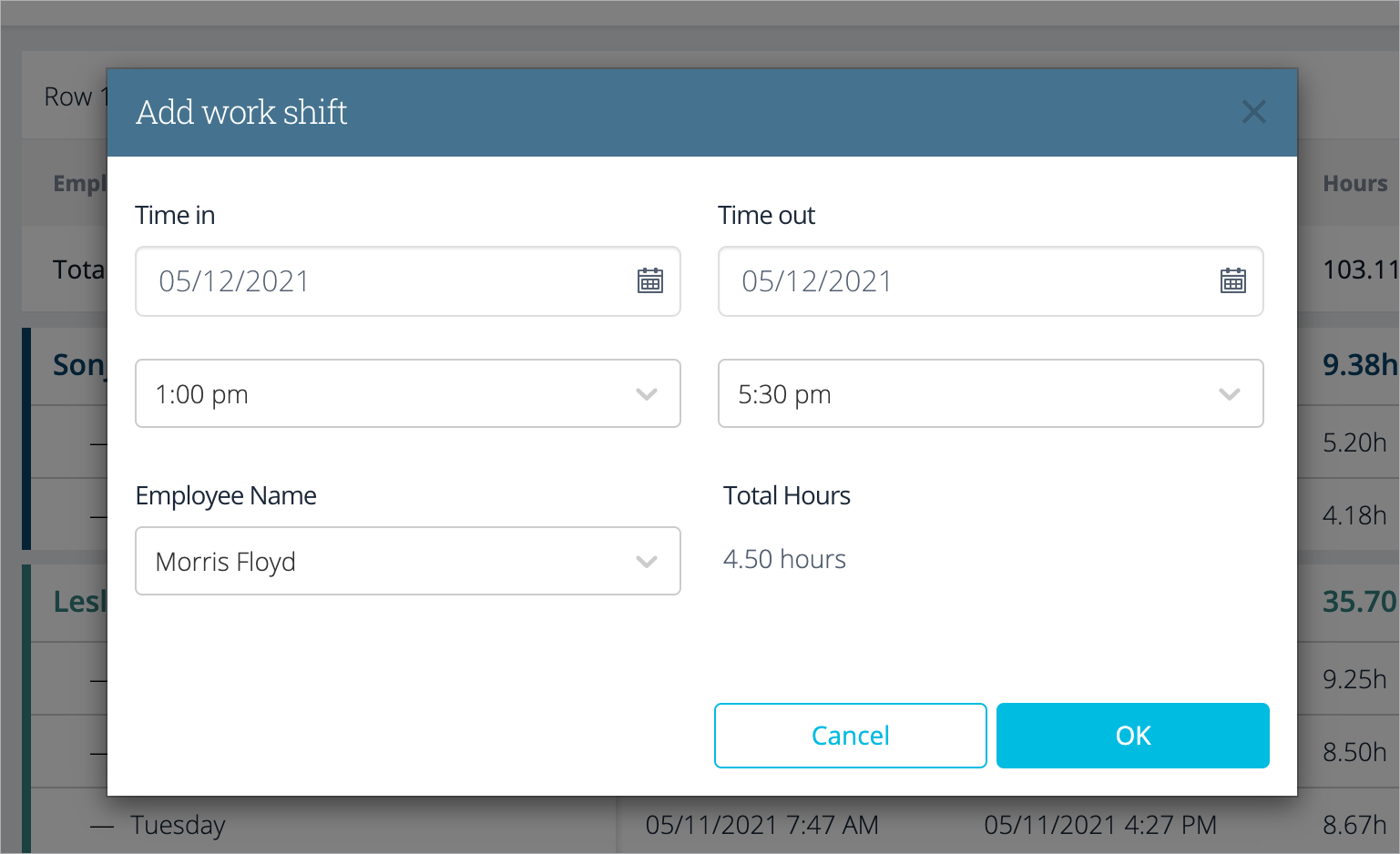
- Click OK to save the new shift.
Editing work shifts
Edit work shifts to fix mistakes on the Time Clock report caused by staff clocking in or out at the wrong time.
-
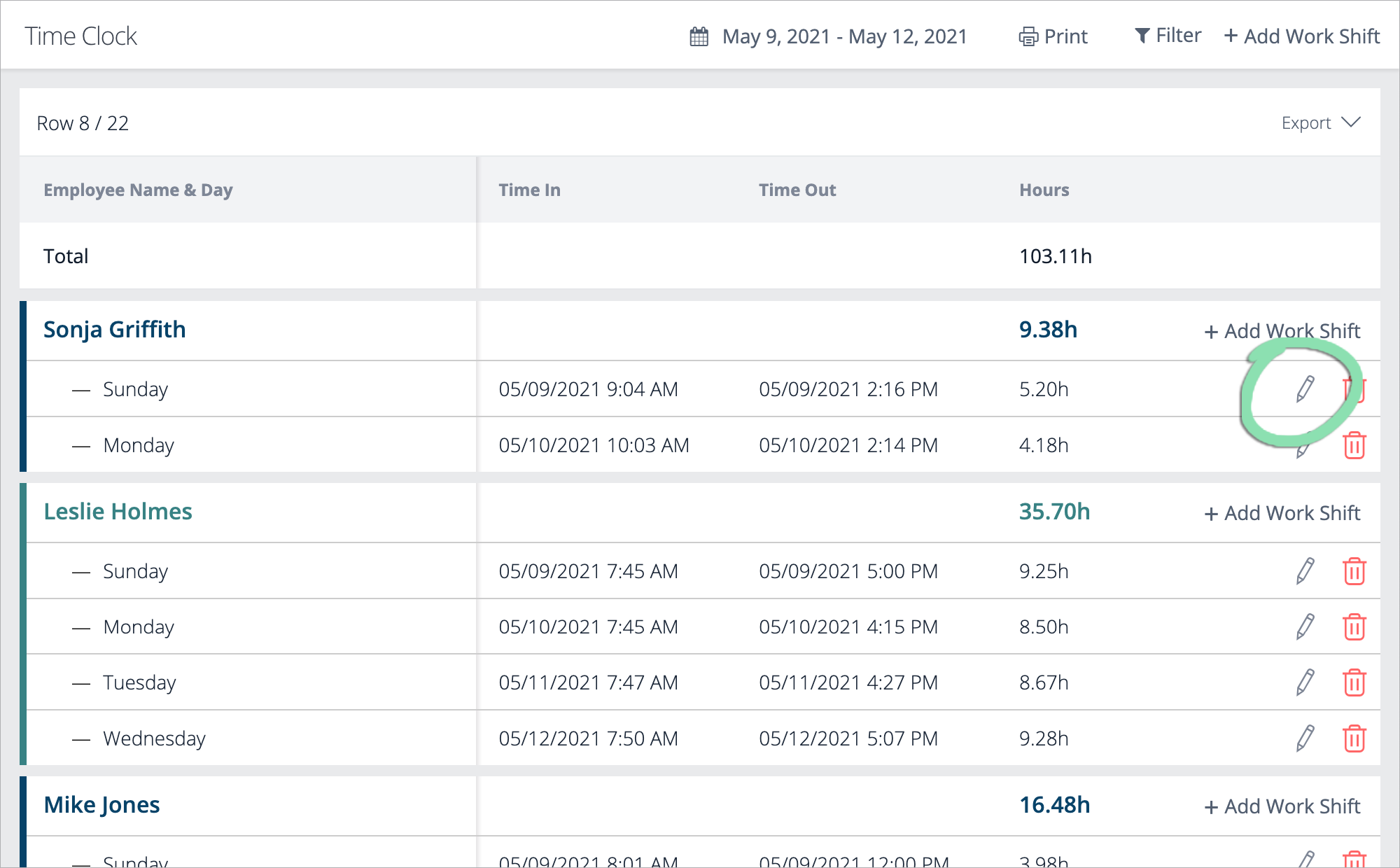
On the Time Clock report, click the pencil icon next to a work shift that needs to be changed.
Look for clock punches with the wrong date or time, shifts that are longer or shorter than expected, and anything else that needs adjustment.
-
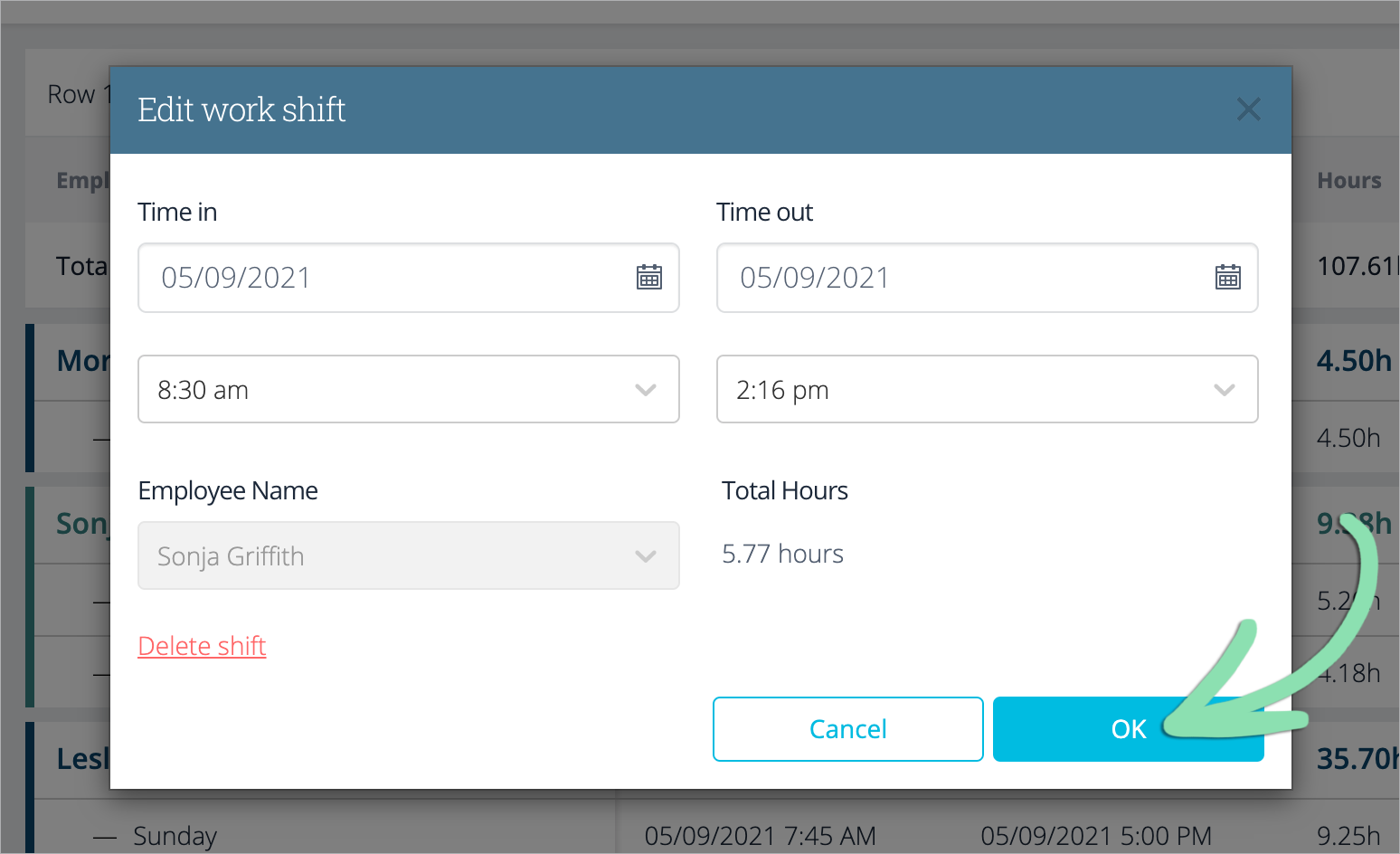
Update the work shift information, then click OK to save changes.
Edited work shifts will have a link to the Audit Table, which shows all edits made to the shift and is used to track changes made to clock punches.
Deleting work shifts
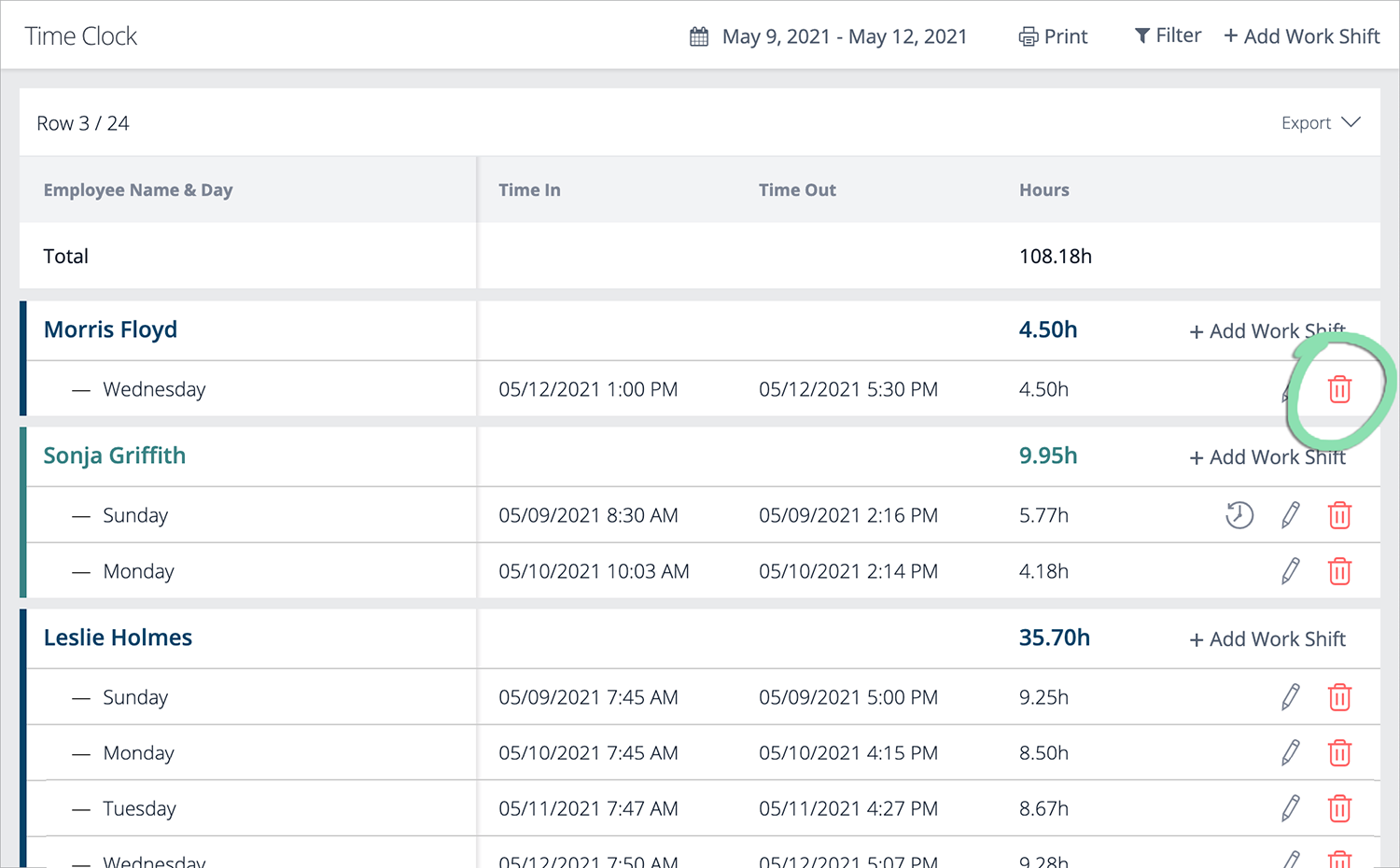
Delete work shifts to remove them from an employee’s total hours worked on the Time Clock report.
-
On the Time Clock report, click the trash can icon next to a work shift to delete.
-
Click Delete to confirm the deletion of the shift.
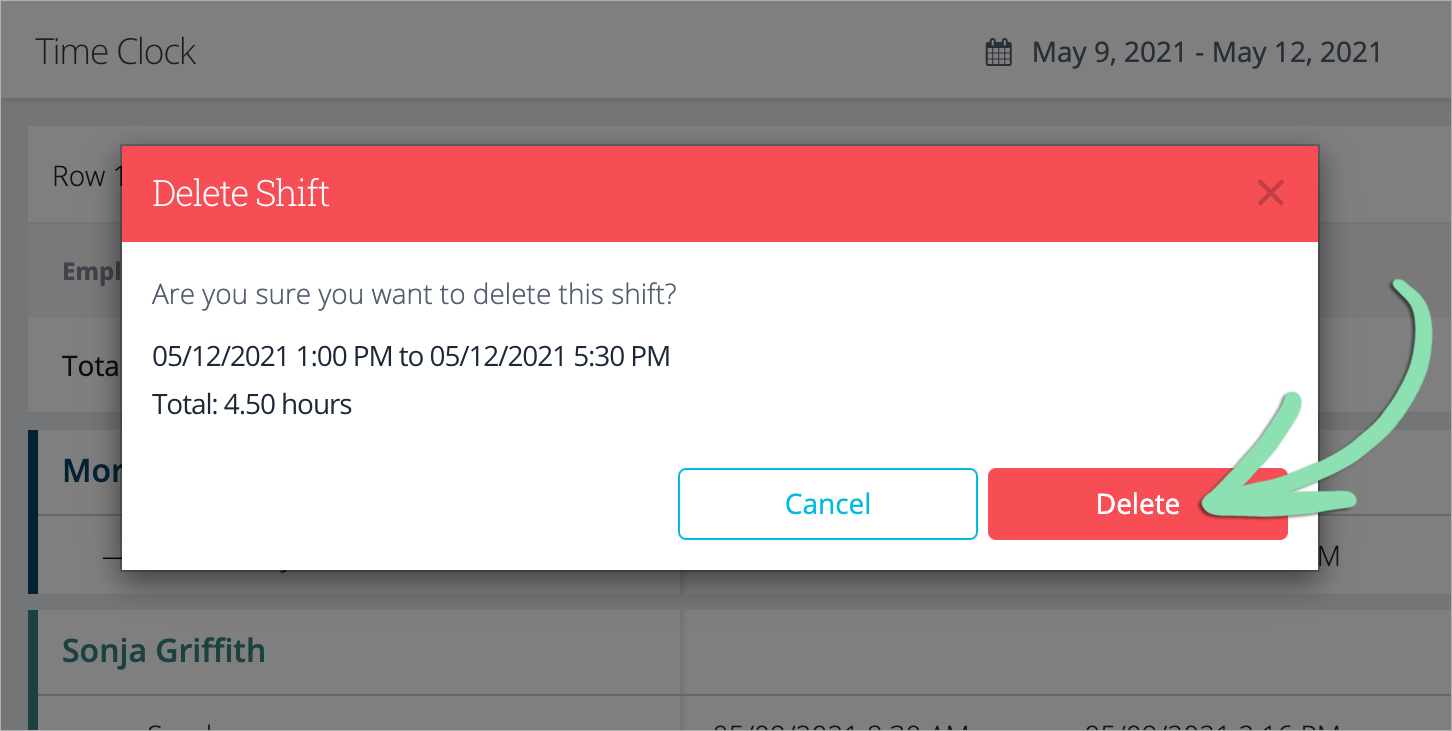
Deleted work shifts will appear in gray on the report and will link to the Audit Table, which shows when the shift was deleted.
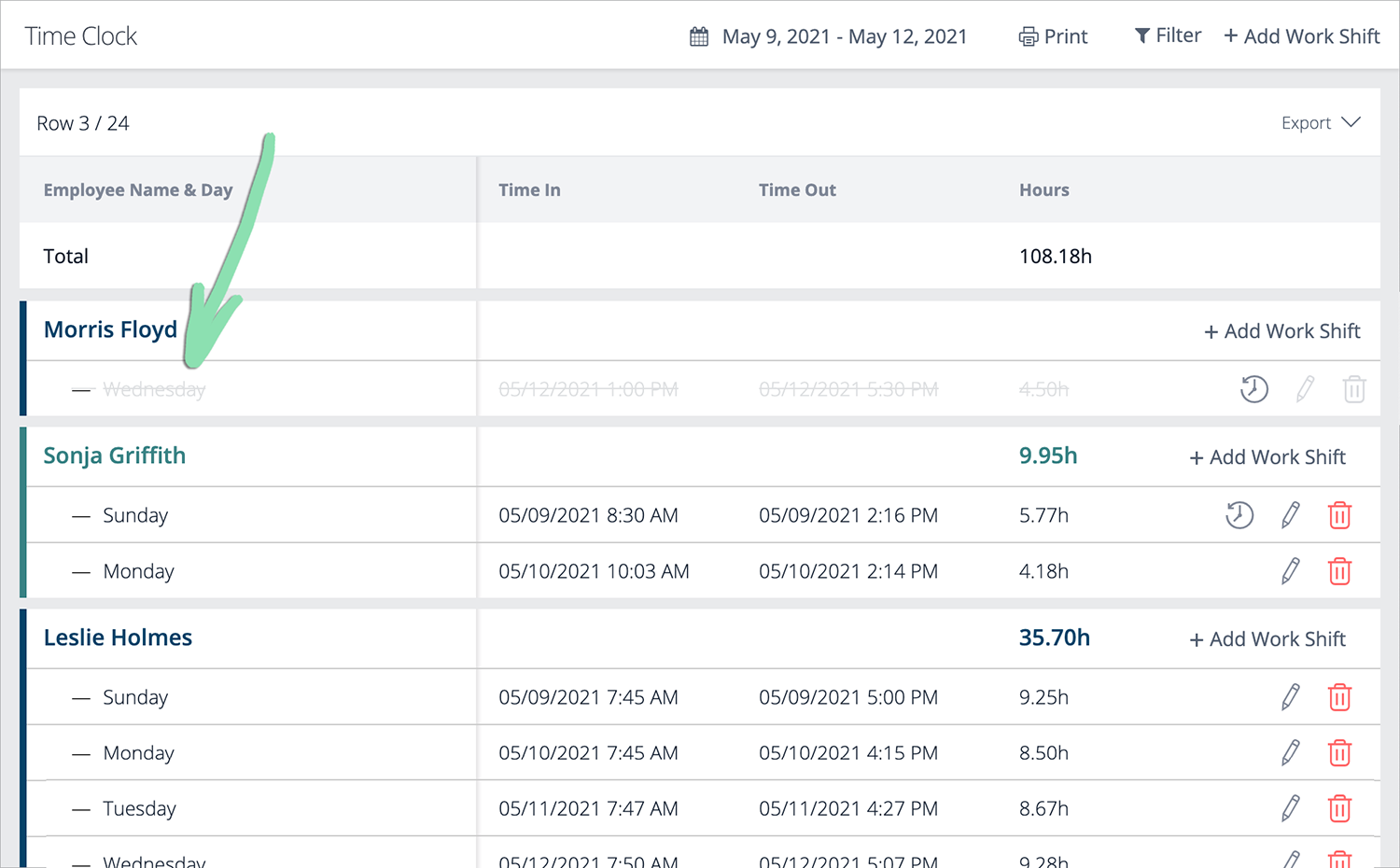
Audit Table
The Audit Table on the Time Clock report displays additional details about edited and deleted work shifts and clock punches, such as the date and time a shift was edited or deleted.
-
On the Time Clock report, click the clock icon next to a work shift.
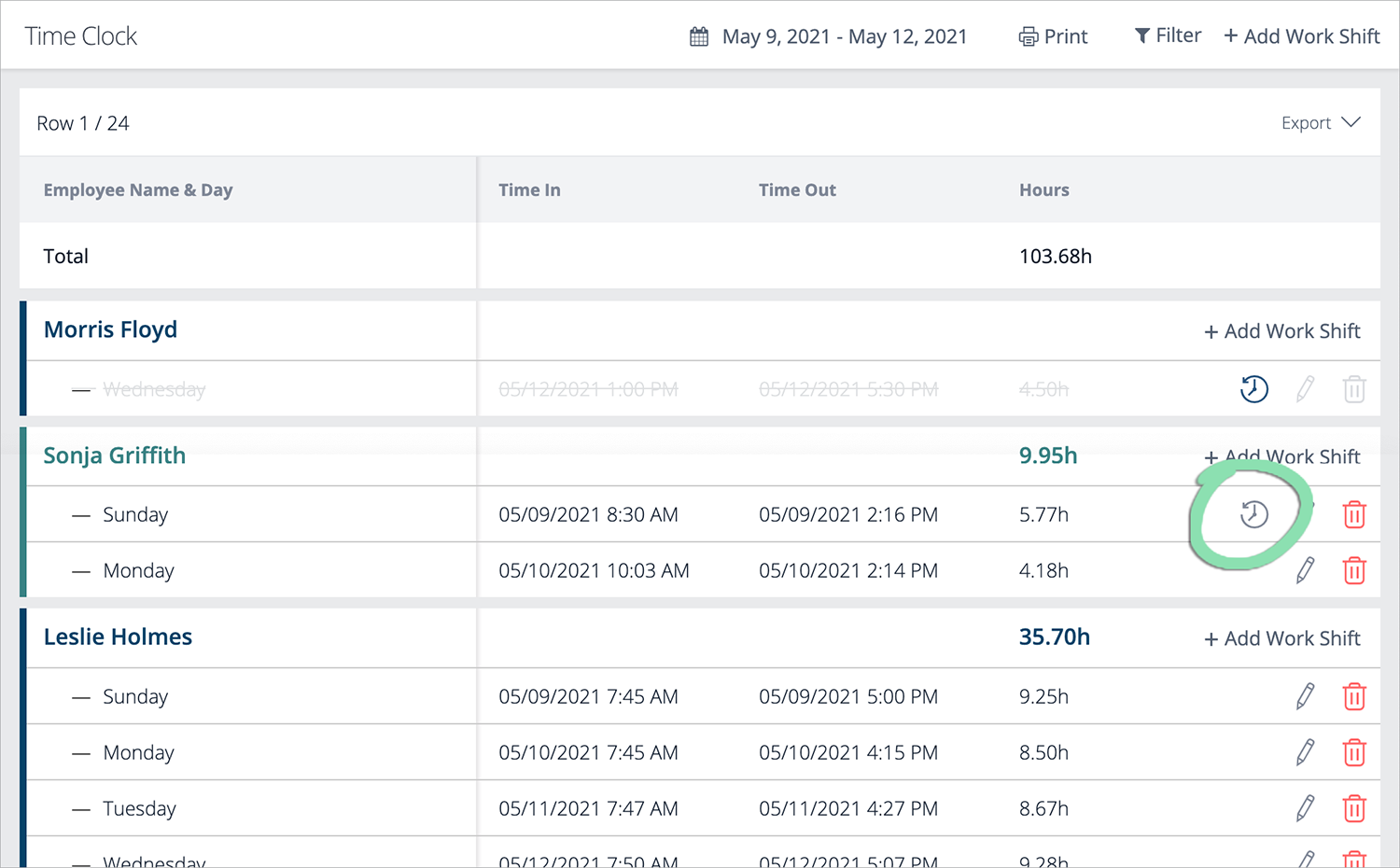
- Review the Audit Table to see the changes made to the shift.
Edited Work Shift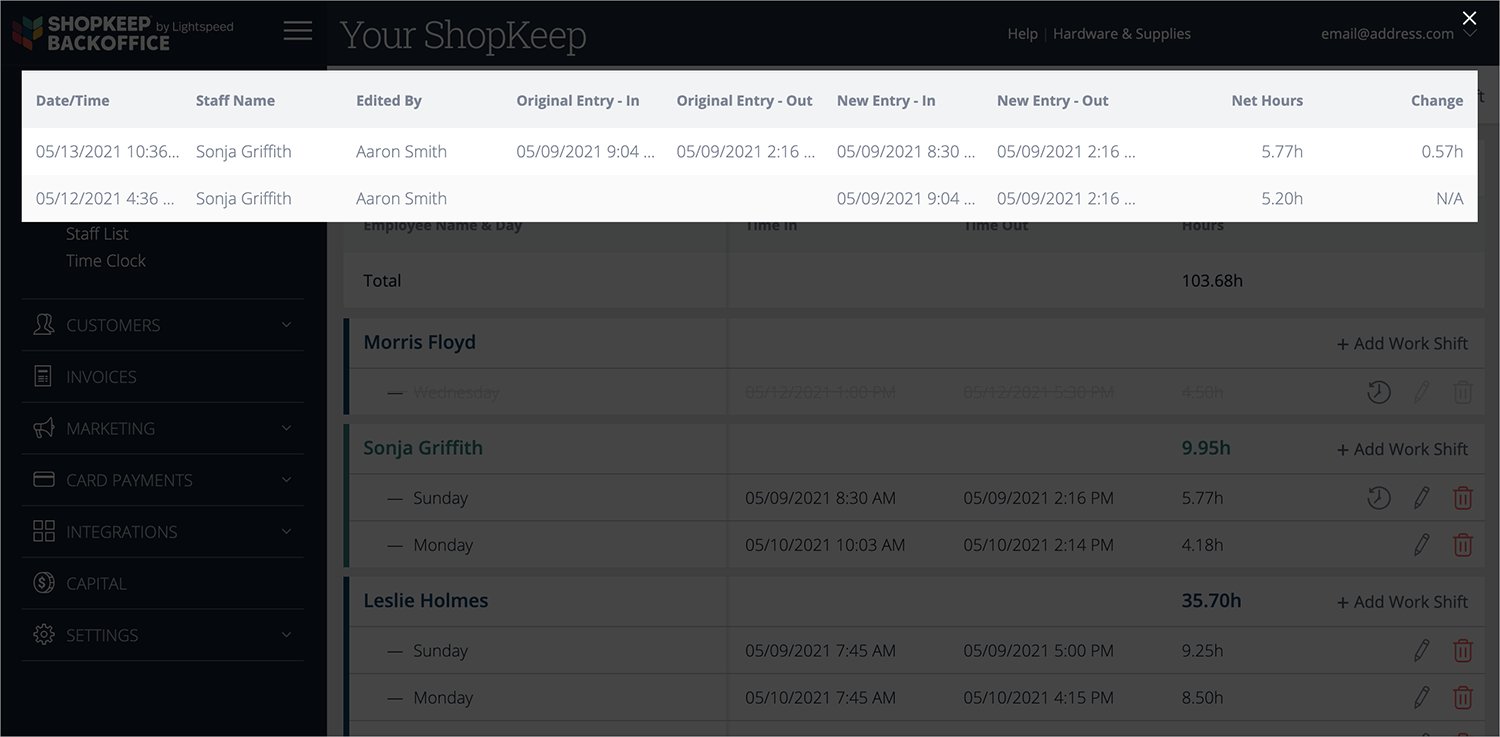
Deleted Work Shift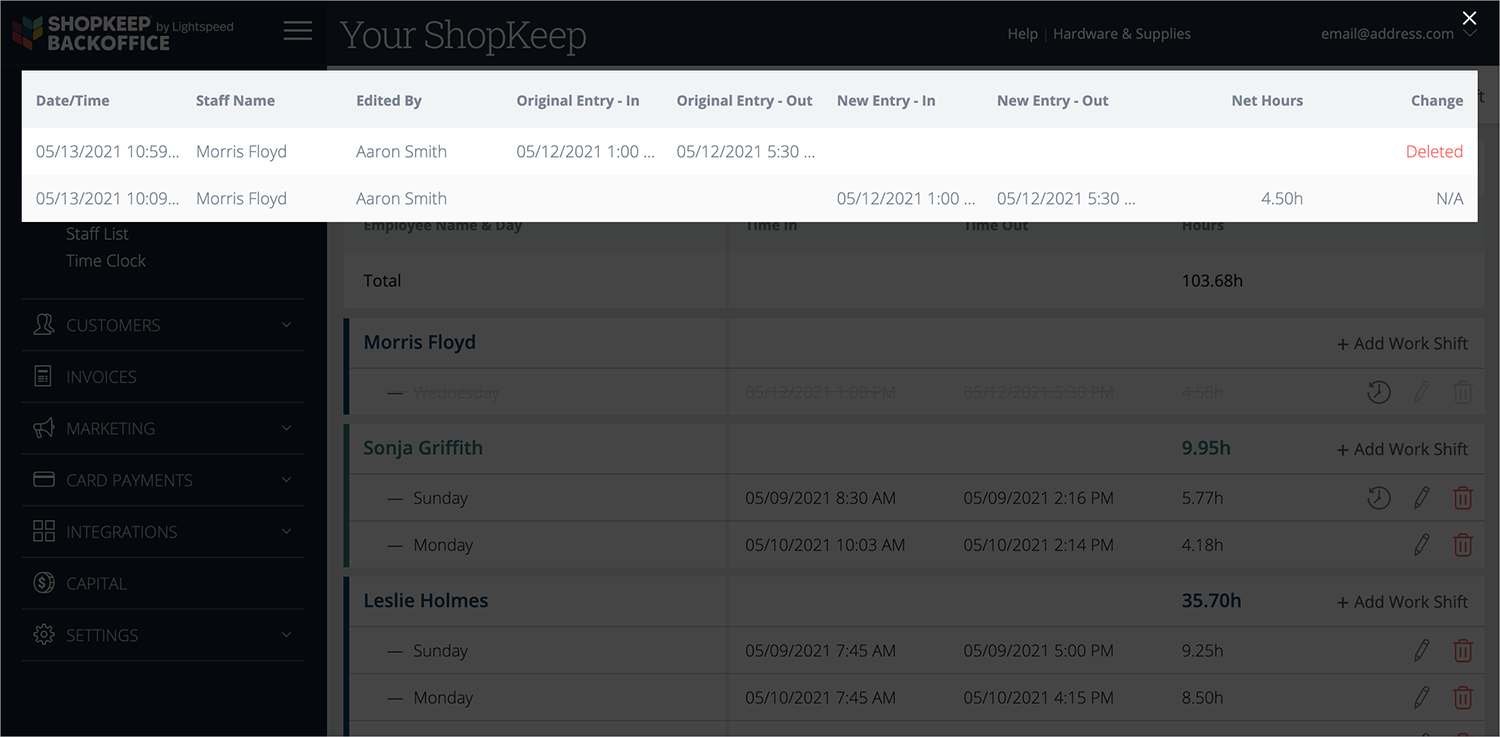
- Date / Time: Date and time of the edit, deletion, or addition of the work shift.
- Staff Name: Employee who worked that shift.
- Edited By: Employee who edited, deleted, or added the work shift in BackOffice, or name of the
- register where the employee clocked in and/or out.
- Original Entry – In: Date and time of original clock-in.
- Original Entry – Out: Date and time of original clock-out.
- New Entry – In: Date and time of edited clock-in.
- New Entry – Out: Date and time of edited clock-out.
- Net Hours: Total number of hours worked.
- Change: Amount of time added or removed from the work shift, ‘Deleted’ (shift was deleted from the report), or ‘N/A’ (the original creation of the shift, before it was edited or deleted).
What's next?
Labor tracking & overtime settings
Track employees' hours, including overtime and double time worked.