Clover Go
Bluetooth Credit Card Reader Setup
The Clover Go Bluetooth Credit Card Reader connects wirelessly to the Lightspeed Retail POS (S-Series) app for iOS or Android to process EMV, swiped, and contactless credit payments. With its small size and rechargeable battery, the Go is the perfect portable credit card reader to go wherever the register is needed.
IMPORTANT
In the Box
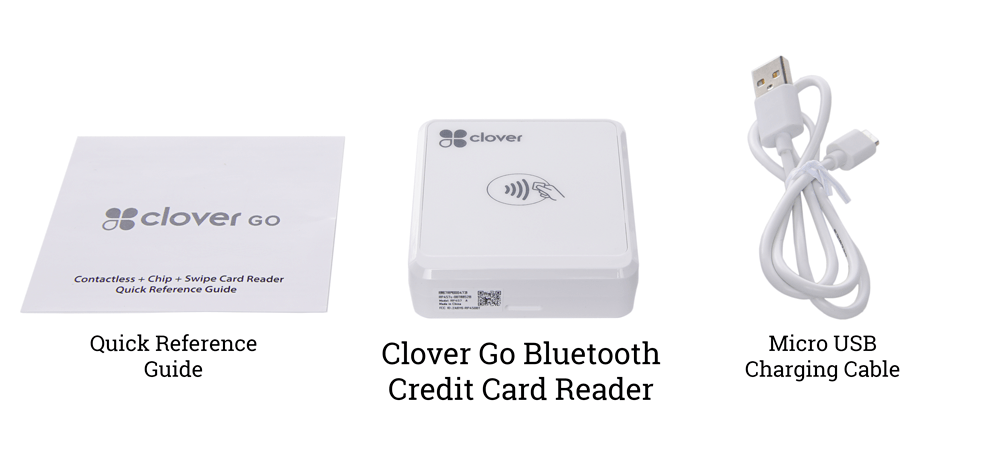
The Clover Go Bluetooth Credit Card Reader ships with the parts listed below.
Charge the Reader
The Clover Go operates on battery power and needs to be charged to function. Plug the Go in to charge before using it the first time and whenever its battery is running low.
- Plug the included micro USB cable into the charging port on the Clover Go.

- Plug the other end of the USB cable into a wall charger (sold separately) or computer USB port.

- If using a wall charger, plug it into a power outlet.
- Wait for the blue status light on the Go to turn on.
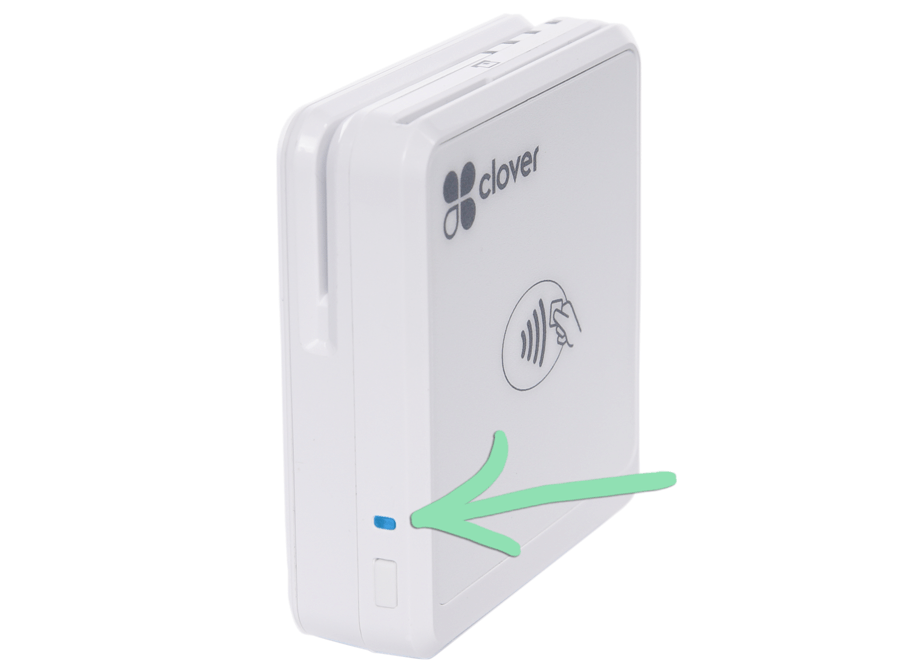
- If setting up for the first time, charge the Go until its battery light turns solid red (fully charged).
This will take 1 – 2 hours. A fully charged battery can last for up to 160 transactions.

Learn how to charge the reader with the included stand here.
Connect to Lightspeed
With the Clover Go charged, open the Lightspeed Retail POS (S-Series) app to connect and finish setting up the reader. The specific steps to connect the Go will vary based on whether you use the app on an iOS or Android device.
For iOS
For the Retail POS (S) app on iOS, follow the steps below to connect the Clover Go to Lightspeed.
Before following the steps below, make sure Bluetooth is enabled in the Settings app.
- Make sure the Clover Go is powered on. The blue status light will blink if on.
If the Go is not on, hold the power button for 5 seconds until you see the blue light. If the Go will not power on, visit our troubleshooting guide for help.
- In the Retail POS (S) app for iOS, open the Main Menu and tap ‘Get Updates from BackOffice’, then select ‘Get Updates’.

- Tap ‘Integrated Hardware’.

- Select ‘Card Readers’.

- Tap ‘Clover Go Device’ to connect.
Don’t see the Go? Visit our troubleshooting guide for help.
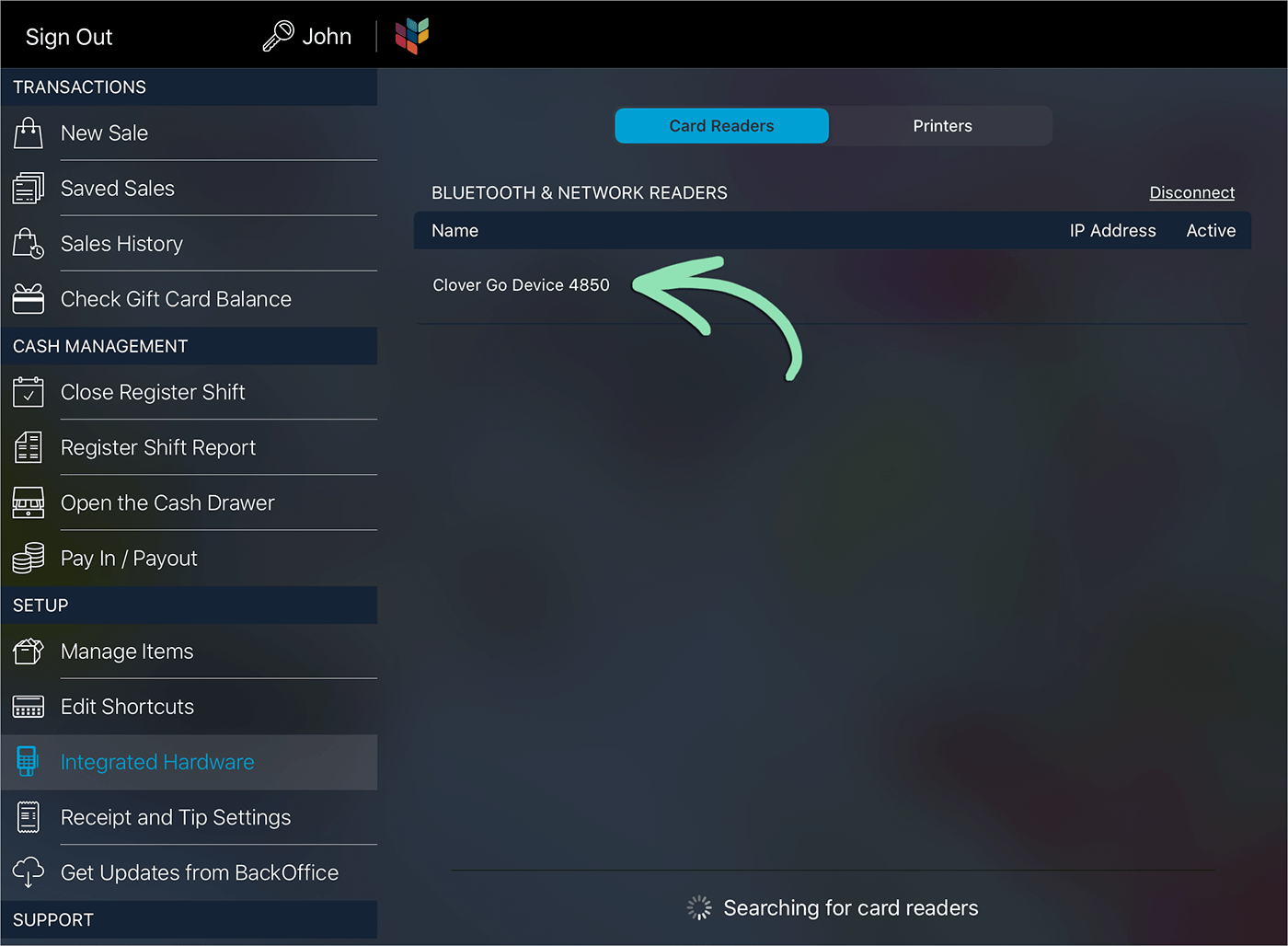
- Tap ‘Pair’ to confirm.
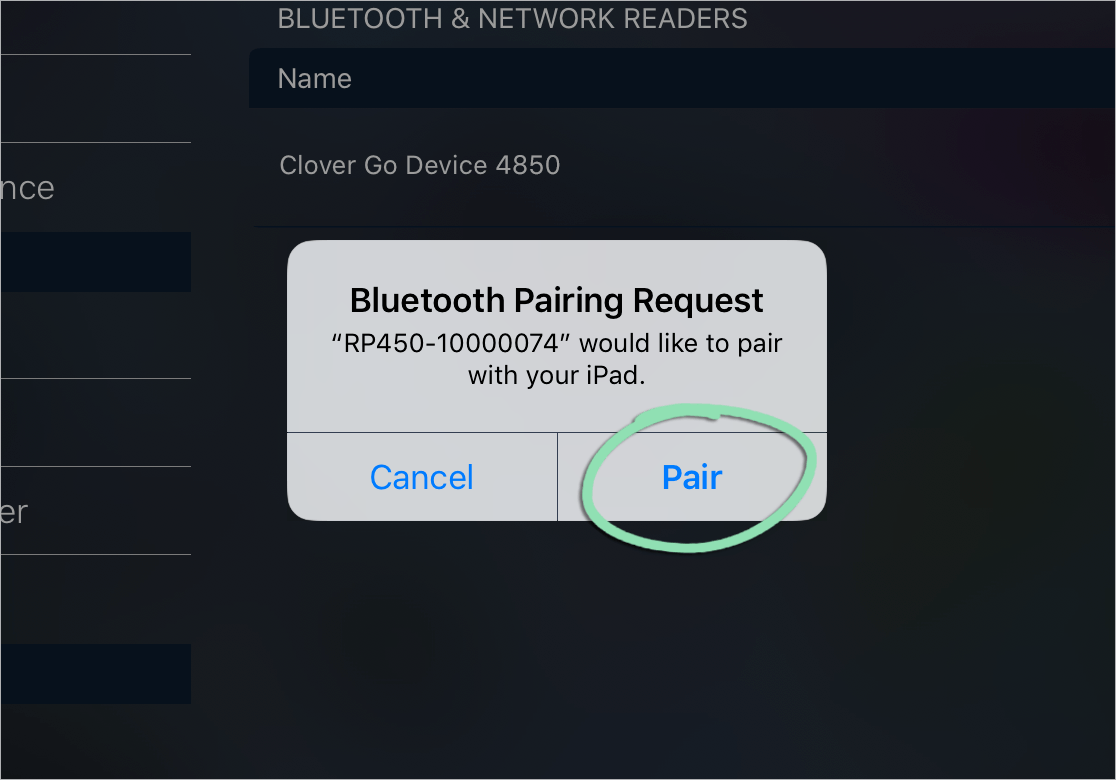
- In the app, wait for a check to appear.
The Clover Go is now ready to process credit cards.

For Android
For the Retail POS (S) app on Android, follow the steps below to connect the Clover Go to Lightspeed.
- Make sure the Clover Go is powered on. The blue status light will blink if on.
If the Go is not on, hold the power button for 5 seconds until you see the blue light. If the Go will not power on, visit our troubleshooting guide for help.
- In the Retail POS (S) app, open the register menu and tap ‘Get BackOffice Updates’.

- From the register menu, tap ‘Setup’.
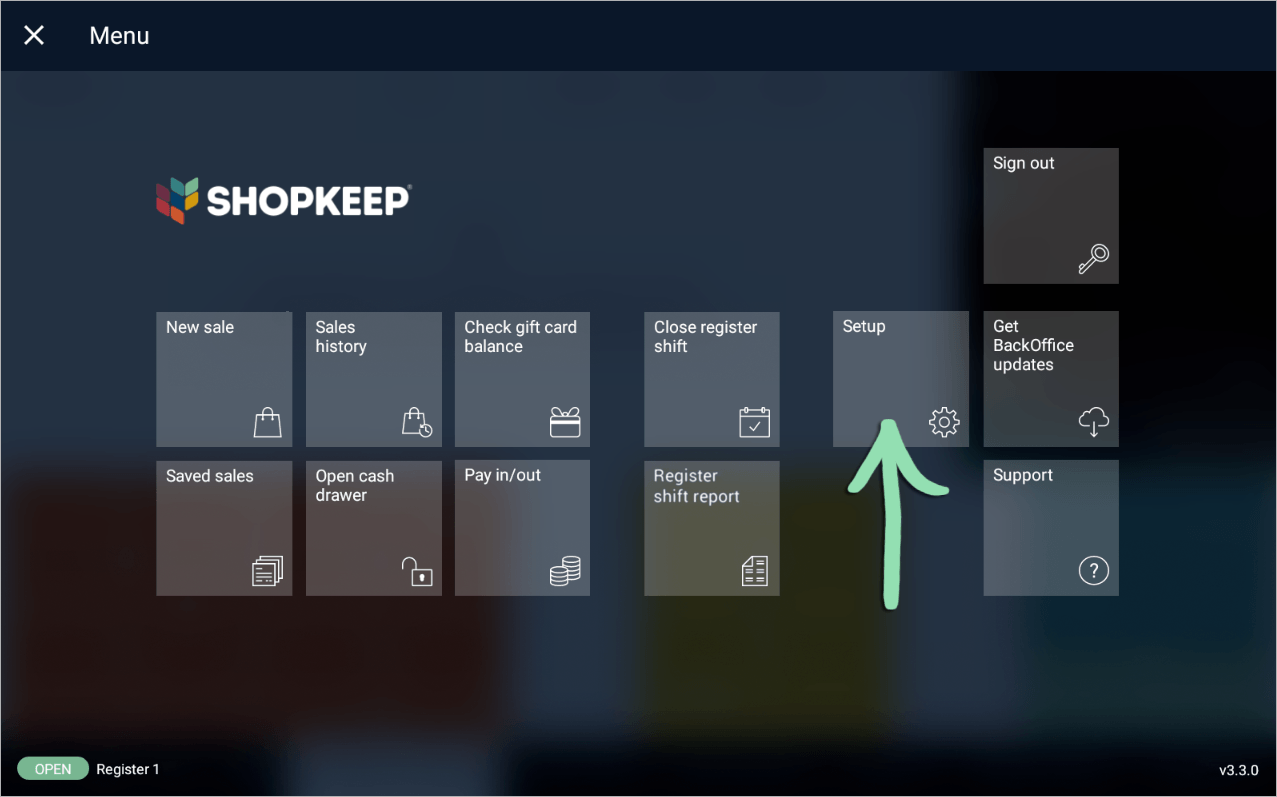
- Select ‘Card Readers’.
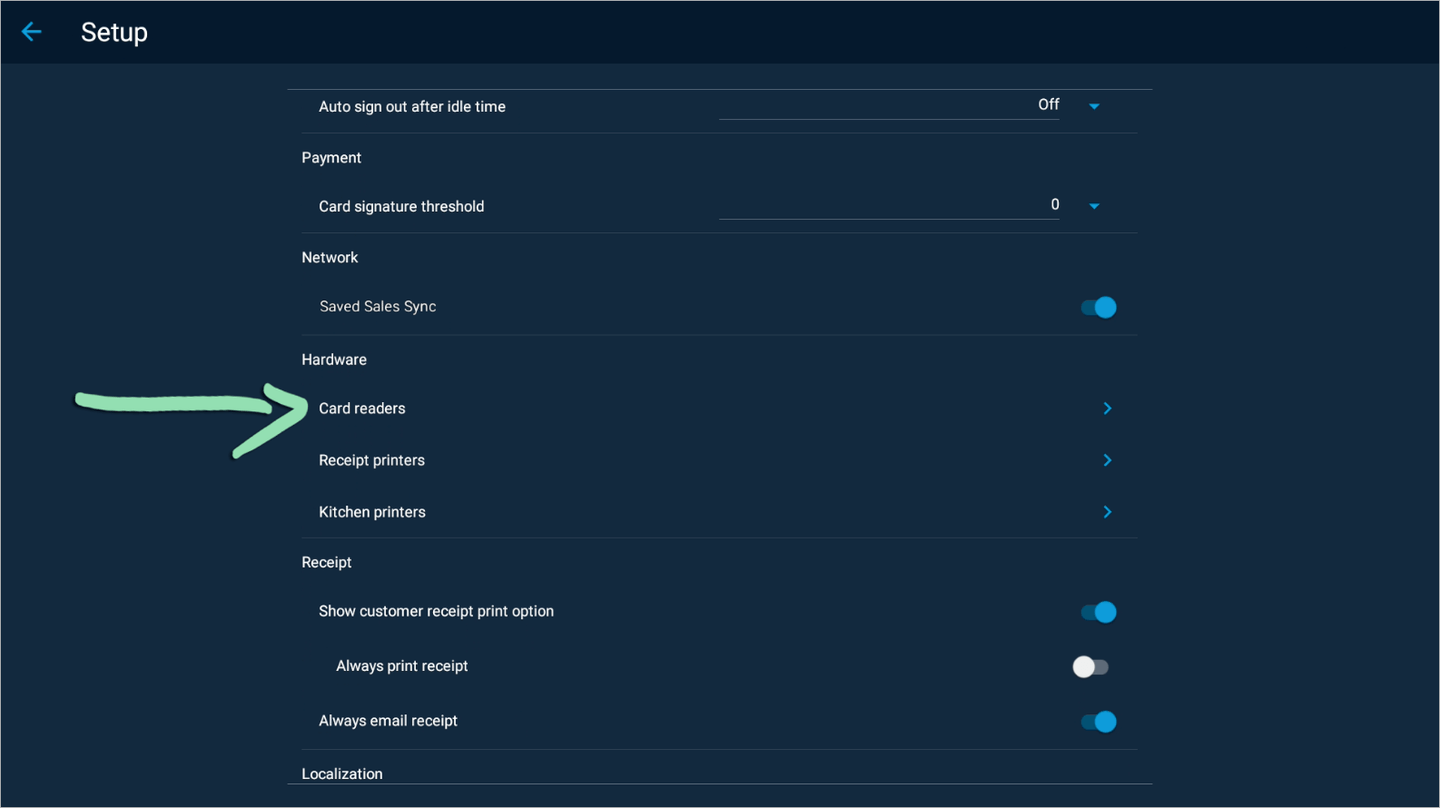
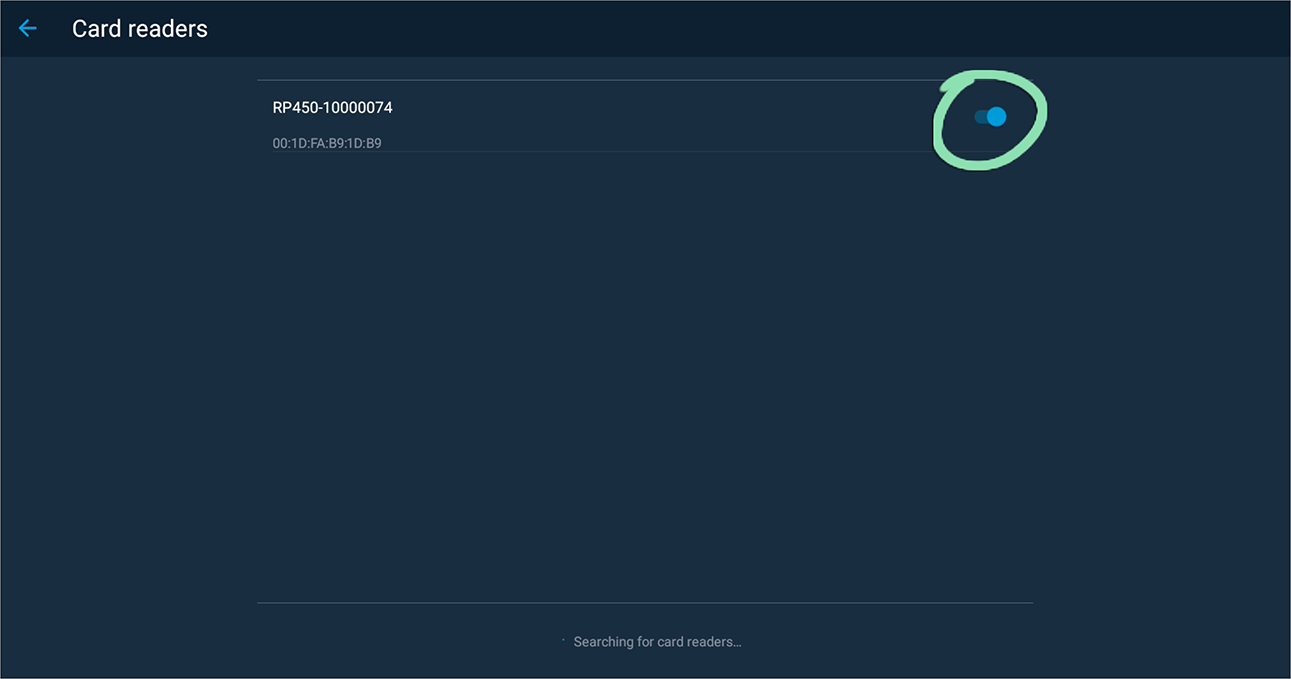
- Toggle the switch next to the card reader to enable it.
The Clover Go is now ready to process credit cards.
Stand Setup
Set up the Clover Go stand to securely charge and display the Clover Go card reader in your checkout area.
The Clover Go Credit Card Reader Stand ships with the parts listed below.
- Plug the included micro USB cable into the charging port on the back of the stand.

- Plug the other end of the USB cable into a wall charger (sold separately).
- Slide the Clover Go credit card reader into the stand.
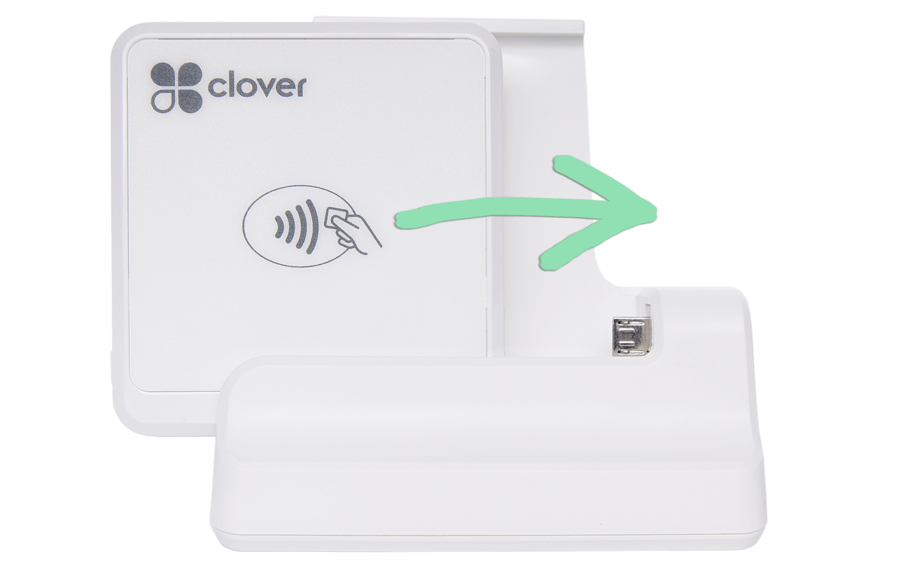
- (Optional) Insert and tighten the locking screw to prevent the reader from being removed from the stand.

- (Optional) Remove the backing from the stand base and affix to the bottom of the stand.
Prefer to bolt down the stand? Skip this step and use the included template to drill holes in your countertop.
Accepting Credit Cards
The Clover Go supports multiple types of credit payments. Follow the steps below to learn the basics of accepting EMV chip cards, swiped credit cards, and contactless payments.
EMV
If a customer has a card with a chip in it, run an EMV transaction.
- In the Retail POS (S-Series) app, ring up a sale and tap 'Credit'.
- Insert the card into the top of the Go (chip end first with the chip facing the back of the reader).
Steps 1 and 2 are interchangeable. Customers can insert their card before or after the sale is tendered.

- When prompted in the app, remove the card.
- Continue closing the sale.
Swipe
When a customer has a card with only a magnetic stripe or if you are not set up to accept EMV, process a swiped credit card sale.
- In the Retail POS (S-Series) app, ring up a sale and tap 'Credit'.
- With the card stripe facing forward, slide the card from left to right through the top slot on the Go.

- Wait for payment to be approved and continue closing the sale.
Contactless
For customers who wish to use a contactless payment method, the Clover Go supports Apple Pay, contactless credit cards, and other types of NFC payments.
- In the Retail POS (S-Series) app, ring up a sale and tap 'Credit'.
- Customer holds their card or device near the contactless symbol on the Go.

- Cashier waits for payment to be approved and continues closing the sale.
Turn the Reader Off and On
Turn the Clover Go off to conserve battery power when it will not be used for an extended period of time. When the reader is needed again, turn it back on.
- Unplug the Clover Go from power, if connected.
- To turn the Go off, hold the power button for 5 seconds until the blue status light turns off.

- To turn the Go on, hold the power button until the blue status light turns on.