Subscribe to a paid Lightspeed Retail plan from the Retail POS (S-Series) app on an iPad to upgrade a Lightspeed Retail account and add new features, such as eCommerce and QuickBooks integrations, advanced reporting, and gift cards. Review how in-app subscriptions work, then open the Retail POS (S-Series) app to purchase one. View billing activity, update payment methods, and manage the subscription from your device as needed.
Overview of in-app subscriptions
Learn how in-app subscriptions work with Lightspeed Retail, including eligibility, billing procedures, and other important details.
Only US merchants using a free Lightspeed Retail account on an iPad will see the upgrade button in the Retail POS (S-Series) app. Other merchants must visit BackOffice to upgrade or manage their plan.
When purchased, in-app subscriptions are billed immediately to the payment method used for your Apple account. Future billings occur monthly and do not require a credit card on file in BackOffice. View billing activity from your Apple account or in BackOffice.
Each Apple account can purchase an in-app subscription for one Lightspeed Retail account. To purchase in-app subscriptions for multiple Lightspeed Retail accounts, create a separate Apple account for each Lightspeed Retail store.
To change plans or add register licenses after purchasing an in-app subscription, contact us.
Purchasing an in-app subscription
Purchase an in-app subscription from the Retail POS (S-Series) app on an iPad to upgrade a Lightspeed Retail account and get access to additional features.
Purchasing an in-app subscription is available to US merchants only and requires a free Lightspeed Retail account and access to the Retail POS (S-Series) app on an iPad. Merchants with an existing paid account and those not based in the US must visit BackOffice to upgrade or manage their plan.
- Open the Retail POS (S-Series) app.
-
From the Main Menu, tap Upgrade.
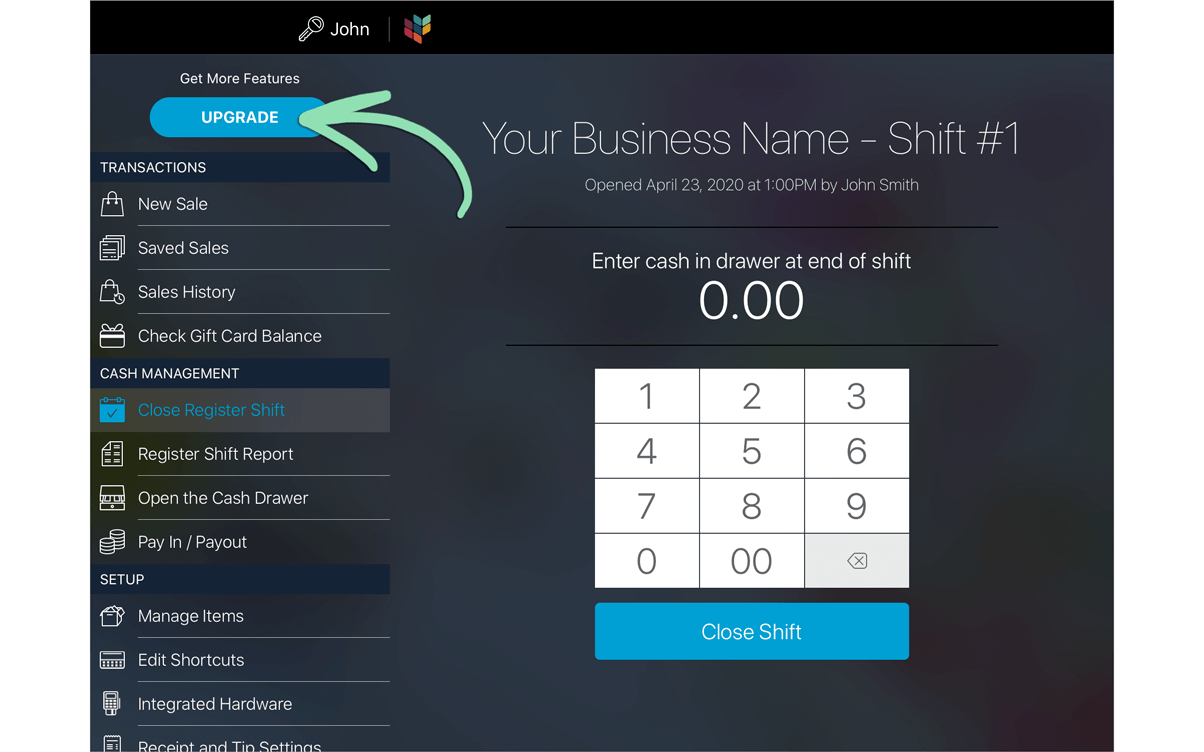
- Follow the prompts to select and purchase a subscription plan.
-
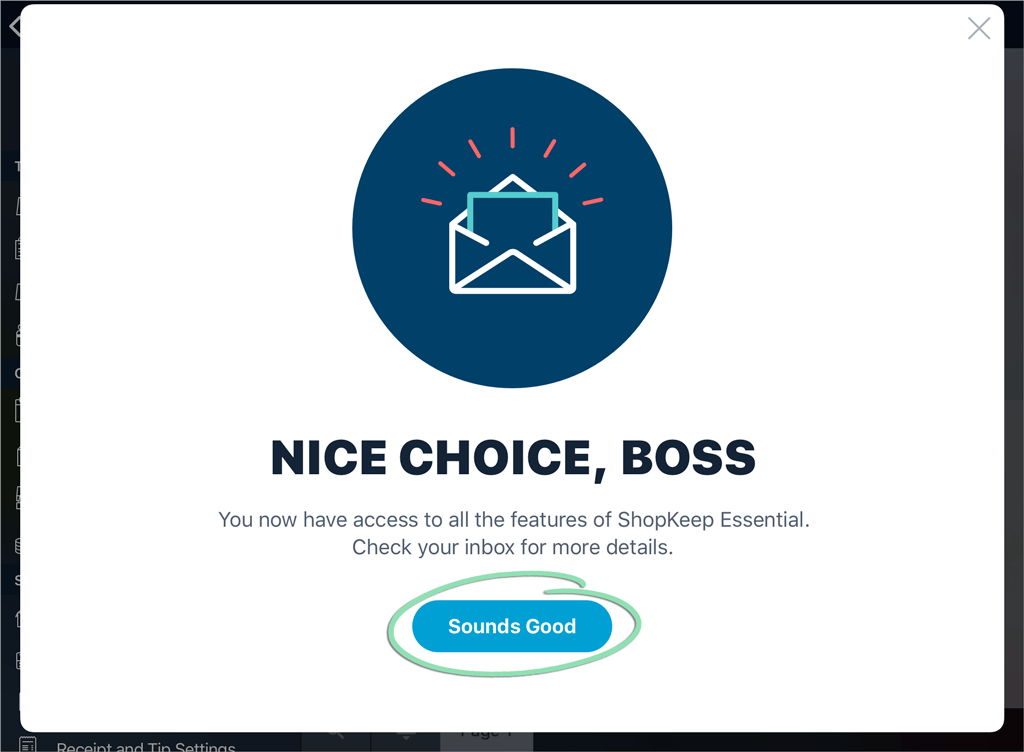
After purchasing a subscription, tap OK to dismiss the pop-up.

-
Tap Sounds Good to return to the Main Menu.
-
(Optional) Check the email associated with your Lightspeed Retail account for information on setting up some of the features included in the selected plan.
These emails will arrive within 24 hours of purchasing the in-app subscription.
Managing an in-app subscription
Visit the links below to learn how to manage an existing in-app subscription, including how to view billing activity, update payment methods, resolve billing problems, and make changes to the selected plan.
- View purchase history in the App Store
- View Billing Activity (Lightspeed Support)
- Change, add, or remove Apple ID payment methods
- Resolve billing issues in the App Store
- Upgrade or downgrade plans, or change number of register licenses (Lightspeed Support)
- Cancel an in-app subscription in the App Store