Open Priced Items
Open pricing is used for custom made, market priced, or miscellaneous inventory items that are not priced until the time of purchase. Learn how to use open priced items with Lightspeed Retail, create an open priced item, and sell that item at the register.
Watch our Open Priced Items video below:
What are Open Priced Items?
To understand how to use open priced items with Lightspeed Retail, let’s define what they are & see some examples.
Create an Open Priced Item
Set up an open priced item in BackOffice or at the register so you can sell it to customers.
- From the Item List in BackOffice or at the register, click 'Add New'.
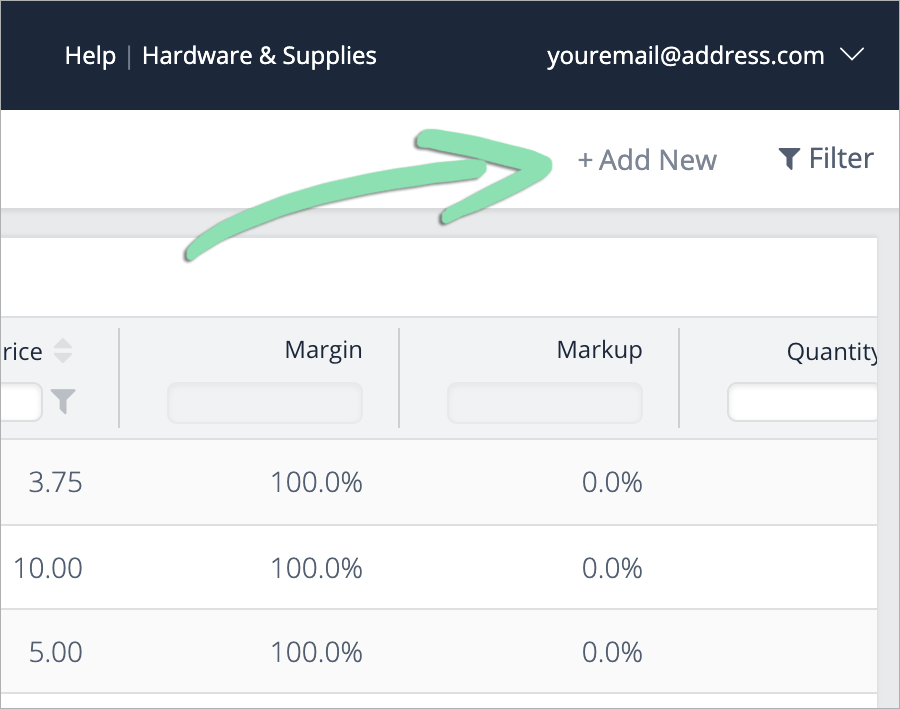
- Select 'Create' under 'Basic Item'.
Only basic items can have open pricing. Items with variants cannot be open priced.

- Click ‘More fields…’.

- Fill in the item's details and set 'Price Type' to 'At the Register'.
‘At the Register’ enables the cashier to enter the sales price when selling the item.
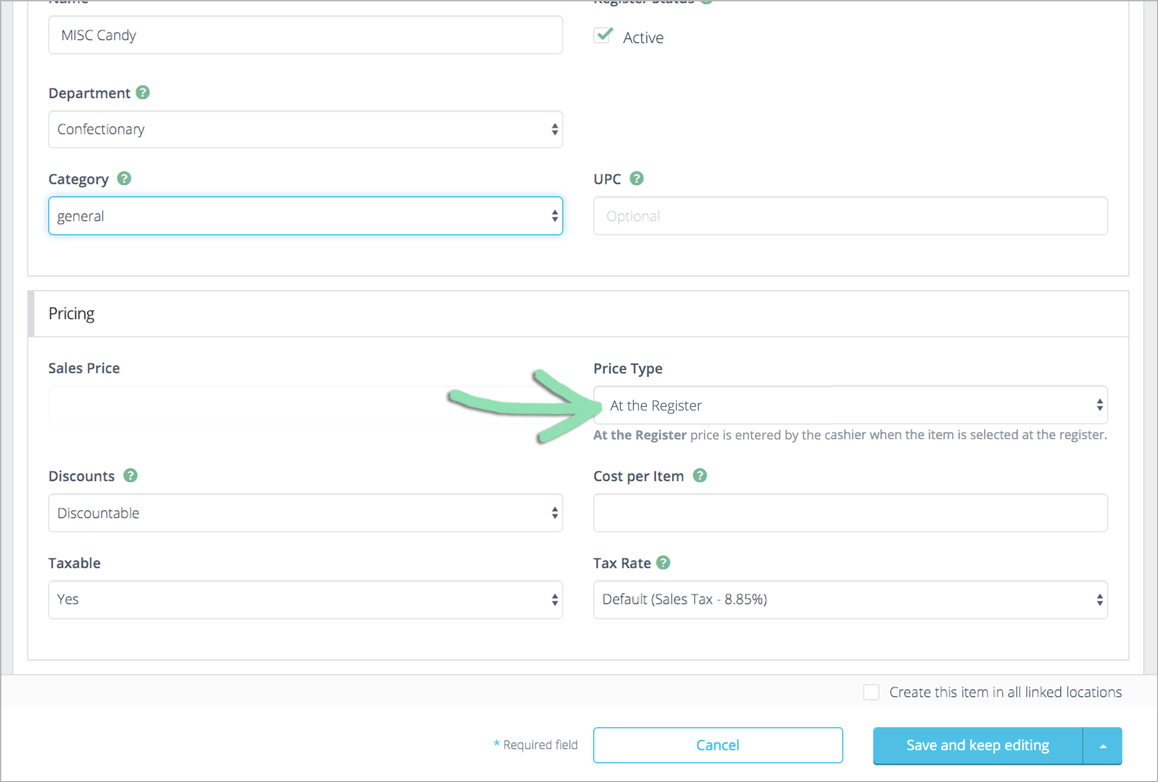
- Select a save option to finish creating the item.

- (Optional) Add the item to the item shortcuts panel.
- If creating the item from BackOffice, get updates on the iOS or Android register to sync the new item to the register.
For a more detailed walkthrough of creating a basic item, visit our Add Basic Items article.
Sell an Open Priced Item
An open priced item has no set price, so the cashier enters the price as they ring it up. Use open priced items to sell things like shipping costs, bulk goods, or other miscellaneous items.
- Add an open priced item to a sale.
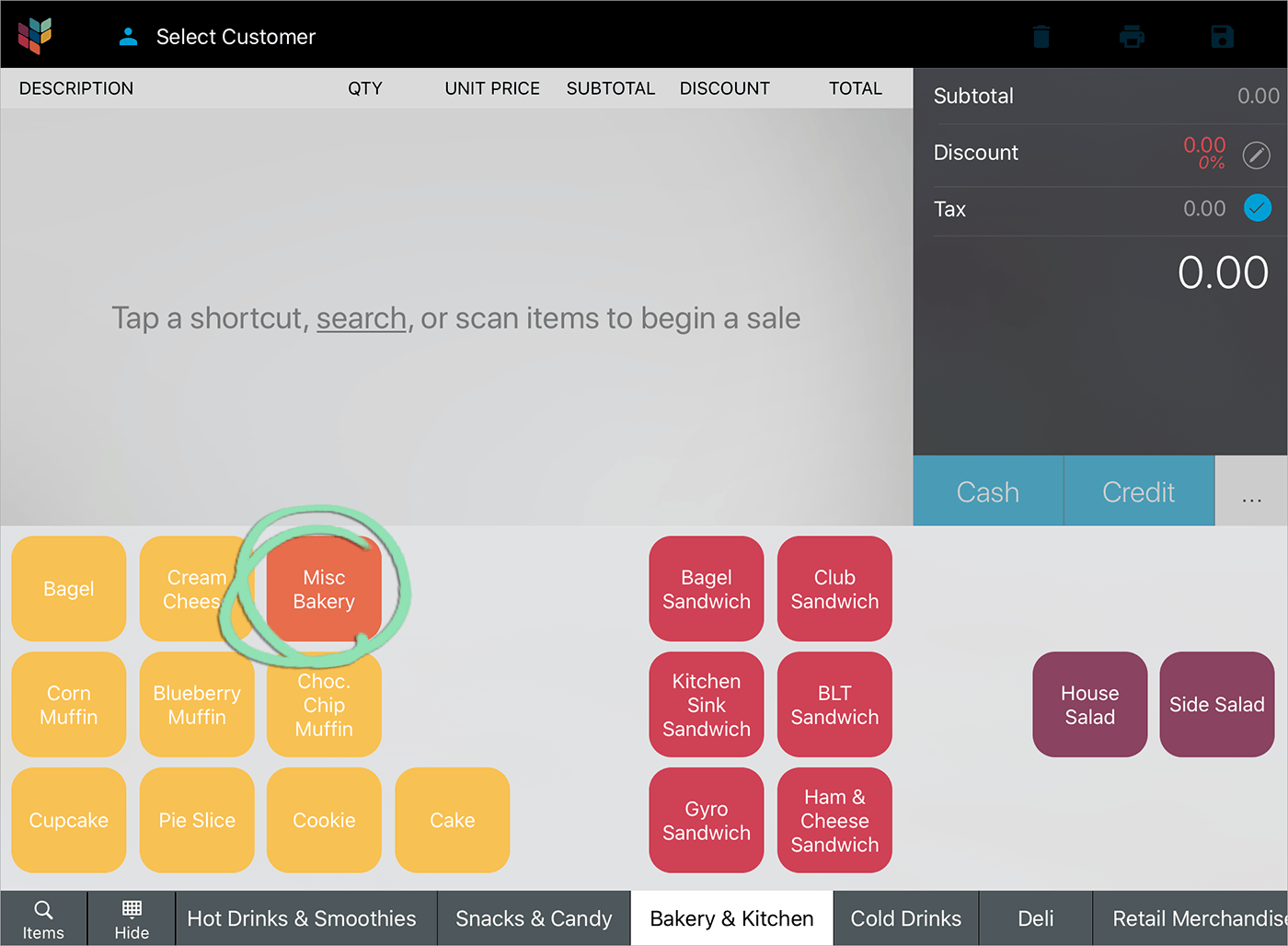
- Enter the item's sale price and tap 'Done'.

- Complete the sale as usual.
Visit our Running Sales at the Register article if you need help finishing the sale.
