Disable Pop-Up Blockers
Your web browser’s pop-up blocker might interfere with some BackOffice integrations and features. Find your specific browser below for step-by-step instructions on how to disable this function
Google Chrome
For more detailed information, please visit the Google Chrome support site.
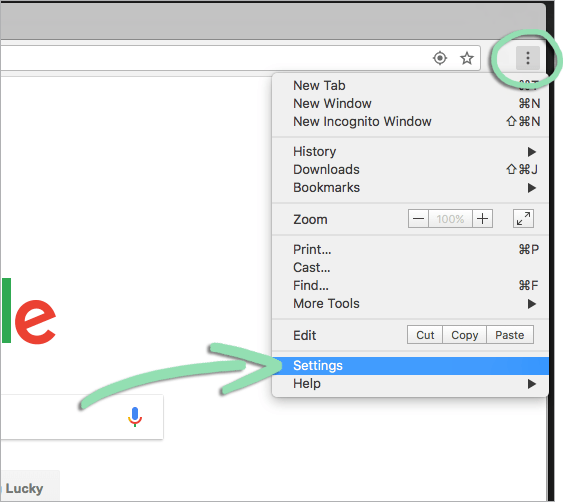
- Click the menu button and select 'Settings'.
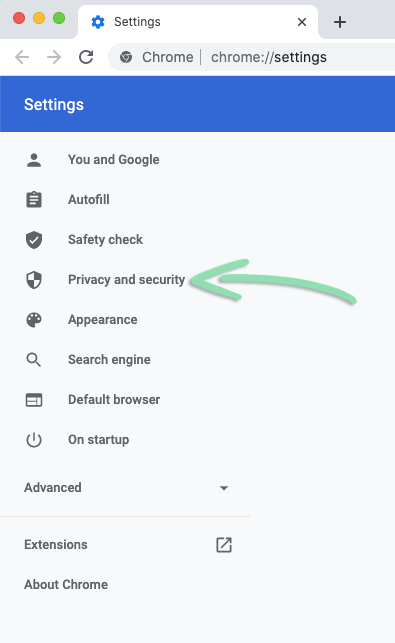
- On the ‘Settings’ page, click ‘Privacy and security’.
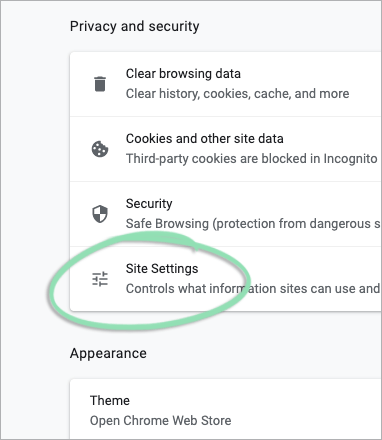
- Under ‘Privacy and security’, scroll down and click ‘Site Settings’.
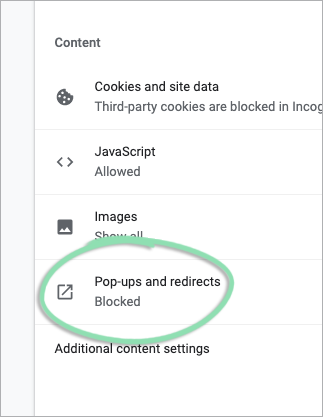
- Under ‘Site Settings’, scroll down and select ‘Pop-ups and redirects’.
- Toggle 'Allowed' on.

- Close the tab to exit 'Settings'.
Mozilla Firefox
For more detailed information, please visit the Mozilla Firefox support site.
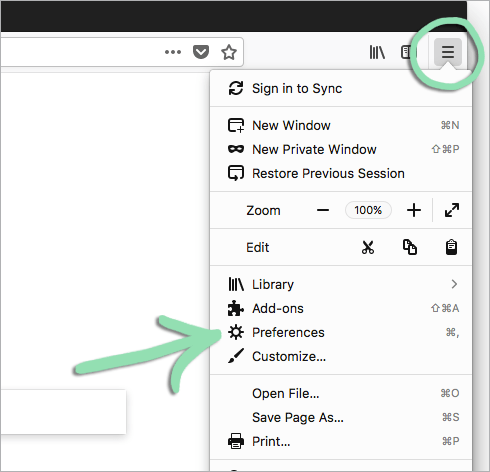
- Click the menu button and select 'Preferences'.
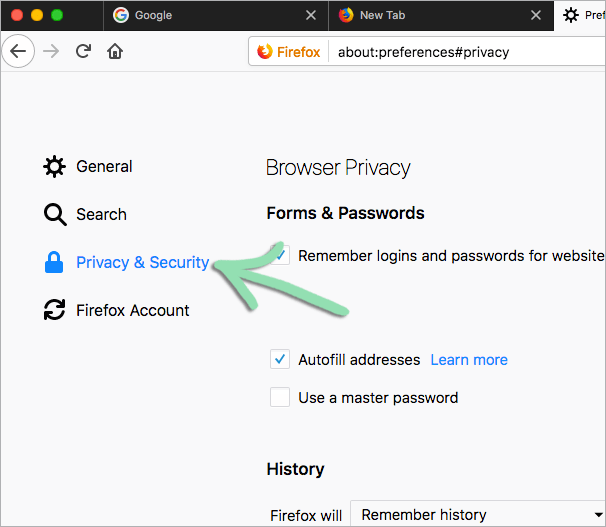
- Click 'Privacy & Security'.
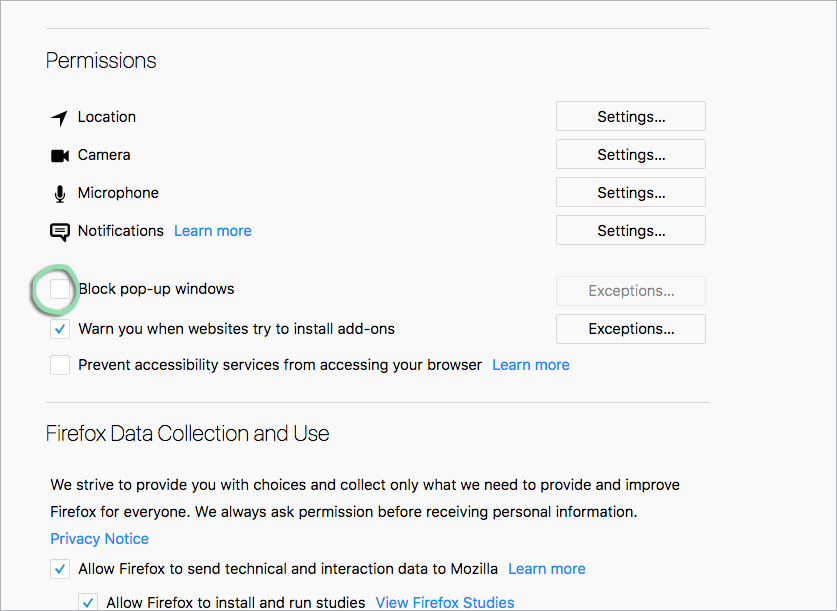
- Scroll to the bottom and uncheck the box for 'Block pop-up windows'.
- Close the tab to exit 'Preferences'.
Apple Safari
For more detailed information, please visit the Apple Safari support site.
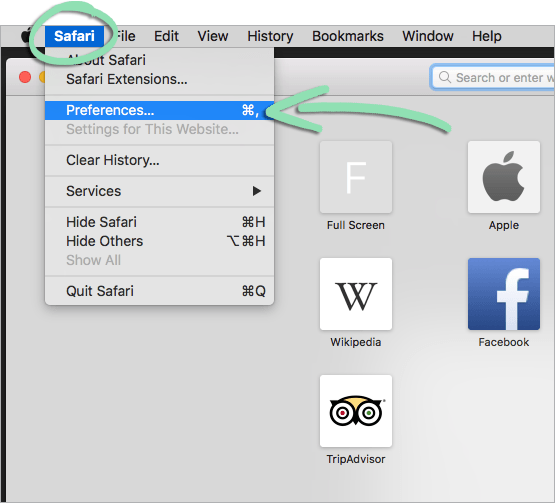
- Open the 'Safari' menu and select 'Preferences'.
- Click 'Security'.
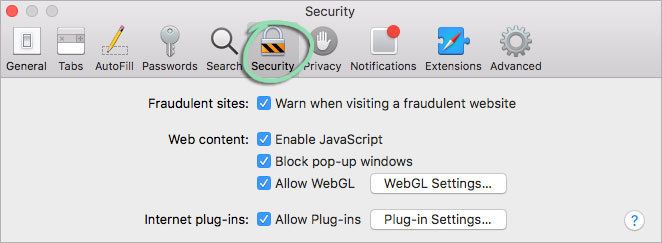
- Uncheck the box for 'Block pop-up windows'.
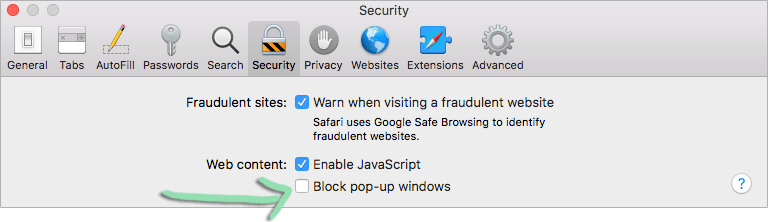
- Click the red 'X' to exit 'Preferences'.
Microsoft Edge
For more detailed information, please visit the Microsoft support site.
- Click the ‘…’ button and select ‘Settings’.
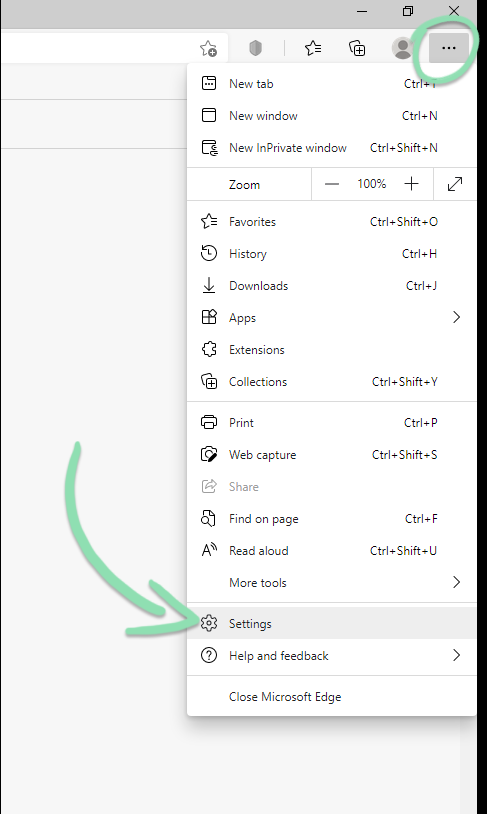
- Under ‘Settings’ click ‘Cookies and site permissions’.
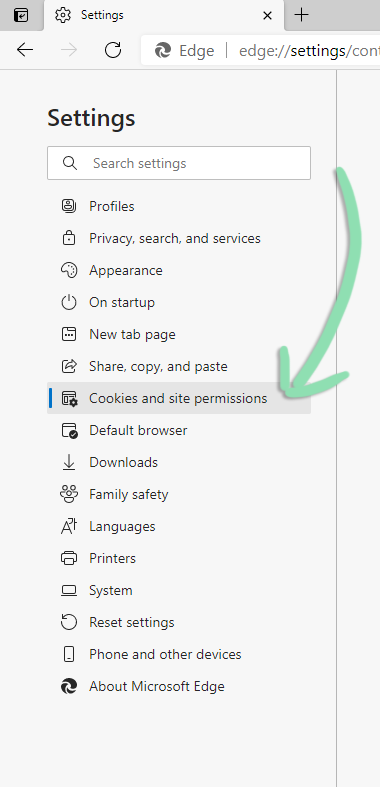
- Select ‘Pop-ups and redirects’.
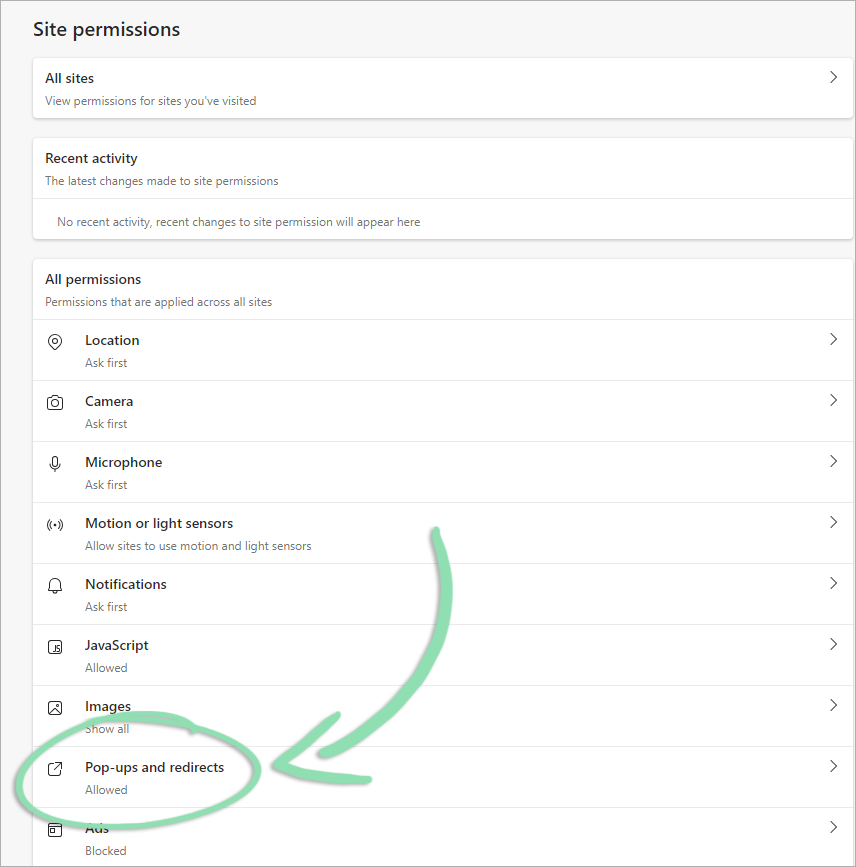
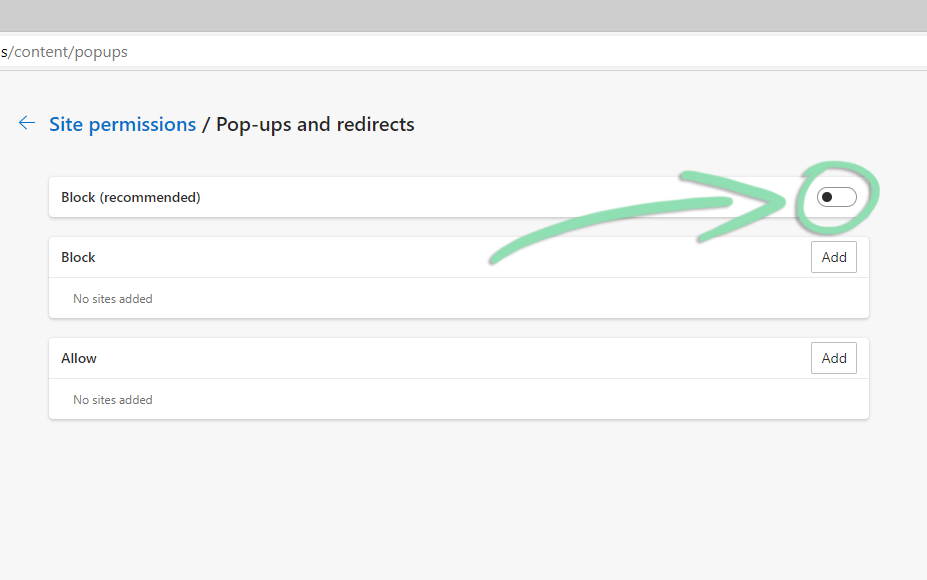
- Move the toggle to ‘Off’
Microsoft Internet Explorer
For more detailed information, please visit the Microsoft support site.
- Click the gear button and select ‘Internet Options’.

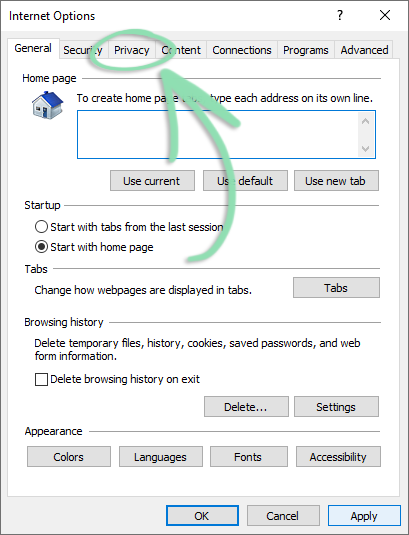
- On the ‘Internet Options’ window, click 'Privacy'.
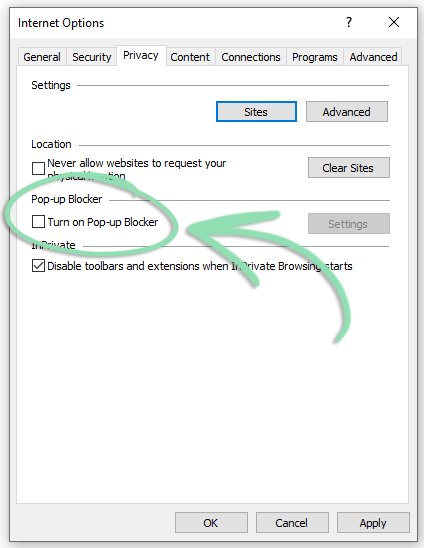
- Uncheck the 'Turn on Pop-up Blocker box'.
- Click 'OK’ to close the ‘Internet Options’ window.