The point of sale (POS) system is one of the most important parts of a business. Keep the Retail POS (S-Series) app, Lightspeed Pocket, and Lightspeed Pay apps running efficiently by updating each as needed and following our best practices below.
Retail POS (S-Series) App
Lightspeed Retail delivers new features, bug fixes, and more reliable performance with each update to our Register app. For the best possible experience, follow our guide to update your Lightspeed Retail POS whenever a new version is released.
If you need help downloading the Retail POS (S-Series) app, visit our Introduction to the iPad article.
iOS versions

- The current version of the Retail POS (S-Series) app for iOS is: v8.2.3.
- If you are using any version between v8.2.2 and v4.6.0, we strongly advise you to update the Retail POS (S-Series) app to the latest version.
- Lightspeed Retail no longer supports versions v4.5.0 and below. Update immediately, or you may experience noticeably diminished performance.
- Visit our Introduction to the iPad article to learn how to update the Retail POS (S-Series) app.
- If you have multiple registers, Lightspeed Retail works best when each register is on the same version of the Retail POS (S-Series) app.
Clover Mini and Station versions
- The current version of the Retail POS (S-Series) app on The Mini and on The Station, built by Clover, is: v5.0.1.
- The Retail POS (S-Series) app v4.1.3 and above is not supported on the 1st-gen Mini. To receive the latest app updates, you must be using a 2nd-gen Mini or other supported register device.
- Learn which type of Mini you have by visiting Clover support.
- There is no need to manually update the Retail POS (S-Series) app on The Mini or on The Station, as updates automatically install at night when the register is inactive.
Never delete the app unless asked by a Customer Care Advisor. You run the risk of permanently deleting register data by deleting the app or without properly deactivating your register.
Are you running into issues while using the Retail POS (S-Series) app? Check out our Troubleshooting Guide!
Check out our FAQ for some answers to common questions that come up when using Lightspeed Retail.
Check iOS Register App Version
-
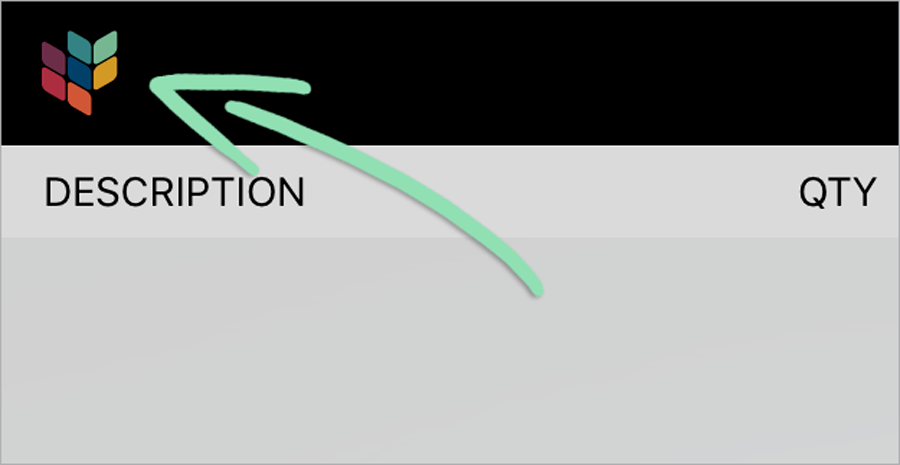
In the Retail POS (S-Series) app, open the Main Menu.
-
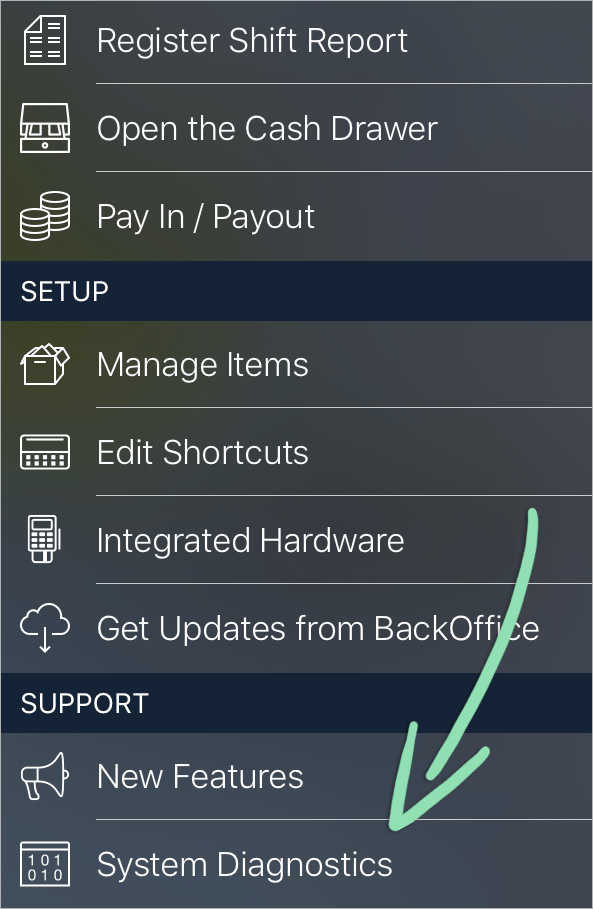
Scroll to and tap System Diagnostics.
-
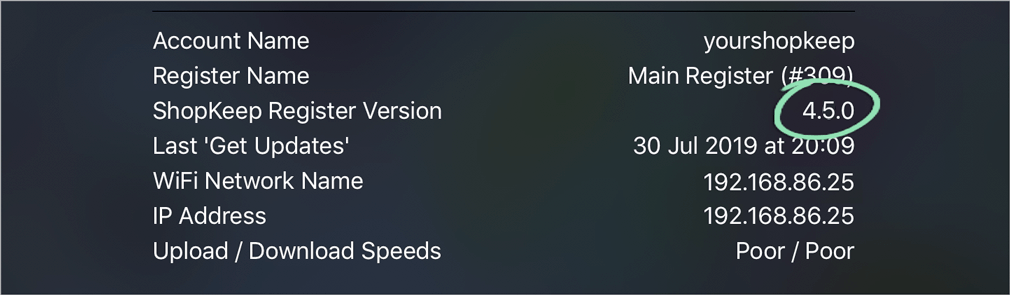
Look for the current register version listed beside Retail POS (S-Series) Version.
Visit our System Diagnostics article to learn about the other information available in this section.
Lightspeed Pocket App
As with the Retail POS (S-Series) app, it’s best to update Lightspeed Pocket when a new version is released to ensure that you receive the newest features and most reliable app performance.
If you need help downloading Lightspeed Pocket, visit our Lightspeed Pocket article.
Supported Pocket Versions

- The current version of Pocket for iOS is: v6.3.3.
- If you are running any version between v6.3.2 and v4.1.1, we strongly advise that you update Pocket to the latest version.
- Lightspeed Retail no longer supports versions v3.0.9 and below.
- Lightspeed Pocket performs best with iOS 10 and above.
- Not sure what version of iOS you have? Follow the steps in the Check iPad Model / iOS Version section at the end of this article.
- Running an old version of iOS? Visit our support article to learn how to update.
If you run into issues while using Lightspeed Pocket, visit our troubleshooting guide for help. Have questions about Pocket? Visit our FAQ page.
Check Pocket Version
-
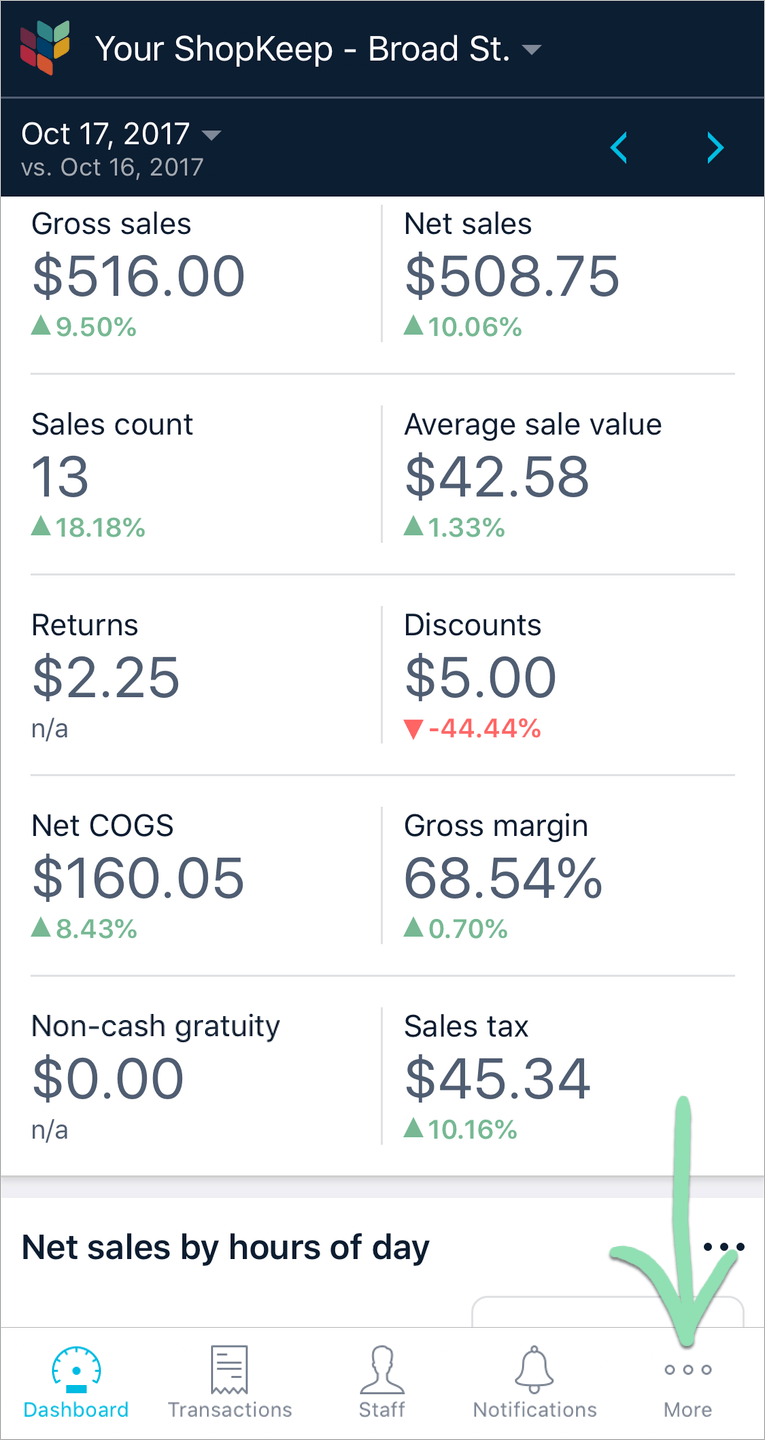
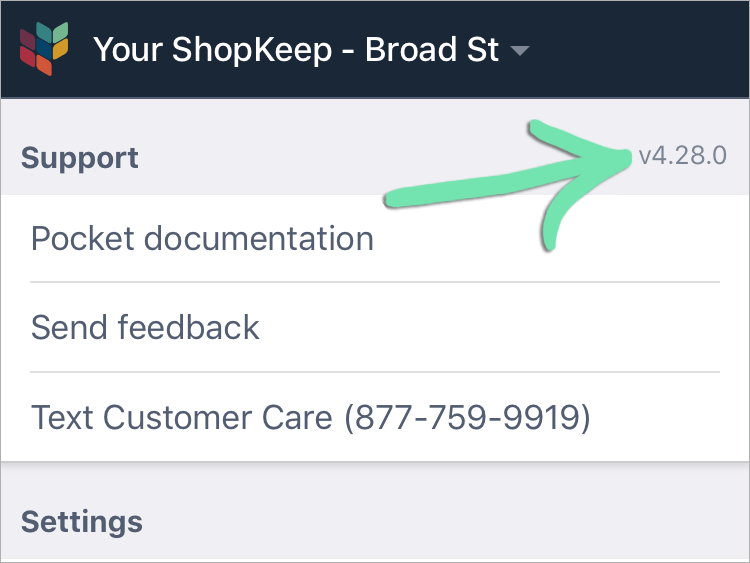
In the Lightspeed Pocket app, tap More.
-
The current Pocket version is displayed in the upper right corner.
Lightspeed Pay App
Update the Lightspeed Pay app when a new version is released to ensure that you receive the newest features and most reliable app performance.
Supported Lightspeed Pay Versions

- The current version of Lightspeed Pay for iOS is: v6.6.0.
- If you are running any version between v6.5.0 and v5.18.2, we strongly advise that you update the Lightspeed Pay app to the latest version.
- Visit our Introduction to the iPad article to learn how to update Lightspeed Pay.
- The Lightspeed Pay app runs on devices updated to iOS 12 or above.
- Lightspeed Pay is not supported on iOS 11.4.1 and below.
- Not sure what version of iOS you have? Follow the steps in the Check iPad Model / iOS Version section at the end of this article.
- Running an old version of iOS? Visit our support article to learn how to update.
Check Lightspeed Pay Version
-
In the Lightspeed Pay app, open the Main Menu.

-
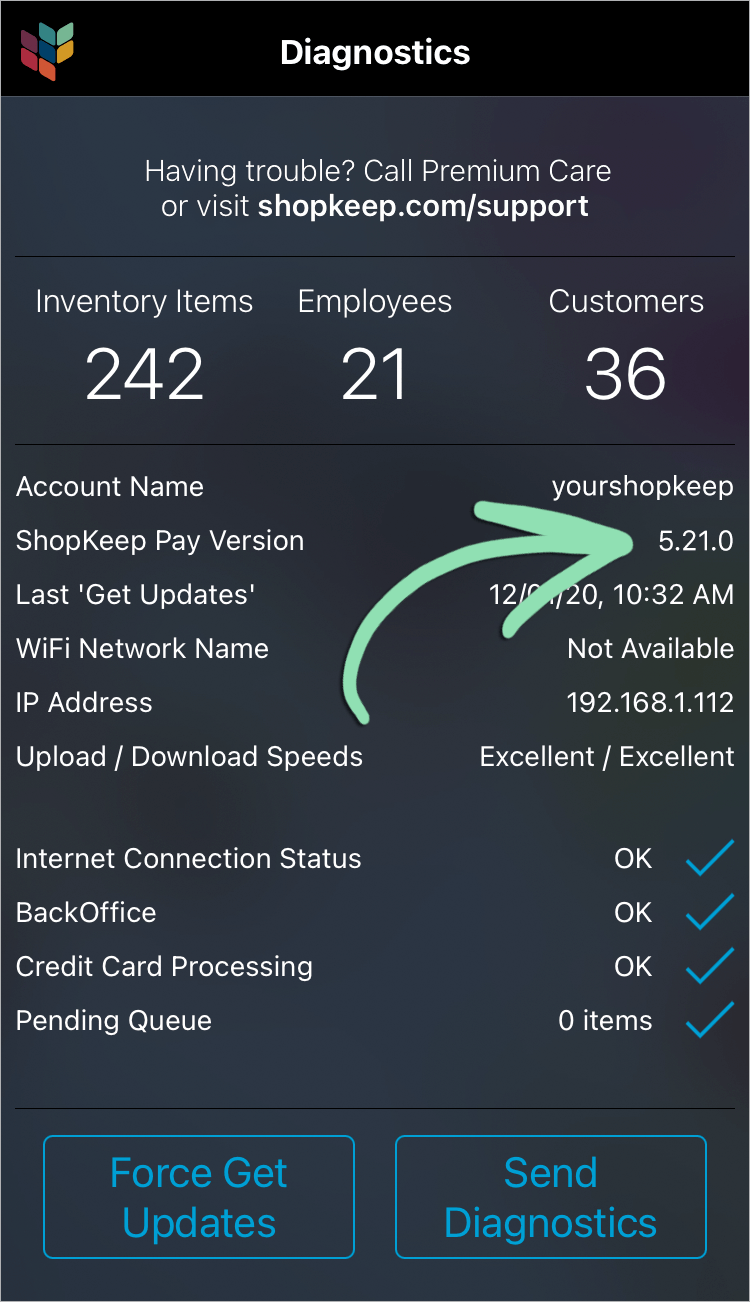
Tap System Diagnostics.

-
Look for the current app version listed beside Lightspeed Pay (S-Series) Version.
iPad and iOS

Lightspeed Retail builds for the future by utilizing the newest iPad hardware and iOS software updates. To keep your Lightspeed Retail Register running smoothly, follow the additional recommendations below.
Supported Models / iOS Versions
- The Retail POS (S-Series) app runs on iPads updated to iOS 13 or above.
- If using the Retail POS (S-Series) app v5.0.0 or above, we strongly recommend updating to iOS 13 or above.
- Retail POS (S-Series) is not supported on iOS 12.4.8 and below.
- If you have multiple registers, Lightspeed Retail works best when each iPad register is on the same version of iOS. Visit the Update iOS article for help updating to the latest version of iOS.
Having problems with your iPad? Visit this page for links to Apple support and troubleshooting guides that deal with issues affecting your iPad and its settings.
Check iPad Model / iOS Version
iPad Model
- Remove the iPad from its stand or enclosure.
-
Check the back for a 5 character model number beginning with the letter A.
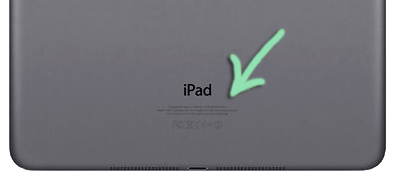
- Look up your model number on Apple's support site.
iOS Version
-
Open Settings.

-
Tap General.

-
Tap About.

-
The current iOS version is listed beside Version.

Recommended iPad Settings
For the Retail POS (S-Series) app for iOS to run most effectively, configure the following iPad settings in the Settings App.
Automatic Updates
Disable Automatic Updates to keep the iPad from automatically installing app updates. This puts you in control of when to update the Retail POS (S-Series) app which ensures minimal disruption to your business day.
-
Scroll down and tap App Store.

-
Toggle off Updates.

Auto-Lock
Auto-Lock puts the iPad to sleep after a preset amount of time. Set Auto-Lock to Never so the register screen remains on and active during transactions.
-
Tap Display & Brightness.

-
Tap Auto-Lock.

-
Select Never.

Ask to Join Networks
This setting prevents the iPad from disconnecting from your Wi-Fi and automatically joining other nearby networks. If the iPad leaves the business’s Wi-Fi, it can no longer communicate with Ethernet printers, credit card readers, or other registers on that network.
-
Tap Wi-Fi.

- Tap Ask to Join Networks.
- Tap Ask.