Split tender transactions allow customers to divide payment for a sale up to 9 ways using any combination of cash, credit, and other payment methods. Use this feature to split a sale between multiple credit cards, to redeem a gift card and pay the balance in another tender, or any other time two or more payments are needed. Void a payment if a mistake is made while processing it or return a split tender sale to refund a customer.
Running a split tender sale
Split tender sales begin just like any other sale. When it is time for payment, select up to 9 different ways to split the total.
- Begin the sale as usual.
-
Tap … and select Split Tender.


-
(Optional) Tap + and – to adjust the total number of payments needed.
By default, the sale total will split evenly by the number of payments.

-
(Optional) Tap a tender to change the tender used for that payment.
The Pay by Link tender is not supported for use in split tender transactions.

-
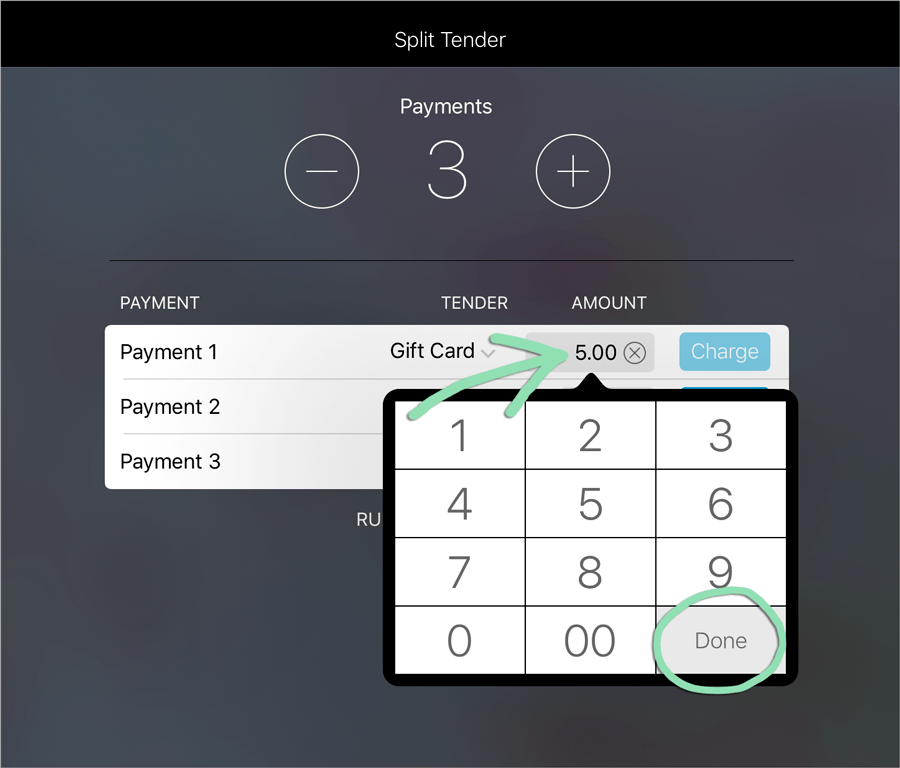
(Optional) Tap an amount to change the amount charged for that payment.
-
Tap Charge to process a specific payment.

-
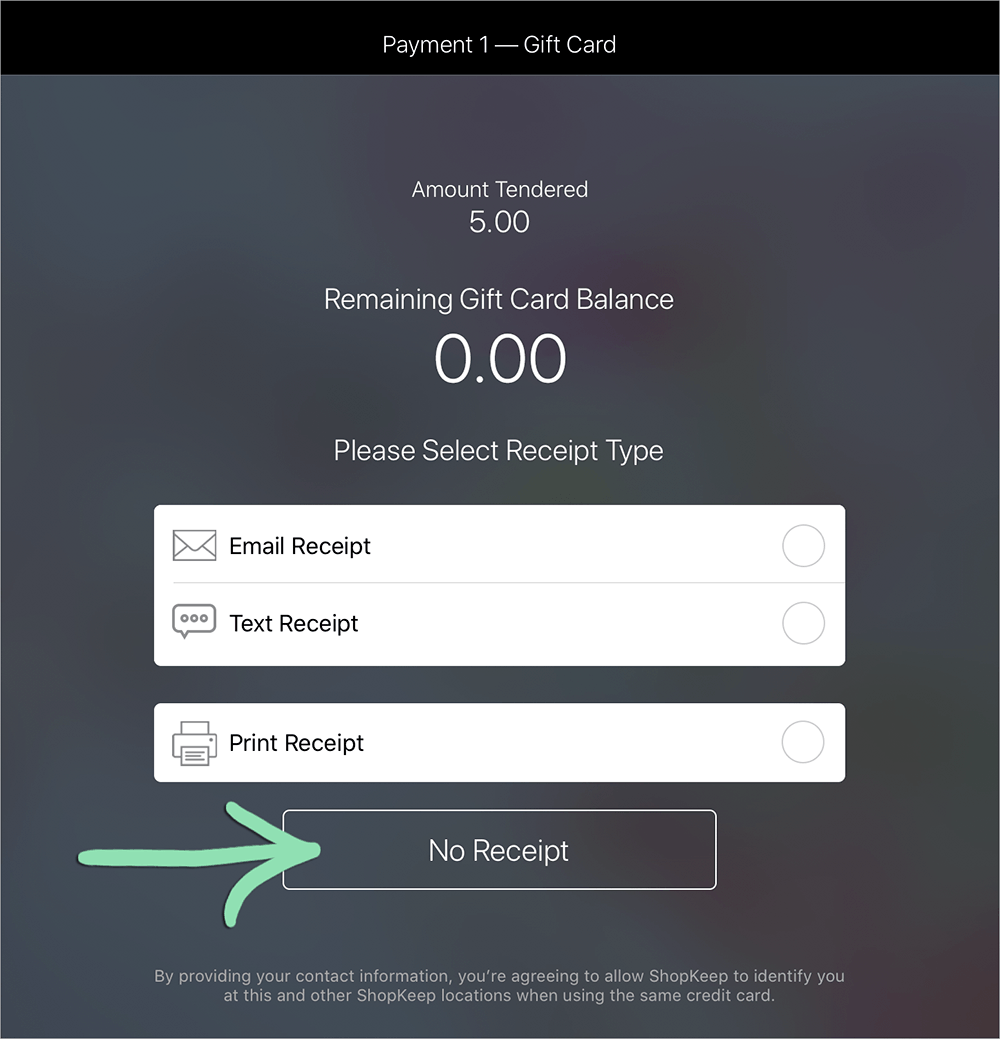
Select a payment receipt option and tap Done, or tap No Receipt.
Payment receipts show only the amount tendered for specific payments. For a receipt listing all the items on the sale, print or email a transaction receipt (step 10).

- Repeat steps 4 - 7 for each remaining payment.
-
Once all payments are paid, tap Done to finish the sale.

-
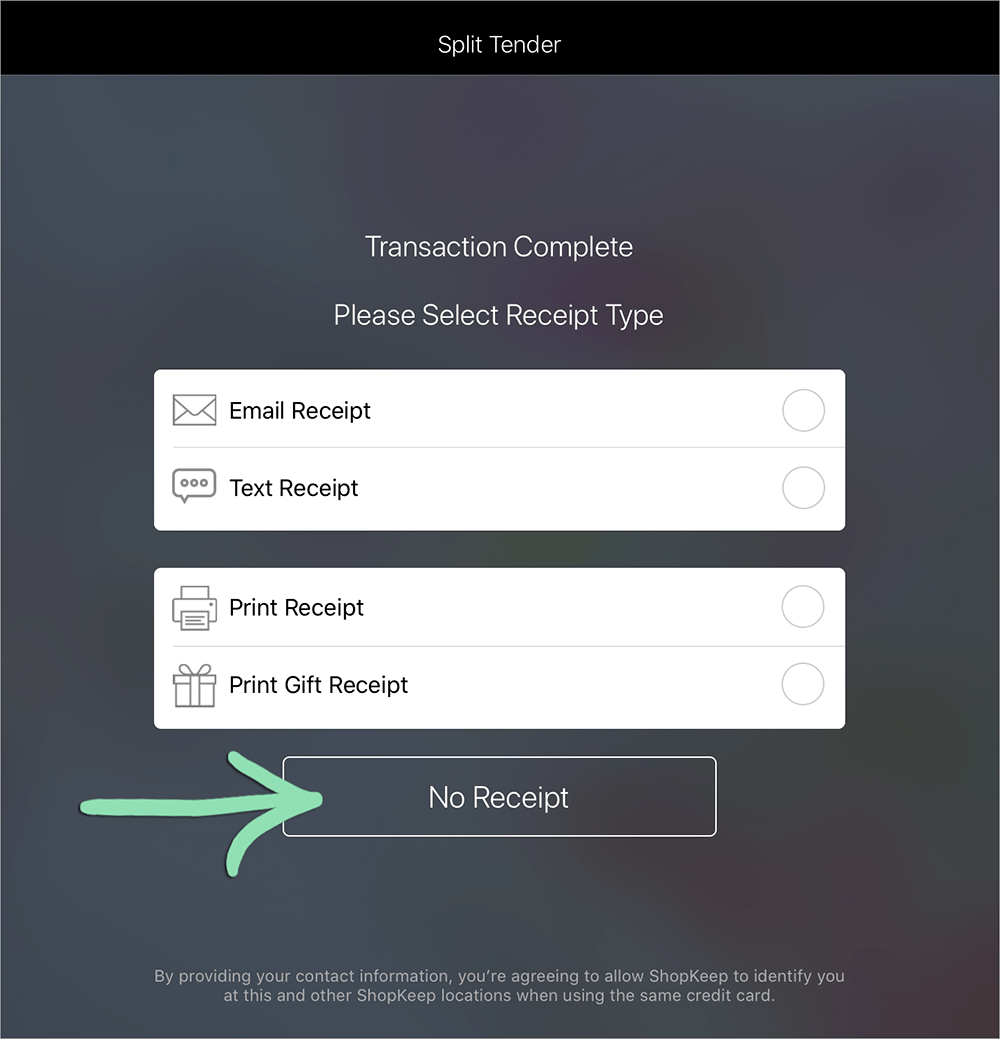
Select a transaction receipt option and tap Done, or tap No Receipt.
Transaction receipts show all items and payments on the sale.

Voiding a split tender payment
If you charge or refund the wrong amount or tender for a payment in a split tender transaction, void the payment to cancel it. To cancel a split tender transaction in progress or modify its items, void all payments.
-
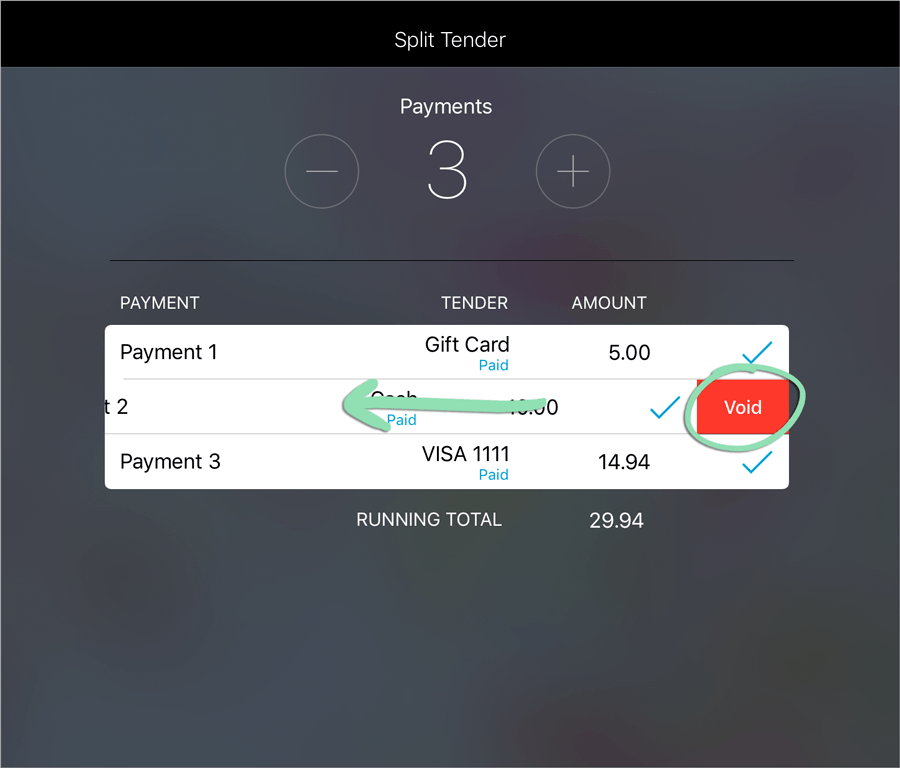
Swipe left across a payment and tap Void to undo the charge.
Credit payments on return transactions cannot be voided as they are final once processed.
- (Optional) To cancel the transaction, void all remaining payments and tap Cancel.
Returning a split tender sale
If a customer needs to return their split tender purchase, follow the steps below to process a refund.
- Begin a return for a split tender sale from a current or previous register shift.
-
Tap Split Tender.
Or tap … and select a tender such as Cash to refund the entire balance to that tender.

- (Optional) Tap + and – to change the number of return payments.
-
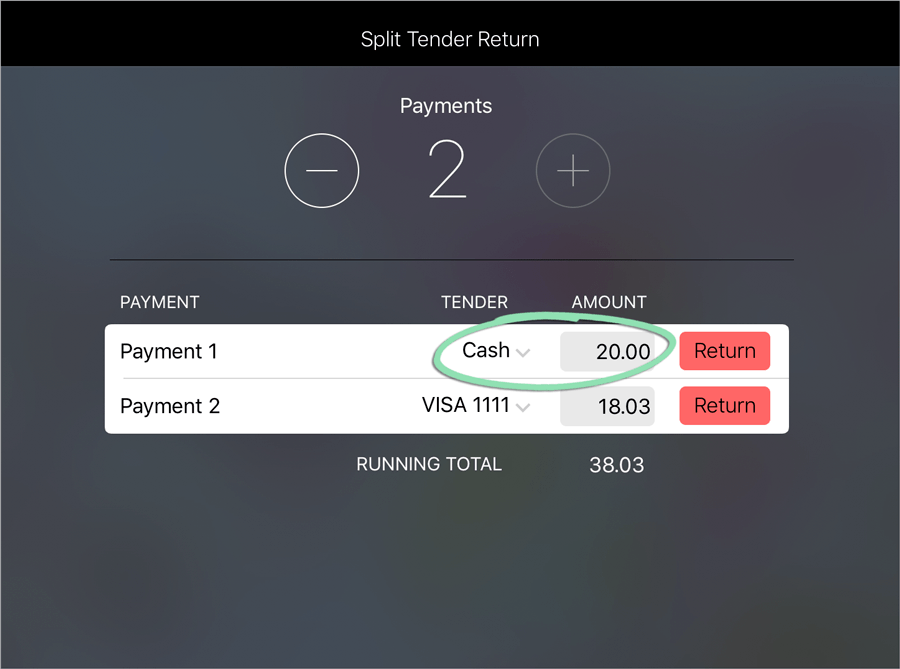
Confirm the return tenders and amounts.
-
(Optional) Tap a tender or amount to change it.
For credit payments, the return amount cannot exceed the total originally charged to that card.
-
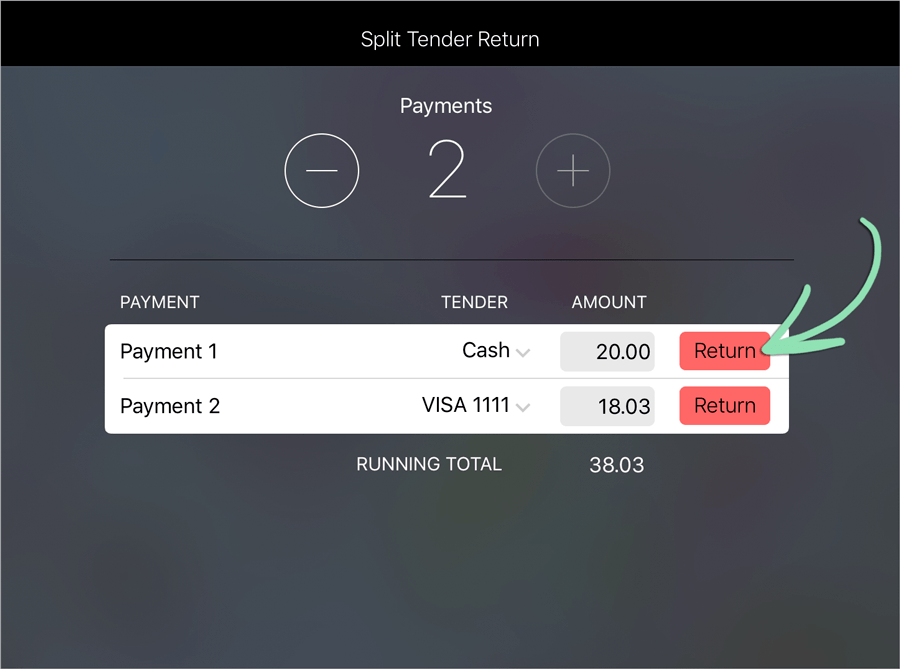
Tap Return to refund a specific payment.
-
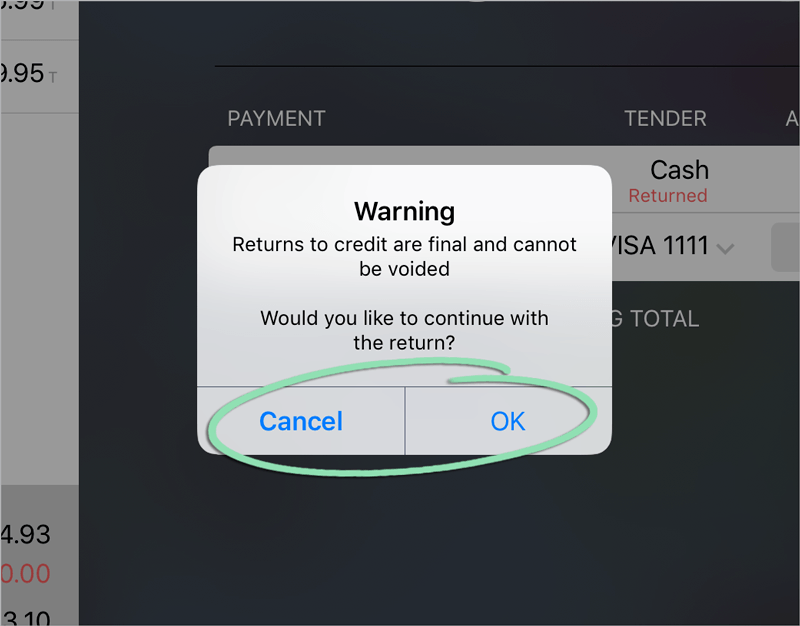
For credit payments, review the warning and tap Cancel or OK to proceed.
Credit return payments are final and cannot be voided after tapping OK.
-
Select a payment receipt option and tap Done, or tap No Receipt.
Payment receipts show only the amount refunded for specific payments. For a receipt listing the items on the return, print or email a transaction receipt (step 11).
- Repeat steps 5 - 8 for each remaining payment.
-
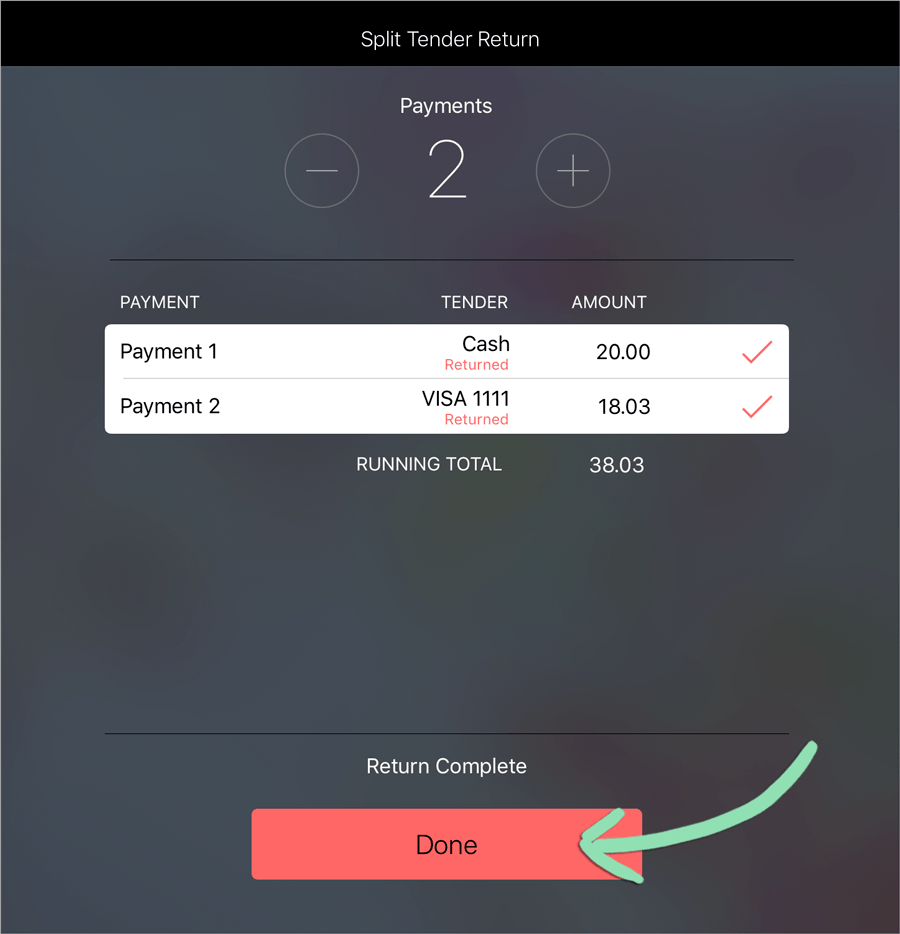
Once all payments are returned, tap Done to finish the return.
-
Select a transaction receipt option and tap Done, or tap No Receipt.
Transaction receipts show all items and payments on the return.
BackOffice reporting
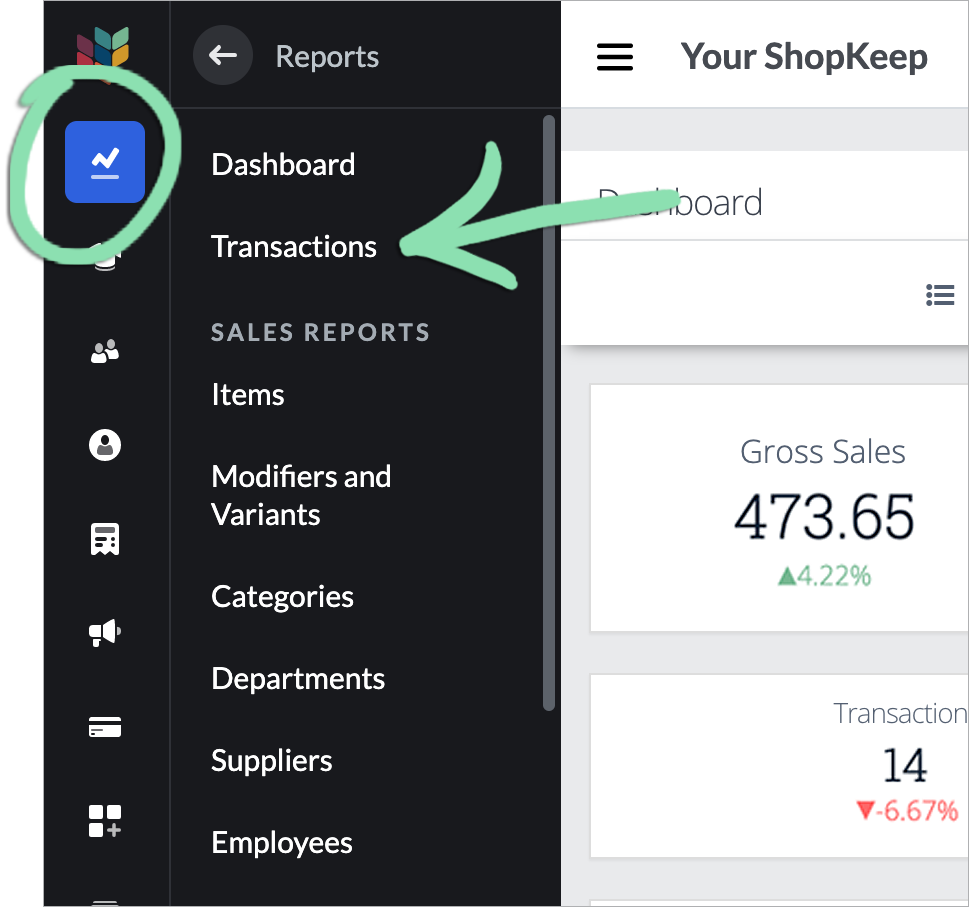
Use the Transactions report in BackOffice to view details of individual split tender transactions and download payment and transaction receipts.
-
In BackOffice, click Reports, then Transactions.
-
Click a split tender transaction to view additional details.

-
(Optional) Click Download Receipt to download a receipt for a specific payment or Download Transaction Receipt to download a receipt for the entire transaction.
- Payment receipts show only the amount tendered for specific payments.
- Transaction receipts show all items and payments on the transaction.
